 Help Center
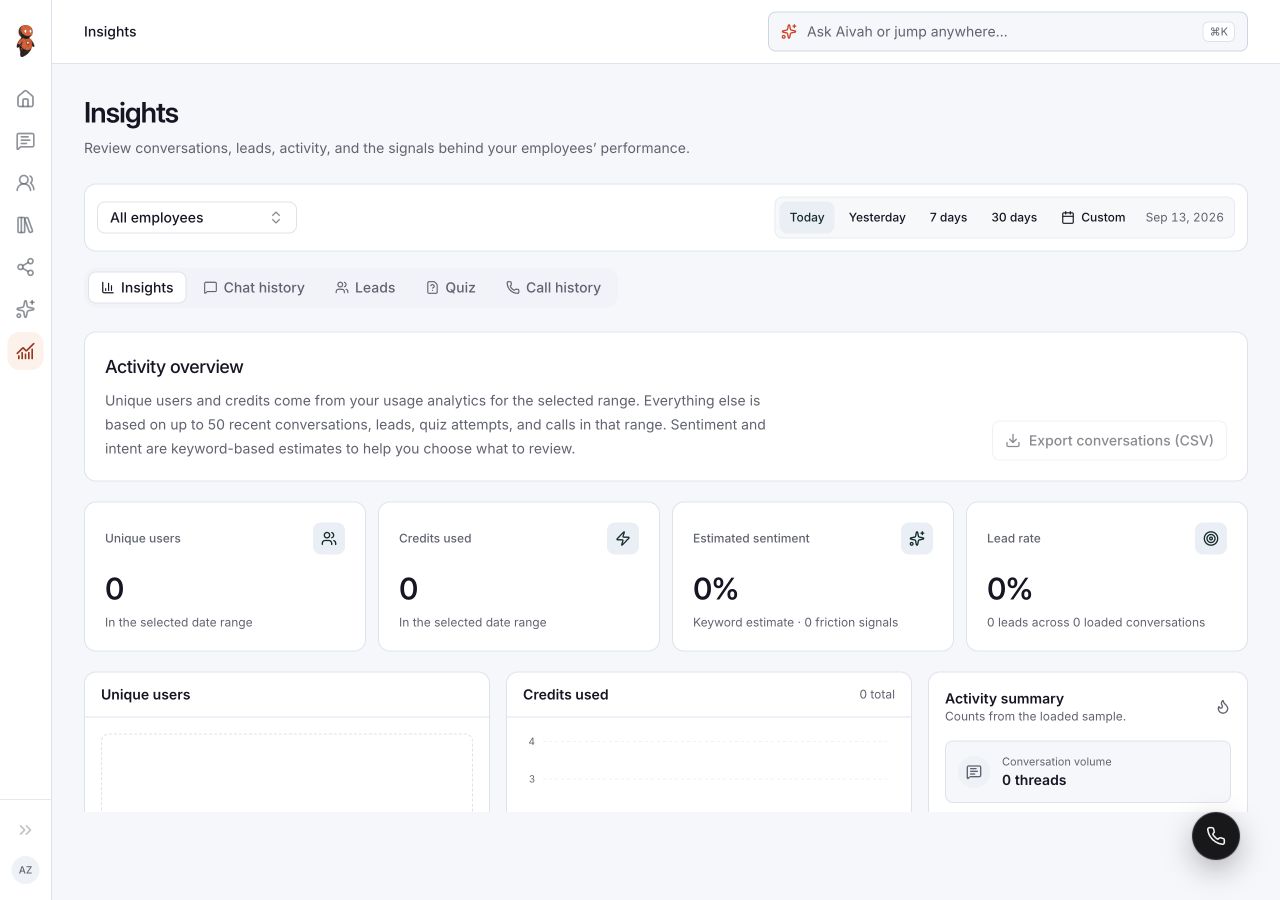
Use the detail tabs in Insights to look for conversations, leads, quizzes, and calls. Confirm the current scope before interpreting an empty view or using an export.
Before you begin
Know the employee, approximate time, and record type you need. Confirm your permission to review the information and prepare an approved destination if you will download it.
Steps
1. Set the scope in Insights
Select the employee or all employees and a date preset. For Custom, enter From and To, apply the selection, and verify the date range displayed afterward. An entered value alone is not evidence that a filter applied.
2. Open Chat history
Choose Chat history for the conversation view. Read any records or empty-state message available under the current filters. Do not assume this view includes every conversation from private Chat.
3. Open Leads
Choose Leads for the lead-results view. Confirm the employee and dates before investigating a missing submission. An empty view is not evidence that a visitor's submission succeeded or failed.
4. Open Quiz
Choose Quiz for quiz results. If results are available, inspect the record before interpreting a score or completion state. This guide does not define fields or outcomes that are absent from your current screen.
5. Open Call history
Choose Call history for call results. Use only the details the view actually provides. A missing record or transcript does not by itself prove that no call occurred.
6. Check export availability and contents
The Insights overview offers Export conversations (CSV). It can be disabled when there are no conversations available to export. A disabled control does not create a file.
If export is available, confirm the employee and displayed range before using it. Inspect the downloaded file's columns, dates, and record count against the intended scope. Do not label it a complete account export without confirming what it includes. The overview's sampling note is not an export specification.
 View full screenshot ↗
Expected result
You identify the appropriate result tab and its visible scope. Any export is separately checked for successful download and included records; the existence of a button is not proof of either.
Status meanings
An empty result describes the current view and filters. A disabled export is unavailable in that state. Loading, no matching records, and a failed request are different states and should be reported separately.
Usage credit impact
This article does not define a charge for reviewing or exporting records. Generating new test activity may use credits; do not create duplicate activity merely to populate a report.
Information stored or shared
Result views and CSV files may contain conversations or personal information. A downloaded copy leaves the original view. Store it appropriately and avoid sharing complete customer records in a support request.
Limits and permanent actions
Populated record layouts, transcript availability, export filters, pagination, and completeness depend on the actual view and must be checked before use. This guide does not promise retention or recovery of missing data.
Common problems and recovery
| Problem | What to check |
|---|---|
| Every tab is empty | Confirm employee and applied range; record the expected event's time and type for support. |
| A custom range shows old dates | Do not rely on the requested period until the displayed range matches it. |
| CSV export is disabled | Check whether the current view has conversations available; do not assume a file was generated. |
| A CSV has unexpected records or dates | Compare its contents with the selected scope and report the discrepancy before sharing it. |
Next step
Use Understand Insights to interpret the overview or contact support when the expected record or scope cannot be established.