 Help Center
Generated work has two main browsing areas: Create → Content studio → Your library and Library → AI Drive. Check the area used to create the work; they do not necessarily contain the same items.
Before you begin
Note the content type, title, creation time, source employee, and account used. Let any current generation finish before starting a replacement. Keep downloads in a location approved for the information they contain.
Steps
1. Check the source conversation
For work requested in Chat, reopen the relevant conversation and inspect its messages and result cards. Confirm the selected employee and original request. A draft attachment or pending result is not a completed file.
2. Open Content studio
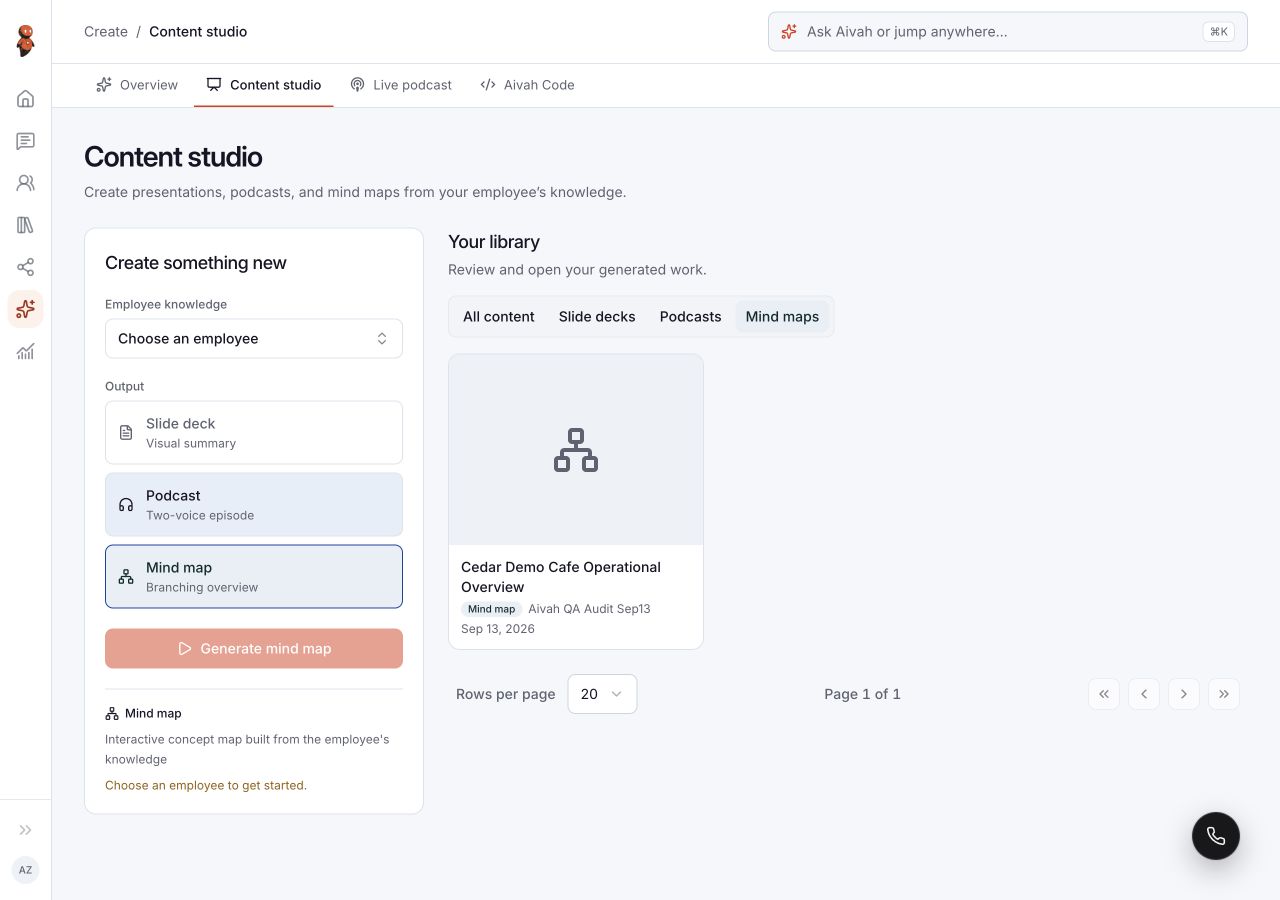
Choose Create → Content studio and find Your library. This is the place to review generated slide decks, prepared podcasts, and mind maps.
Start with All content and let the list finish loading. Choose Slide decks, Podcasts, or Mind maps to show that format. Confirm the selected filter and let its results settle before concluding an item is missing.
 View full screenshot ↗
3. Open Library → AI Drive
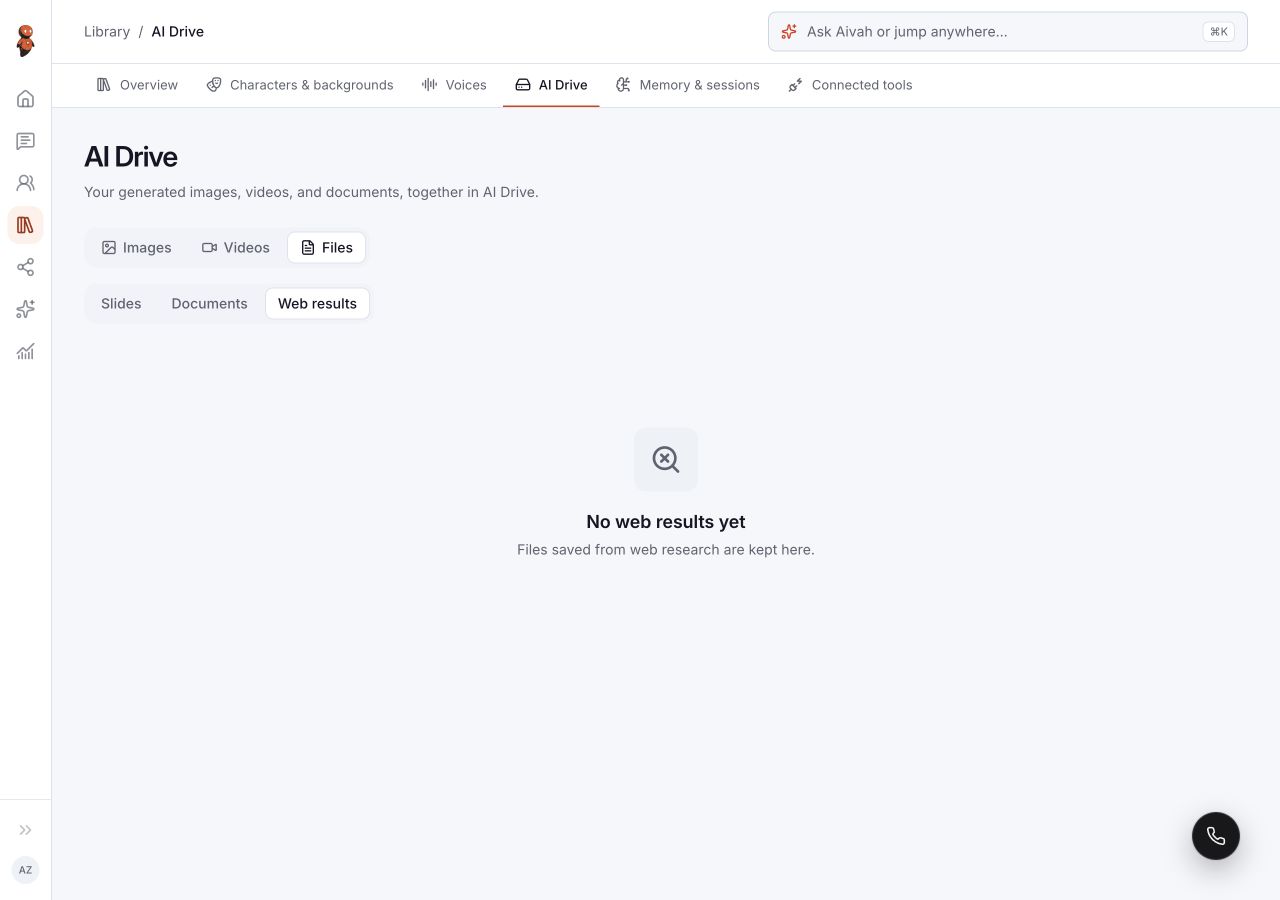
Choose Library, then AI Drive. Use Images, Videos, or Files. Within Files, use the available document, slide, and web-result categories. Read the current tab and item details rather than assuming every file is in one combined list.
 View full screenshot ↗
4. Open the item preview
Open the item you recognize. For images, inspect the larger preview. For videos and prepared podcasts, check that the media loads and use its playback controls. For Content studio slides and mind maps, compare the visible content with the source before sharing.
5. Check a downloaded copy
When the item offers a download or export action, confirm the intended format and destination. After downloading, verify the file type, title, and contents. Mind maps support SVG export. Other download controls can vary by item; a preview opening does not prove a download succeeded.
6. Compare the relevant views
If the item is missing, recheck the account, content type, and creation time in Content studio or AI Drive. For a Chat request, also check the original conversation. Record the visible state if the result still cannot be found.
Expected result
You identify the relevant library and inspect the intended item's preview. Any downloaded file is separately checked; finding an item in one view does not establish that it exists in another.
Status meanings
Loading your library is a loading state, not an empty result. A generation in progress is not ready for review. An empty filtered view describes the current selection, not every item in the account.
Usage credit impact
Creating a replacement may use credits. Check existing work before generating again. This guide does not define a charge for browsing or downloading stored items.
Information stored or shared
Libraries and conversation cards may contain generated content derived from employee knowledge and prompts. Downloads create copies outside Aivah. Review the actual contents before sharing a file or screenshot.
Limits and permanent actions
The available controls differ by content type. Do not assume search, renaming, bulk actions, export completeness, or recovery after deletion. Review an item's title and any deletion confirmation before removing it.
Common problems and recovery
| Problem | What to check |
|---|---|
| The library looks empty | Wait for loading to finish, confirm the account, and check All content or the relevant AI Drive tab. |
| A format filter shows nothing | Verify the selected filter and look for the item under All content before creating a duplicate. |
| A preview fails | Record the item title, type, time, and visible error. Do not assume the source is lost. |
| A download is unavailable or unexpected | Check the item's available controls and expected file type; report the mismatch without sharing private content. |
Next step
Review Content studio generation and output checks, or contact support with the item type, time, and safe reproduction steps.