 Help Center
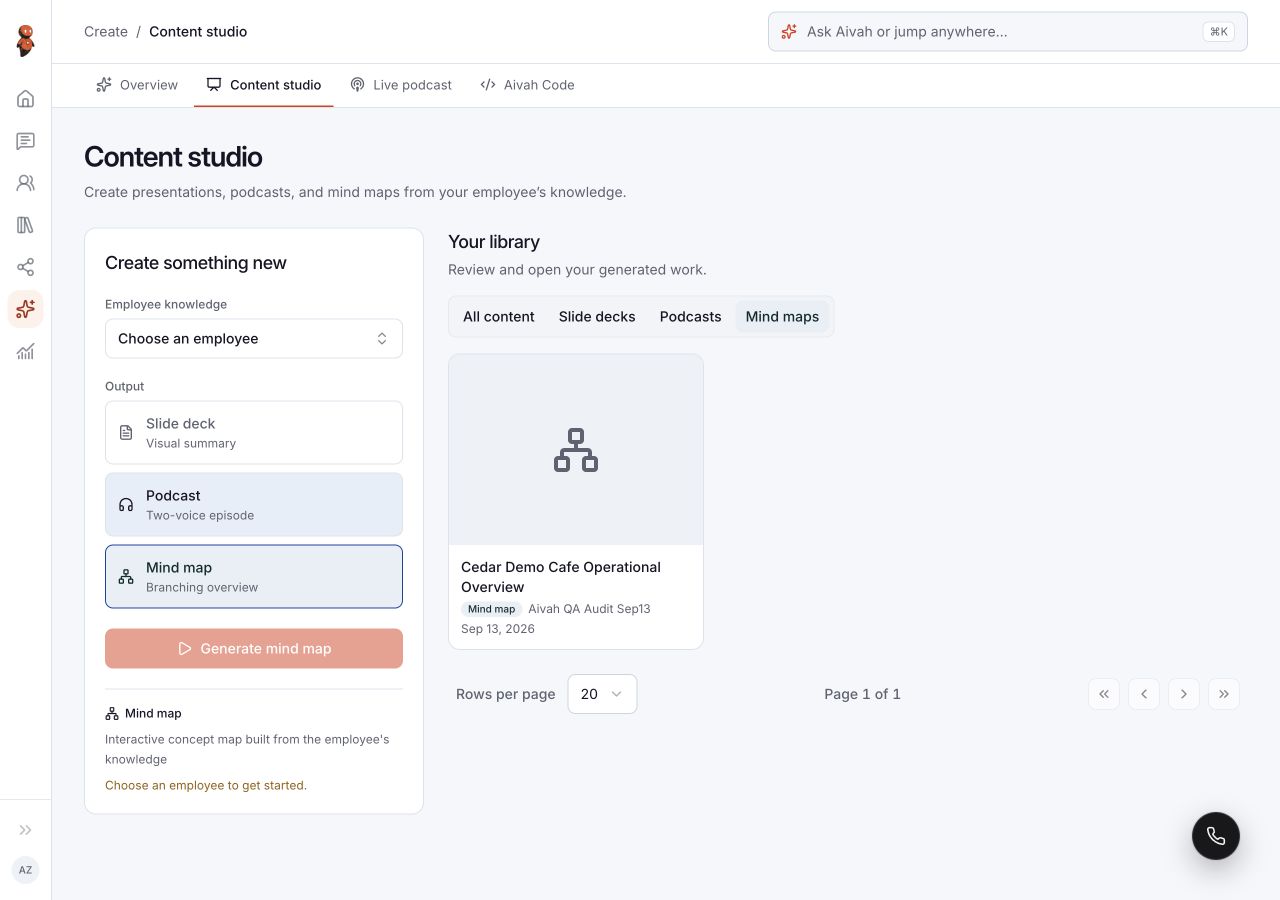
Open Create → Content studio to generate content from an employee's knowledge. A prepared podcast here is separate from the two-host session in Live podcast.
Before you begin
Choose an employee with completed knowledge sources, then check that the source contains the facts you need. Completed confirms preparation finished; it does not establish that an answer or generated asset is accurate. Decide the audience and purpose, and review the usage information in your account.
Steps
1. Open Content studio
Choose Create, then Content studio. The page has Create something new and Your library.
2. Select employee knowledge
Select the source employee under Employee knowledge. Wait for the readiness check. If the employee or a source needs attention, open Employees and review its Knowledge tab before continuing.
3. Choose the output type
Select Slide deck, Podcast, or Mind map. The generation button changes with the selected format.
 View full screenshot ↗
4. Configure a slide deck
Open Deck settings. Choose a design system, a target deck length, and a Design prompt. Describe the audience, structure, and visual direction. Use Save deck settings to retain the settings or Cancel to close without saving them.
A target length is guidance for generation. Check the actual page count and every page in the finished deck.
5. Configure a prepared podcast
Select Podcast, then open Podcast settings. Choose an Episode format, length, Host and Expert voices, and Episode direction. Save the settings before generating. The requested duration is approximate; use the finished player's duration to review the actual result.
6. Choose a mind map
Select Mind map to create a branching overview of the selected employee's knowledge. Check the employee selection before proceeding.
7. Generate once
Choose Generate slides, Generate podcast, or Generate mind map. Follow the visible progress and check Your library before submitting another request. A job can remain in preparation after the initial action.
8. Open and review the result
Open the completed item in Your library.
- Slide deck: read every PDF page. Check legibility, facts, figures, and claims against the source. Malformed text and unsupported figures can occur; an open PDF is not evidence that it is ready to publish.
- Podcast: use play/pause, the timeline, and the ten-second back/forward controls. Listen for accuracy, pronunciation, pacing, and voice distinction before sharing. Ask a question opens a separate flow that requires playback and Join voice; ordinary playback does not establish a voice connection.
- Mind map: expand or collapse branches and use zoom/reset to inspect the structure. Use the SVG export control to save a copy, then check its labels and completeness.
9. Handle incorrect output
Compare the incorrect statement with the original source. Correct missing or conflicting knowledge where needed. If the source is already correct, preserve the result and report the mismatch; regenerating or changing instructions is not a guaranteed fix.
Expected result
The selected format appears in Your library and its preview opens. Review establishes whether the content is usable; successful generation alone does not establish accuracy, readability, or suitability for publication.
Status meanings
Checking indicates that readiness is still being evaluated. Loading your library means the list has not finished loading. A completed employee or source is available for testing, while a visible generated item still needs its own content review.
Usage credit impact
Generation and additional attempts may use credits. Check current account values and avoid duplicate requests while a job is pending. This guide does not define a fixed price or allowance.
Information stored or shared
The selected knowledge and settings inform the generated result. Completed items appear in Content studio's library. An SVG or other downloaded copy is stored outside Aivah and may contain source information.
Limits and permanent actions
Content studio and Library → AI Drive are separate views. Do not assume an item appears in both. Available formats, models, voices, and length options can change. Review the confirmation before deleting an item; this guide does not establish a restoration path. Voice Q&A requires a separate microphone session.
Common problems and recovery
| Problem | What to check |
|---|---|
| Generate is disabled | Confirm the employee selection and visible readiness state. |
| A result has not appeared | Let the library finish loading and check existing items before generating again. |
| A slide has garbled text or unsupported numbers | Keep it out of published material and report the exact page and source discrepancy. |
| A podcast is silent | Check the play state, volume, and browser audio settings; record any player error. |
| A mind map omits detail | Compare expanded branches with the source; export does not guarantee that every source fact is included. |
Next step
Use Find generated work to locate the item again, or Run a Live podcast for a live two-host session.