 Help Center
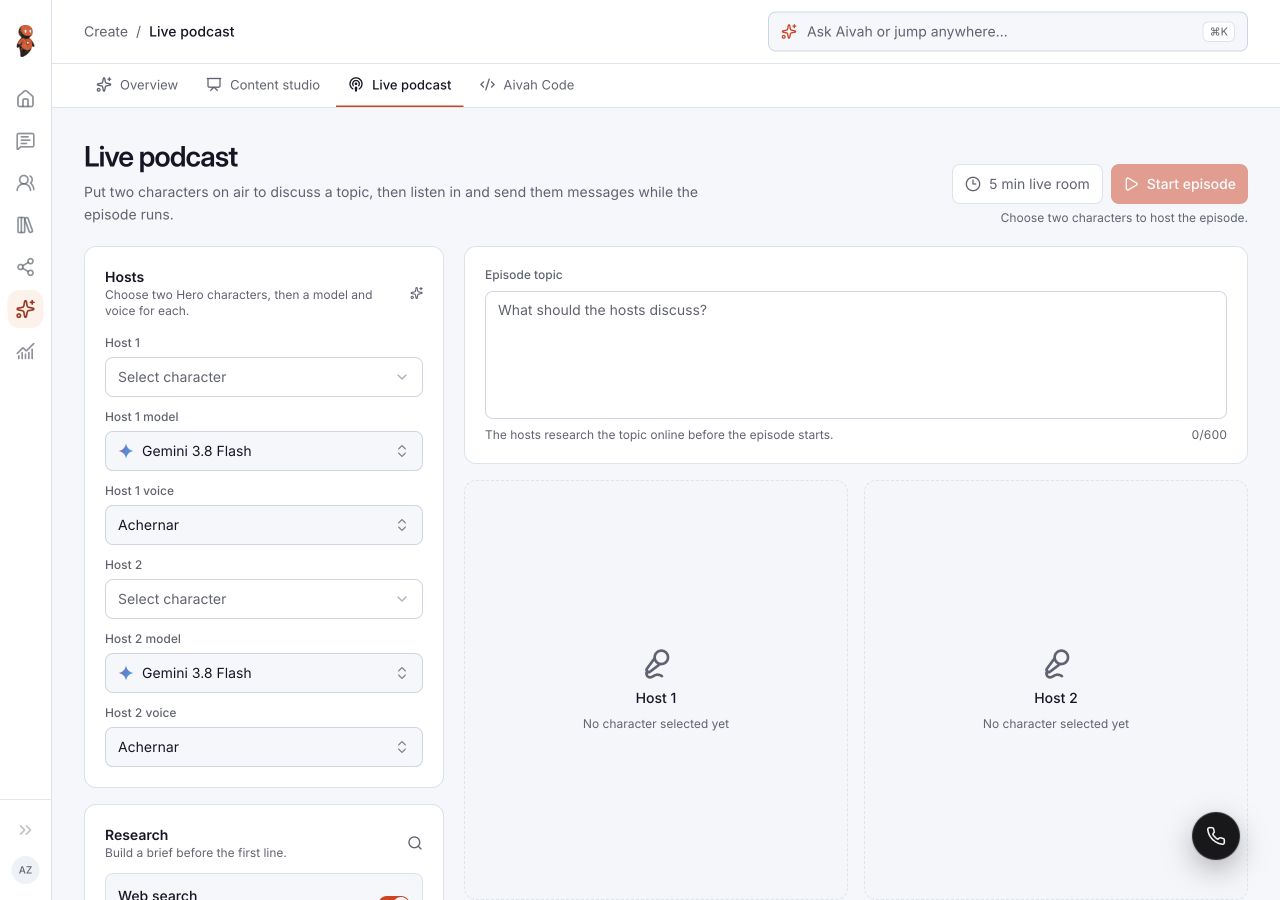
Use Create → Live podcast for a two-host discussion. Each host has a character, model, and voice. For a prepared audio asset generated from employee knowledge, use Content studio → Podcast instead.
Before you begin
Prepare a topic with the context the hosts need, choose suitable Hero characters, and check the current usage information. The setup does not select a saved employee, so include the relevant context in the topic. Keep separate notes if you need lasting takeaways; do not assume a recording or transcript will be available.
Steps
1. Open Live podcast
Choose Create, then Live podcast. Review Hosts, Research, and Episode topic before starting.
2. Choose both hosts
Set Host 1 character and Host 2 character. Select a model and voice for each host. Choose distinguishable voices for the discussion; selecting them does not establish how the finished audio will sound.
 View full screenshot ↗
3. Enter the episode topic
Describe the subject, audience, useful questions, and boundaries. Include needed facts directly instead of assuming saved employee knowledge is attached.
4. Review Web search
Check the Web search switch explicitly; it may already be on. Use the setting that matches your topic. If outside research is used, verify any resulting factual claims before reusing them.
5. Start the episode
Choose Start episode once after the required choices are complete. Wait through Connecting and look for the hosts' active states. The interface's live label alone does not confirm that both hosts are connected or audible.
6. Follow the session and send a message
Watch the remaining-time display and host states such as Speaking and Listening. When Message to the hosts becomes available, enter a short message and choose Send message. Confirm it appears in the session. Its appearance does not guarantee that a host has answered it.
7. End the episode
Choose End episode when finished, and confirm that the setup screen returns. Keep any needed notes before leaving. Check that audio has stopped on your device.
Expected result
You can configure both hosts, start the session, submit an available listener message, and return to setup with End episode. Listen to the actual discussion before judging audio quality, host distinction, or the accuracy of a response.
Status meanings
Connecting means a host is still establishing the session. Speaking and Listening indicate the host's current interface state. Disabled message controls are not ready for input. Use the displayed timer for the current duration rather than assuming every episode has the same limit.
Usage credit impact
Live sessions and research may use credits. Check the current values in your account and avoid repeatedly starting sessions while one is connecting.
Information stored or shared
The session uses the topic, host selections, and listener messages you provide. Web search adds outside information when enabled. Recording, transcript retention, and replay availability are not established by the live screen.
Limits and permanent actions
A host animation or status is not proof of audible playback or accurate answers. Do not depend on the session remaining accessible after ending it. This guide does not cover microphone participation, recording, automatic timeout behavior, or a guaranteed recovery for connection failures.
Common problems and recovery
| Problem | What to check |
|---|---|
| Start is disabled | Check both host selections and the required topic. |
| A host stays on Connecting | Preserve the status and time; use End episode if you want to stop the attempt. Do not start overlapping attempts. |
| Messages are disabled | Wait for the active session state and record any connection error. |
| No audio plays | Check the player/device volume and browser audio settings. A Speaking label alone does not prove sound is playing. |
| A statement is wrong | Verify it against an approved source and exclude it from shared notes. |
Next step
Use Content studio for a prepared podcast, or review characters and voices.