 Help Center
Your slides and videos become a teacher that answers back. A Presenter is an employee that walks learners through each lesson. It takes questions along the way and checks understanding with a quiz.
Before you start
- Up to 10 PDFs or videos, in the order you want to teach them.
- The Hobby plan or higher, to share it on your website or by link.
Steps
1. Hire a Presenter
Open Employees → Hire employee and turn on Presenter. You choose this when you hire, so start a new employee for your course. See Create your first AI employee.
2. Add your lessons
Add your PDFs or videos under Lessons, in teaching order. You can add or change lessons later on the employee's Knowledge tab.
3. Set the teaching style
With Presenter on, the Skills section suggests teaching skills for checking understanding and guided tutoring. Keep them. Then add this to its instructions and adjust it:
You are a friendly trainer for [audience]. Present each lesson clearly and check in with the learner after every few slides. Answer questions from the lesson material, then carry on where you left off. At the end, run the quiz and explain any answer the learner got wrong.
Copying doesn’t change anything in your workspace.
4. Rehearse in Chat
When its status shows Ready, start a new chat with your Presenter and choose Start presentation. Interrupt with a question, move between lessons and take the quiz yourself.
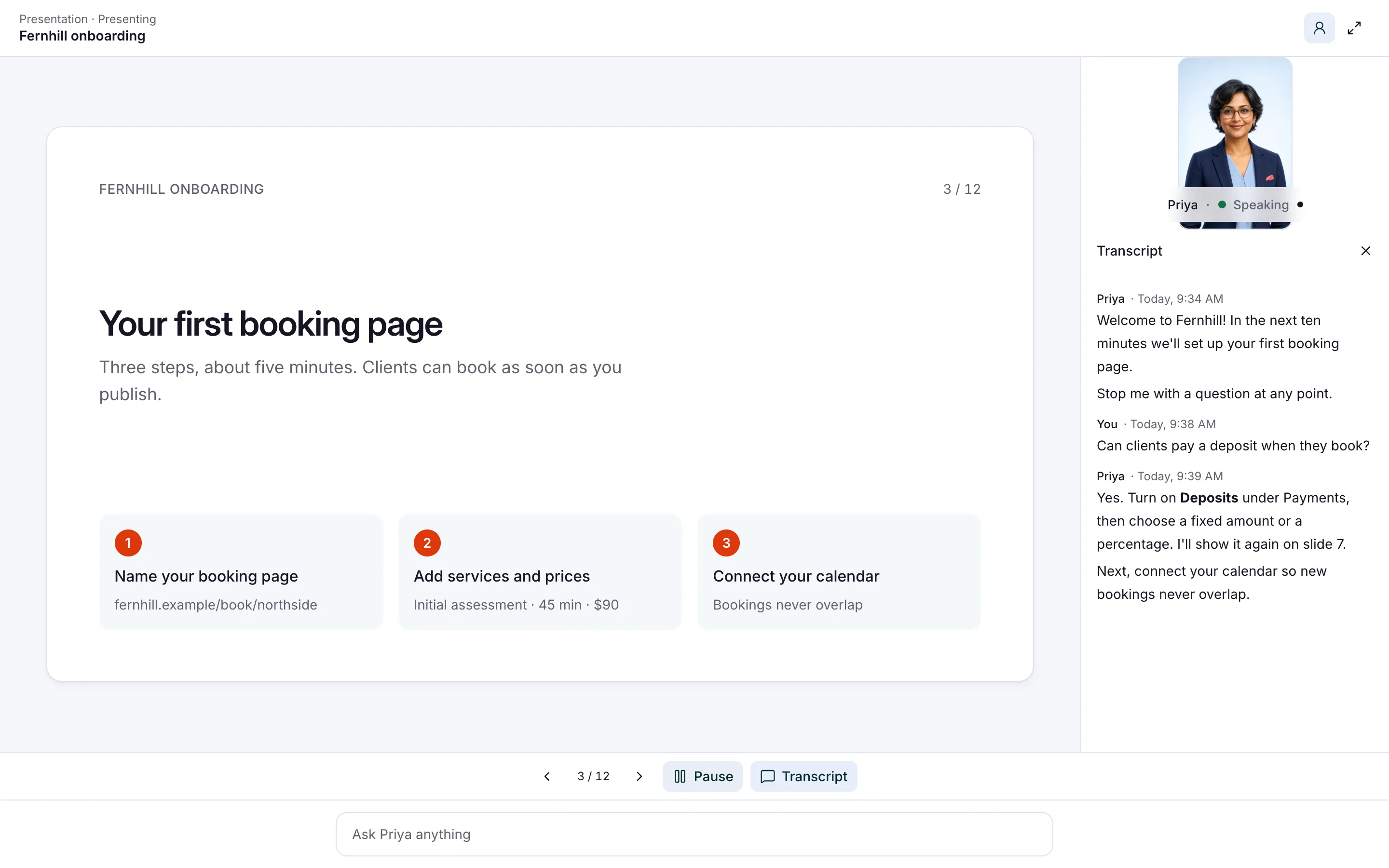 View full screenshot ↗
5. Share it
Create a web experience (your employee, packaged for a link or your website) in Deploy → Web & embeds. Choose Direct link or Iframe embed as the link type, and publish it. Send the link to learners, or embed it on your course page. See Choose a direct link, embed or chat bubble.
6. Check results
Open Insights → Quiz to see every attempt. Open Chat history to read the questions learners asked.
Good to know
Give your presenter a face from your own photo with a Hero character. You can also give it a voice clone of your lead trainer, with their permission.
Troubleshooting
- The Presenter option is unavailable when editing: Presenter is set when hiring. Hire a new employee with it turned on.
- A lesson is skipped: check the file finished processing on the Knowledge tab.
- Learners can't find the chat bubble option: Presenters use a direct link or an embed. Both give lessons room on screen.