 Help Center
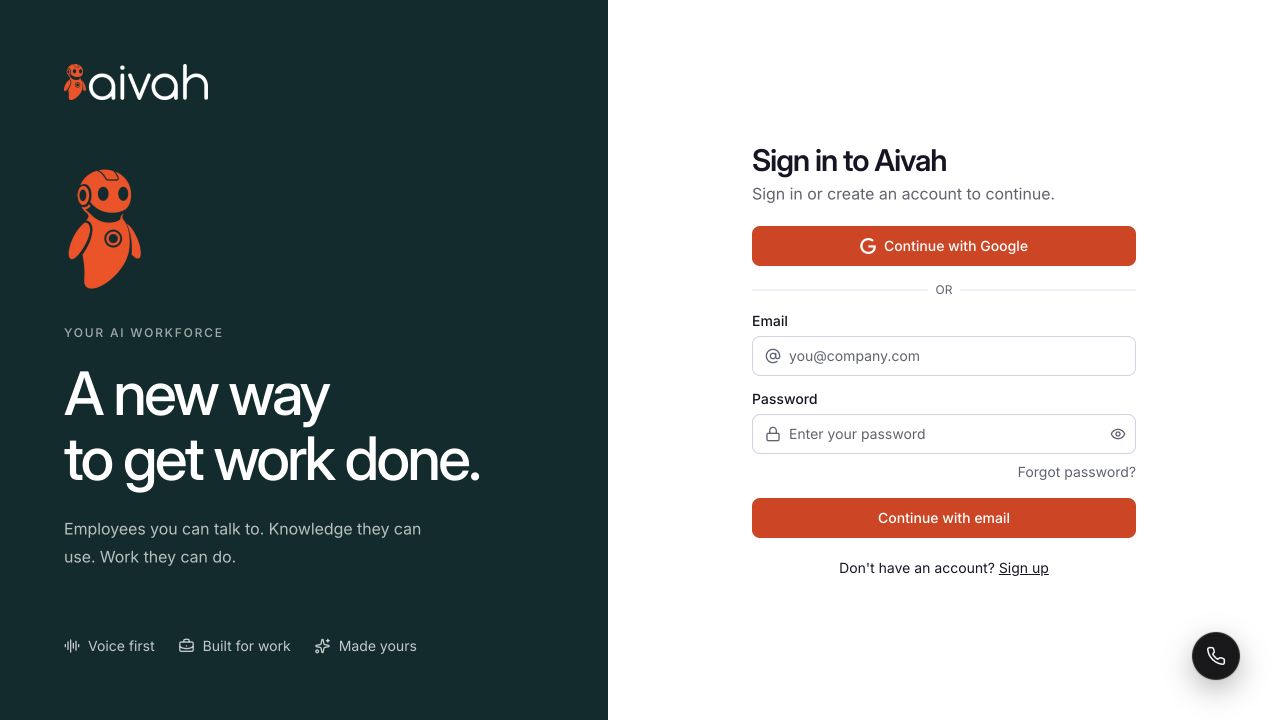
Use Sign in to Aivah for an existing account. The same page links to Sign up and Forgot password?.
Before you begin
Have access to the account's email address or Google account. Use the sign-in method associated with your existing account before attempting a new registration.
Steps
1. Choose a sign-in method
For Google sign-in, choose Continue with Google and complete the provider's prompts. For email sign-in, enter Email and Password, then choose Continue with email.
Use the password visibility control only when nobody else can see your screen. An empty or invalid email produces validation feedback; complete the required fields before submitting again.
 View full screenshot ↗
2. Prepare a new account
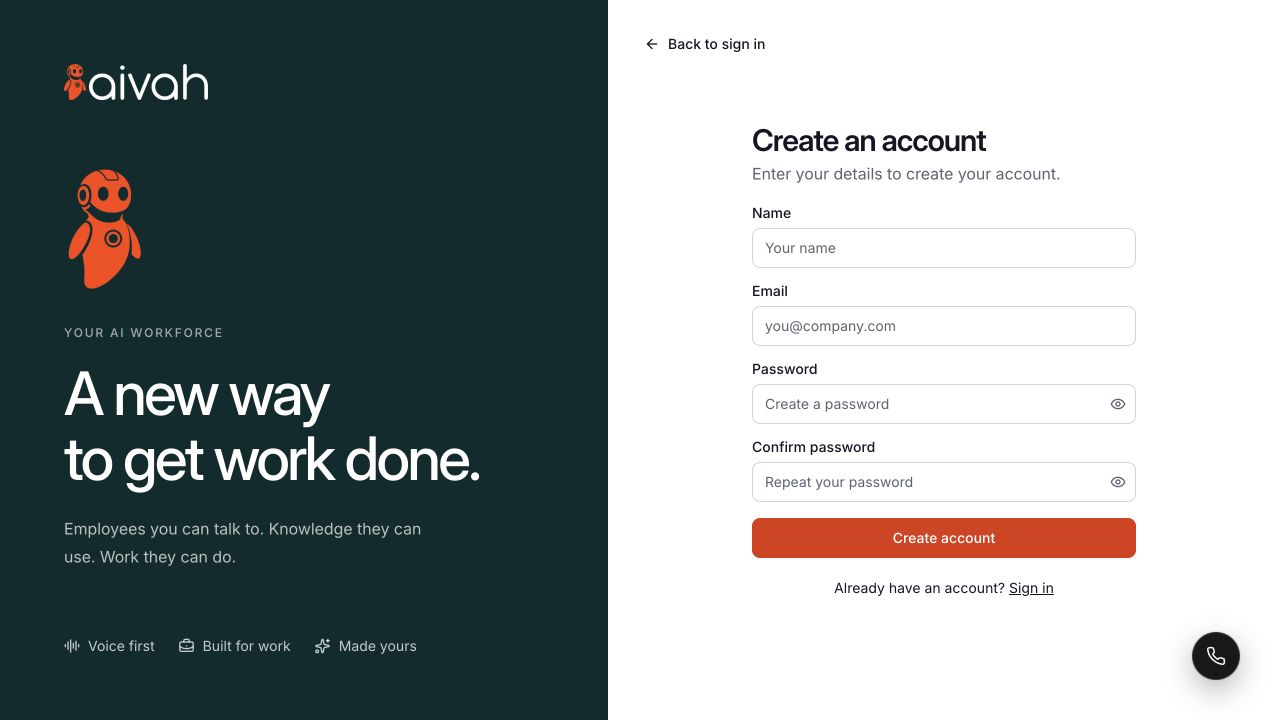
Choose Sign up to open Create an account. Enter Name, Email, Password, and Confirm password. The form requires a password of at least eight characters. Check both password fields before choosing Create account.
Read the next screen before continuing. Registration, email verification, and any first-time setup are separate from filling in this form; this guide does not prescribe a particular onboarding sequence.
 View full screenshot ↗
3. Request a password reset
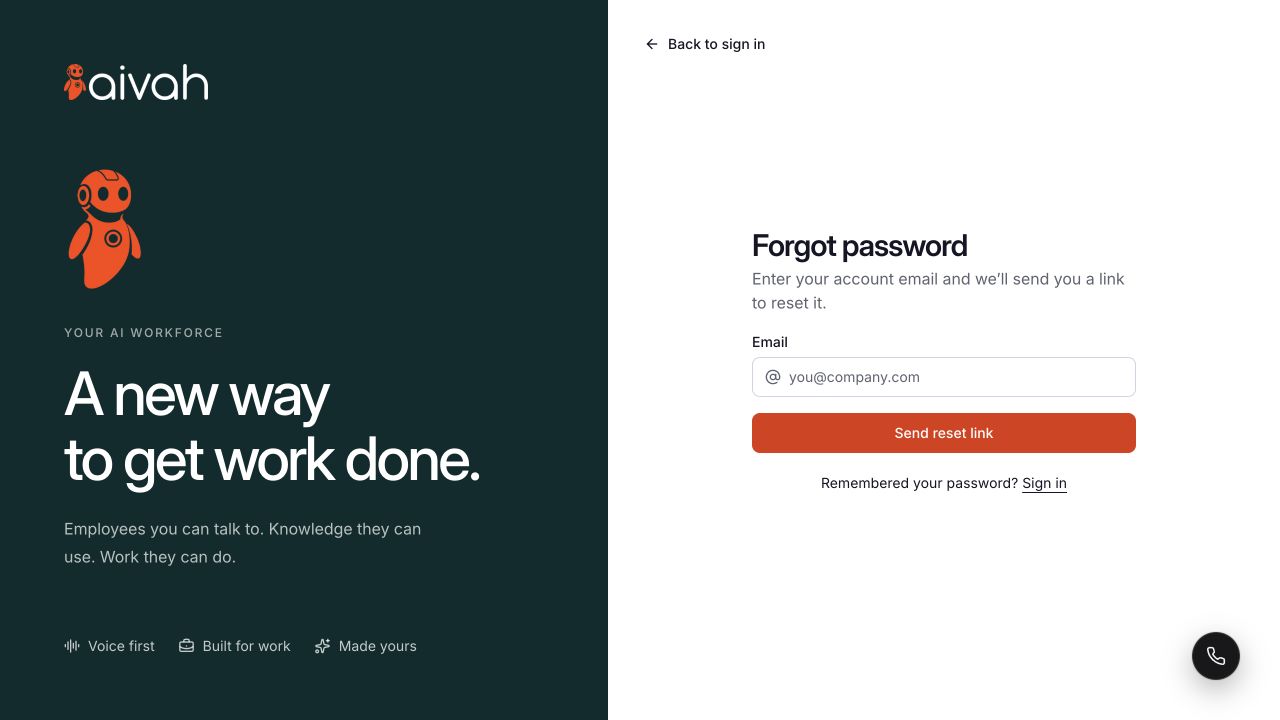
Choose Forgot password?, enter your account email, and select Send reset link. Follow any confirmation or error shown on screen. A valid email field alone does not confirm that a reset email was delivered.
If your account uses Google, use Continue with Google to sign in rather than assuming it has a separate Aivah password.
 View full screenshot ↗
4. Continue to the workspace
After sign-in completes, use Home or Employees to continue. To create an employee manually, open Employees → Hire employee.
Expected result
You can find and complete the appropriate sign-in, registration, or reset form. Confirm successful access by reaching your workspace; confirm a reset by following the delivered email and completing its steps.
Status meanings
Validation beside a field means the form needs correction. A provider prompt or a loading state is still part of sign-in. A network error does not confirm that the account was created or that access was completed.
Usage credit impact
Check Plans, credits, and billing before starting paid activity. This guide makes no promise about registration credits or plan inclusions.
Information stored or shared
Registration submits the name, email, and password fields you enter. Google sign-in uses the Google account you select. Never include passwords or reset links in support screenshots.
Limits and permanent actions
Do not create duplicate accounts to work around a temporary sign-in error. Account creation, verification, reset delivery, and onboarding can require additional steps beyond the forms described here.
Common problems and recovery
- A field is rejected: use the displayed validation message to correct it.
- Google sign-in reports a network error: check whether the workspace opened, then retry the same sign-in method if needed. If the error continues, record its text and time for support.
- A reset email has not arrived: check the address you entered and your mail folders; do not treat form submission as proof of delivery.