 Help Center
The main navigation has seven areas: Home, Chat, Employees, Library, Deploy, Create, and Insights. On a narrow screen, use the sidebar toggle to open navigation.
Before you begin
Sign in to your workspace. Some areas may be empty until you create an employee, add a resource, or complete an activity.
Steps
1. Find building and appearance controls
Open Employees to use Hire employee, browse All employees, Local knowledge, Presenters, or Training & issues, and open an employee's details. Details contain Overview, Knowledge, Tools, Deployments, and Activity.
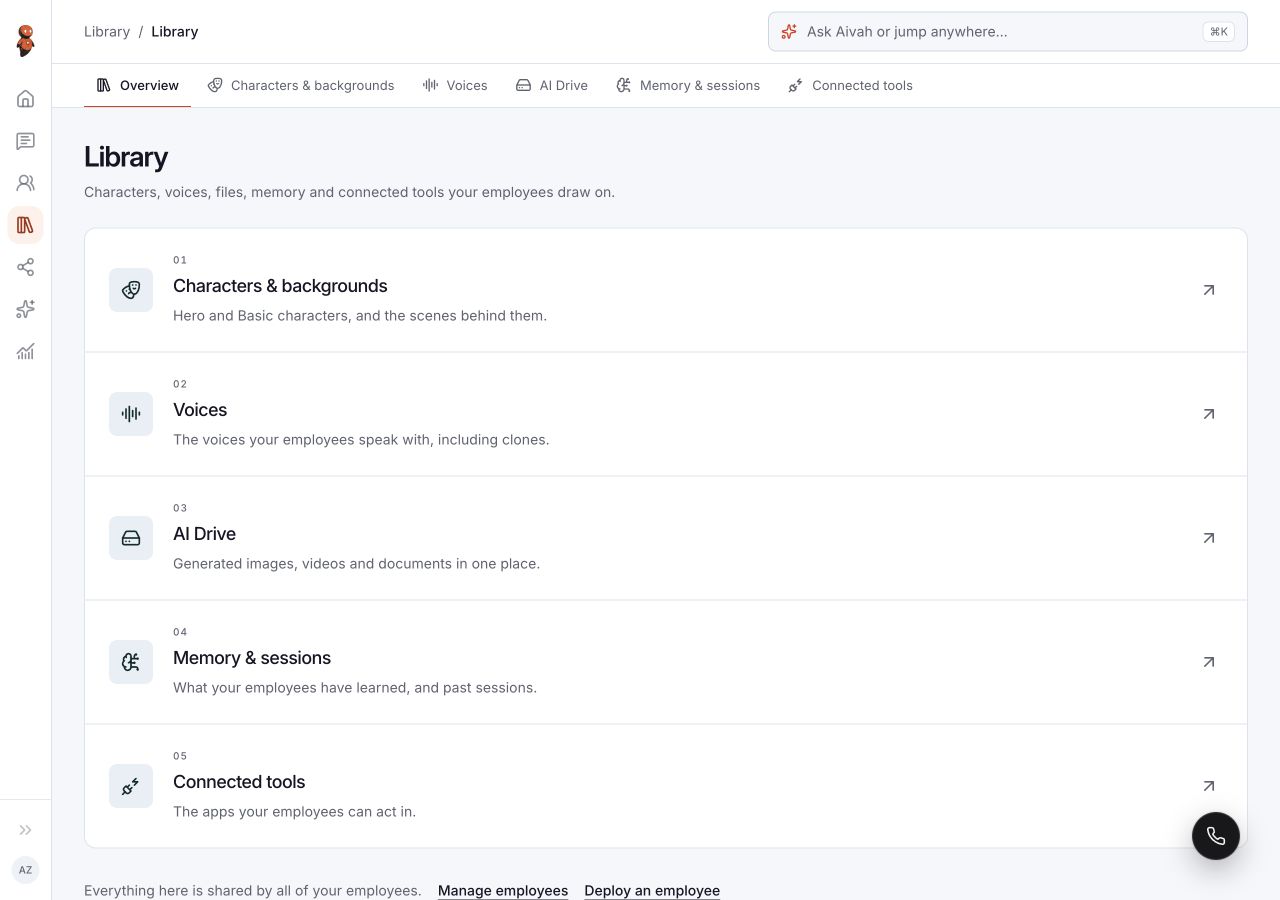
Open Library for reusable resources:
| Library area | What to find |
|---|---|
| Characters & backgrounds | Hero and Basic catalogs, character forms, and backgrounds |
| Voices | Voice library and Create voice |
| AI Drive | Images, Videos, and Files |
| Memory & sessions | Memories and Sessions |
| Connected tools | All apps, Connected apps, and custom MCP setup |
 View full screenshot ↗
2. Find private conversations
Open Chat to choose an employee and start a conversation. Conversation settings contains appearance, model, and voice choices. The conversation list contains search and history controls. Home provides starting points for common work.
3. Find publishing controls
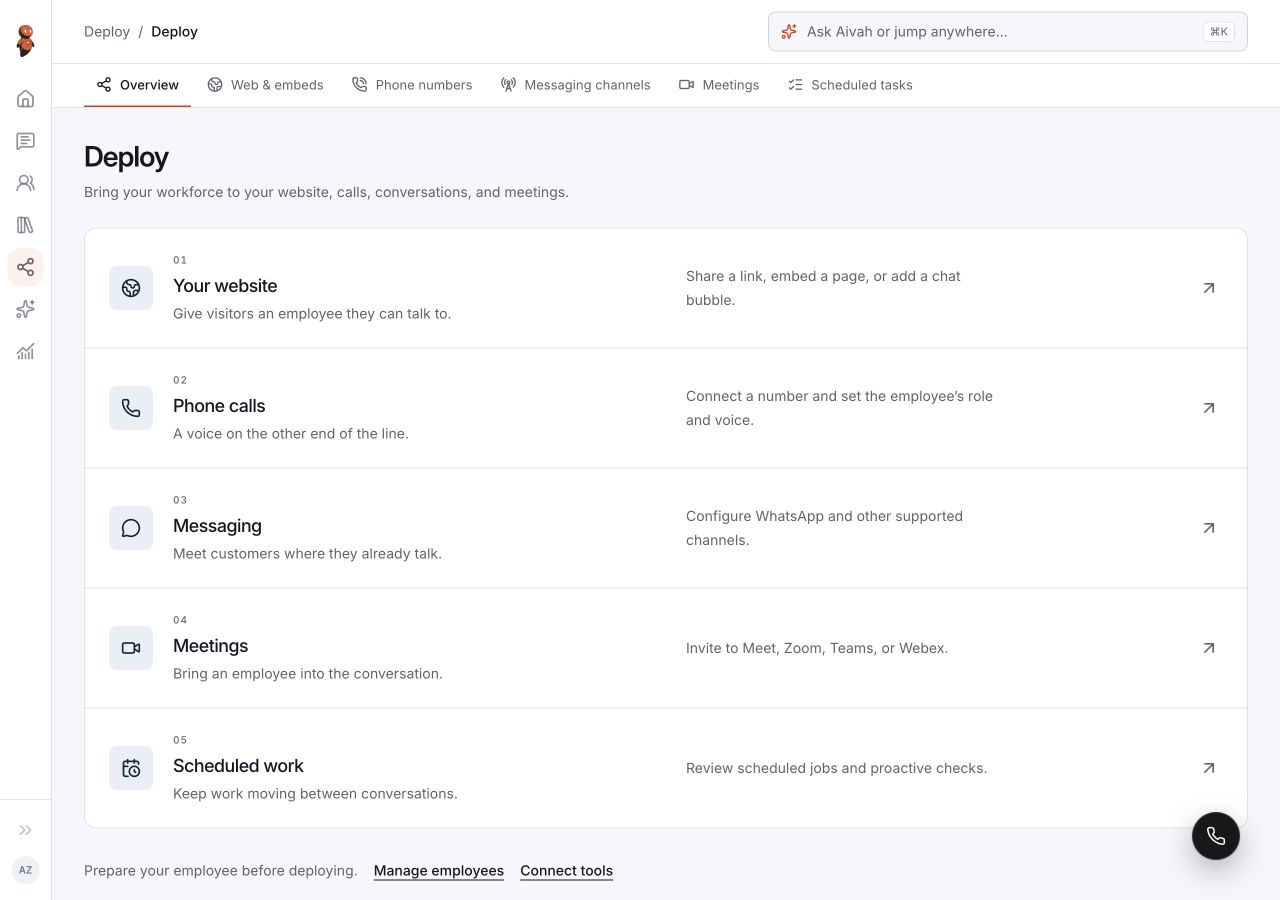
Open Deploy → Web & embeds to prepare a direct link, iframe embed, or chat bubble. Creating a draft and confirming that visitors can use a published experience are separate steps.
 View full screenshot ↗
4. Find content and application tools
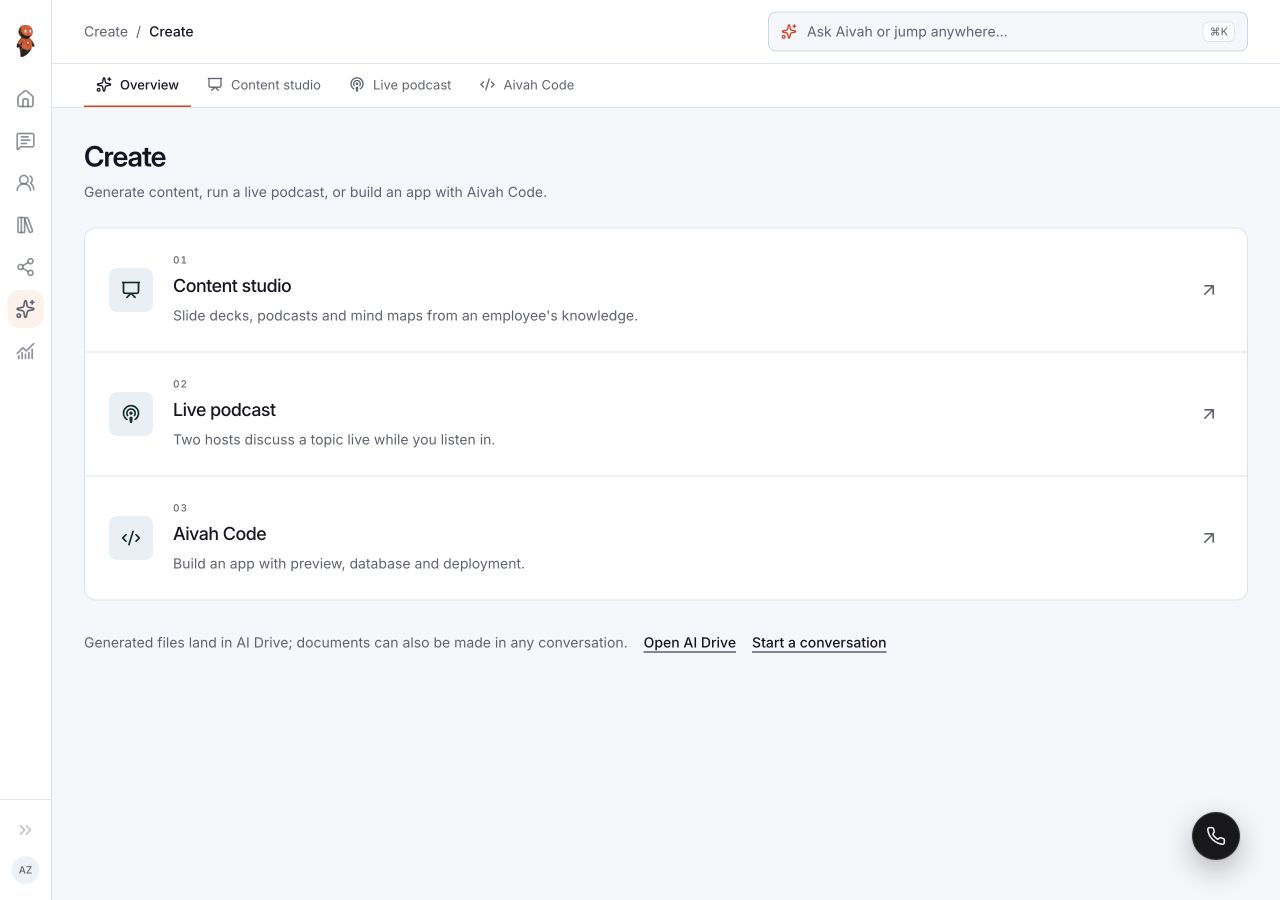
Open Create and choose Content studio, Live podcast, or Aivah Code. Content studio offers slide decks, podcasts, and mind maps. Its Your library is separate from Library → AI Drive.
 View full screenshot ↗
5. Find integrations and recurring work
Deploy also contains Phone numbers, Messaging channels, Meetings, and Scheduled tasks. Scheduled tasks has Scheduled actions and Recurring checks. Connect external apps through Library → Connected tools before assigning the tools an employee needs.
6. Find results
Open Insights for Insights, Chat history, Leads, Quiz, and Call history. Check the employee and date filters before interpreting a result. Empty views do not establish whether another channel or date range has records.
7. Open your account menu
Use the account control at the bottom of the sidebar for profile, personalization, plans and credits, theme, and sign-out controls. See Profile, password, and account for account details.
Expected result
You can find the relevant workspace area without relying on older labels such as Customization, Shared, or Productivity.
Status meanings
Empty lists mean no items are shown in that view. Loading and Connecting mean a view or session is still preparing. A status in one area does not confirm completion in another.
Usage credit impact
This tour does not set a credit price for workspace features. Check any displayed charge and your balance before starting a conversation, generation, or connected action.
Information stored or shared
Navigation can reveal existing employee names, records, connection details, and account information. Exclude those details when sharing a screenshot for help.
Limits and permanent actions
A resource library, an employee's configuration, and a deployed experience serve different purposes. Check the selected area and item before editing or deleting anything.
Common problems and recovery
- A familiar label is missing: use the seven-area navigation map above.
- A section is empty: check its filters and whether the required employee or resource exists.
- A control is offscreen: scroll the page or open the mobile sidebar; do not assume it is unavailable.