 Help Center
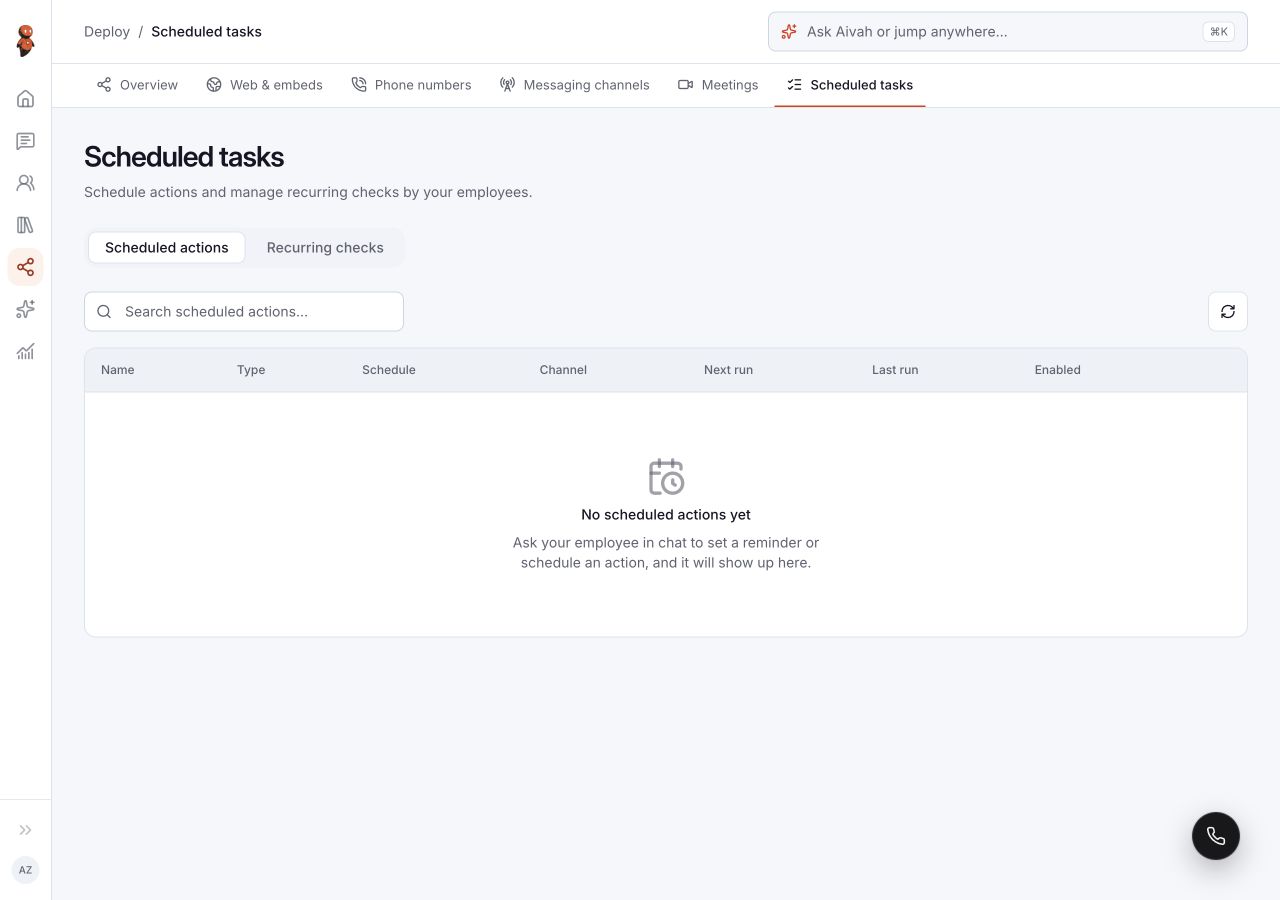
Use Deploy → Scheduled tasks to review Scheduled actions and Recurring checks. The empty states direct you to ask an employee in Chat to create a reminder, schedule an action, or keep checking something.
Before you begin
Identify the purpose, timing, time zone, destination, and employee responsible for the work. Review any connected service it might use. A scheduled request that sends a message or changes a record needs the same care as performing that action immediately.
Steps
1. Open Scheduled tasks
Choose Deploy → Scheduled tasks. Select Scheduled actions for reminders and scheduled actions, or Recurring checks for ongoing monitoring requests.
 View full screenshot ↗
2. Review Scheduled actions
Use Refresh scheduled actions after a scheduling request. The table has Name, Type, Schedule, Channel, Next run, Last run, Enabled, and Actions columns.
If it says No scheduled actions yet, open Chat and ask the intended employee to set up the work. Include when it should run and where any result should go. Review the employee's response and return here to check for the corresponding item before depending on it.
3. Review Recurring checks
The Recurring checks tab shows the recurring schedule summary and a Checks table with Check, Priority, Status, Created, and Actions.
Use Refresh recurring checks to update the view. If it says No recurring checks yet, ask an employee in Chat to keep an eye on the specific subject. Define what change matters and when the monitoring should stop.
4. Check the outcome before relying on the work
Match the visible item to the intended request. Review its timing, channel, and state. When a run occurs, check the actual destination or service as well as the task view. If its result is unclear, inspect that destination before requesting another run.
Expected result
You can distinguish scheduled actions from recurring checks and locate any corresponding work created through Chat. A request is ready to rely on only after its saved schedule and actual result match your intent.
Status meanings
The recurring summary can show On even when the Checks table is empty. It describes the recurring schedule, not proof that a check exists or has succeeded. Next run and Last run describe timing; review the result separately.
Usage credit impact
Repeated work can trigger employee activity or outside services. Review current usage information and choose a schedule appropriate to the job. This guide does not define a per-run cost.
Information stored or shared
The request may contain a subject, instructions, timing, and destination. A run can use connected services or messaging channels. Avoid including secrets in the request or sending unnecessary private information to a destination.
Limits and permanent actions
The empty views do not provide a creation form; they point to Chat. Item-specific controls depend on the work shown. Read any confirmation before changing or removing an item, and do not assume stopping future work reverses an earlier outside action.
Common problems and recovery
- An item is missing: check both tabs, refresh, and review the scheduling response in Chat.
- The timing is wrong: compare the request, time zone, and displayed schedule before relying on the next run.
- The summary is On but nothing runs: check whether the Checks table contains the intended check.
- A run has an unexpected result: stop requesting more runs, inspect the affected service, and collect the item name and approximate time for support.
Next step
Review connected tools used by the work, or return to Chat to describe the intended schedule.