 Help Center
Set your house style once, and every file your employees create follows it. Reports come out in your colours, decks in your fonts and videos in your brand's voice. Generation preferences keeps every format on one page.
Before you start
Have your brand colours and your brand font to hand. Colours can be hex codes such as #DD370C, or names such as teal.
Steps
1. Open Generation preferences
Open the account menu and choose Generation preferences. You can also choose Change default style under any file your employee creates in Chat. It takes you straight to that format.
2. Pick a format
Choose PDF, Word, Excel, PowerPoint, Image or Video from the list of formats.
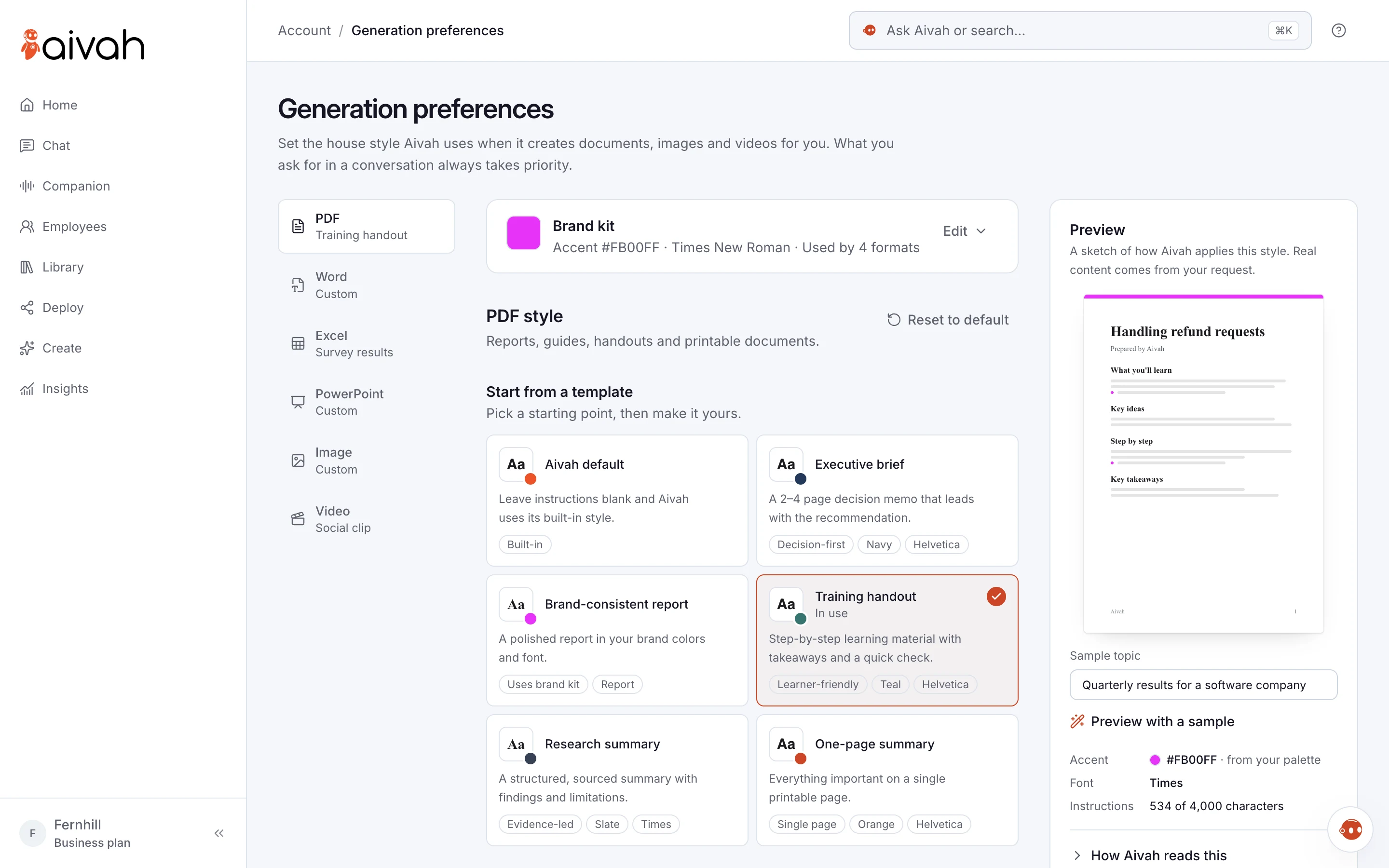 View full screenshot ↗
3. Start from a template
Under Start from a template, keep Aivah default or choose one of five templates for the format. Examples are Executive brief for PDFs and Investor deck for PowerPoint. If you apply a template over your own text, Aivah asks first. Undo brings your text back.
4. Write your instructions
Describe what Aivah should always do in this format, such as "Lead with a one-paragraph summary and end with next steps." Choose Ask Aivah for a draft, or Improve with Aivah to polish yours. Review it before you use it. Write [COLORS] or [FONT] to reuse the colours and font you set below.
5. Choose how videos are made
For Video, choose the Video engine. Aivahframe makes a one-to-five-minute motion explainer. Or choose a short cinematic clip from Grok or Veo.
6. Set colours, font and brand kit
Under Colors and font, add your colours. The first one becomes the accent. Then choose your font. PDFs use Helvetica, Times or Courier, and Aivah picks the closest match for other fonts. Use Brand kit to set your accent, colours and font once, and apply them to the formats you choose.
7. Preview and save
Preview shows a sketch of your style, with the accent and font Aivah will use. Choose Preview with a sample to see real content. Choose How Aivah reads this to see exactly what's sent with each request. Then choose Save preferences.
Good to know
A saved style applies straight away, even to a conversation that's already running. Anything you ask for in a conversation, such as "make this one dark", takes priority over your defaults.
Troubleshooting
- A PDF uses a different font: PDFs support Helvetica, Times and Courier. Aivah uses the closest match for any other font.
- Your colours don't show: check the first colour is a valid hex code or colour name, then save.
- Nothing changed: choose Save preferences. Nothing changes until you save.
Next steps
Ask your employee for a document in Chat and see your new style.