 Help Center
A skill is reusable know-how for one kind of work, such as qualifying a lead or writing a follow-up. It says when to use it, the steps to take and the rules to follow.
You can use skills three ways. Turn one on for every new conversation, give one to a specific employee, or pick one for a single message in Chat.
Before you start
- Hire at least one employee. See Create your first AI employee.
- Think about the work that comes up most, such as pricing questions, demo follow-ups or support requests.
Steps
1. Browse the skills catalog
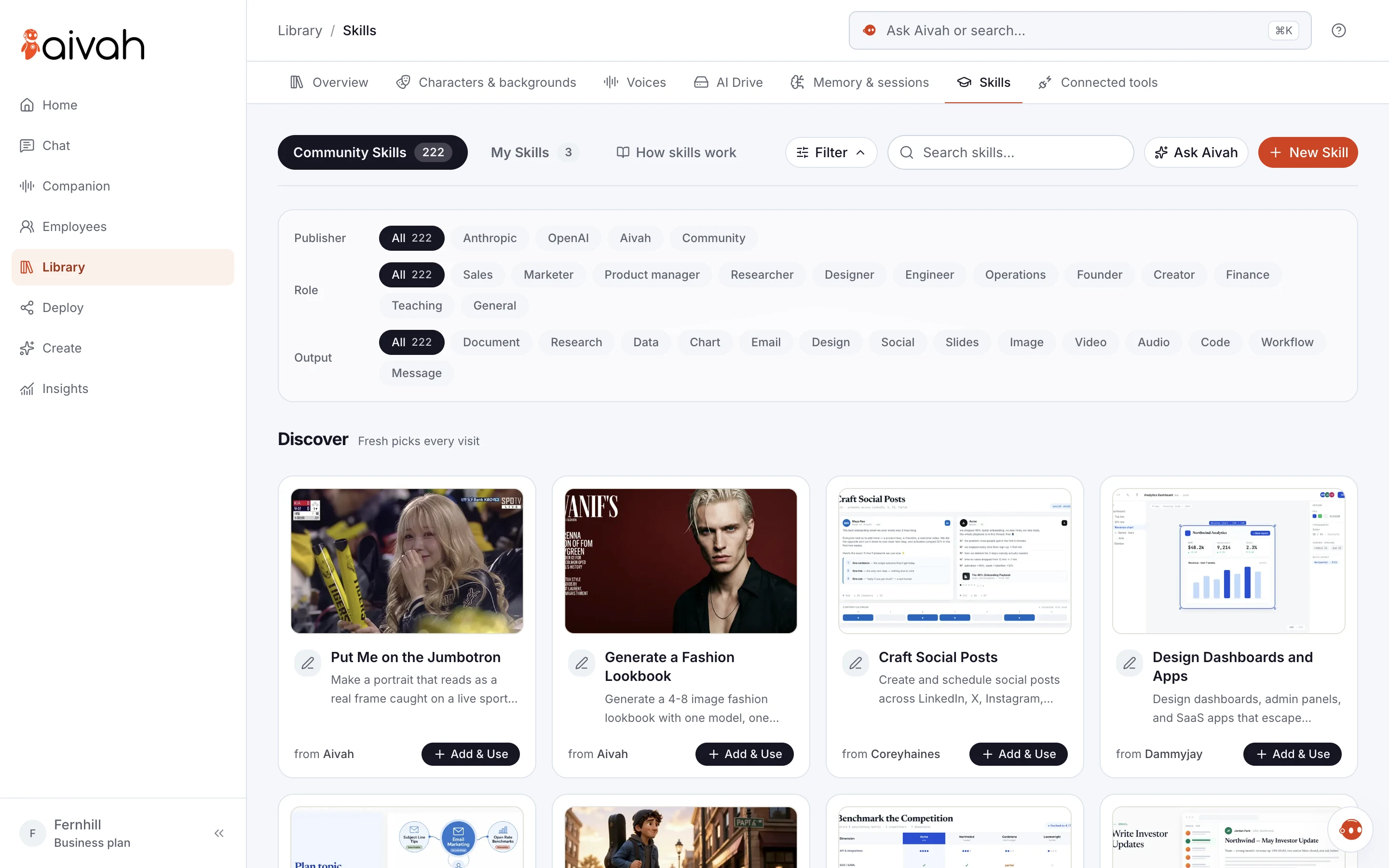
Open Library → Skills. Community Skills shows ready-made skills for sales, marketing, support, research, operations, teaching and more. Type in Search skills... to find one. Or choose Filter to narrow the list by role, or by what you want back, such as a document, an email or slides.
 View full screenshot ↗
Open a skill to see What it does:, When to use: and its Examples. Select an example to copy it. You'll also see the full Instructions (SKILL.md). Works best with lists the apps the skill can use, and marks the ones you've already connected.
2. Use a skill in every new conversation
Choose Add & Use on a skill. It shows Enabled and joins My Skills. There, Enabled skills lists every skill that applies to new conversations in your account. To stop using one, remove it from My Skills.
3. Pick a skill for one message in Chat
Find the message box in Chat or Companion. Next to the attachment button, choose the skills button (Select one skill to use on each message). It lists your enabled skills, each with a short command. Choose one and it shows next to the button. One skill applies to each message, and choosing another replaces it.
Prefer the keyboard? Type / and the start of a skill's command, then choose the skill from the list. See Chat with your employee.
4. Give an employee its own skills
Open Employees, open the employee and choose its Skills tab. Choose Add skill, then pick skills from the catalog or from your own. Suggested for your employee lists skills that match its instructions and persona. Each employee can have up to six skills, and every add or remove offers Undo.
When you hire, the Skills section suggests skills for the role template you chose. You can change them any time after hiring. If a skill and the employee's instructions ever disagree, the instructions win.
5. Write your own skill
Choose New Skill in Library → Skills, or Create skill on an employee's Skills tab. Under Create skill with AI, describe what you need and the steps to follow. Or paste a standard operating procedure (SOP). Then choose Draft with AI.
Aivah drafts the whole skill. Choose Refine with AI to change it with another instruction. Then review the fields:
- Name: up to 60 characters, such as "Appointment booking".
- Use when: the kind of request it's for, in up to 240 characters.
- Instructions: the steps and rules, in up to 1,500 characters.
- Example requests: up to three.
- Works best with: the connected apps it should use, if any.
In Library → Skills, finish with Save and choose employees. The skill is turned on for new conversations and appears in My Skills. On an employee's Skills tab, the same button adds the skill to that employee.
To start from a catalog skill instead, open it and choose Customize. Not sure what to write? Choose Ask Aivah on the Skills page and describe the work.
6. Try it
Skills apply from the next conversation. Start a New chat, pick the skill if you like, and send one of its Examples. Your employee follows the skill's steps.
Good to know
Some skills use apps, such as scheduling with a calendar or saving drafts in your email. They work best once you connect those apps.
Troubleshooting
- A skill isn't in the Chat list: the list shows your enabled skills. Choose Add & Use on it in Library → Skills first.
- You can't add another skill to an employee: it already has six. Remove one on its Skills tab first.
- Aivah asks you to shorten the instructions: an employee's instructions and skills share a size limit. Remove a skill or shorten the instructions.
- The employee is in an active session: end the call or conversation, then change its skills.
- Aivah says a skill looks similar to one you have: keep the one that fits best. Two skills for the same kind of request can confuse your employee.
- Nothing changed in Chat: start a new chat. Skills apply to new conversations.
Next steps
Connect the apps your skills work best with, then test and improve your employee.