 Help Center
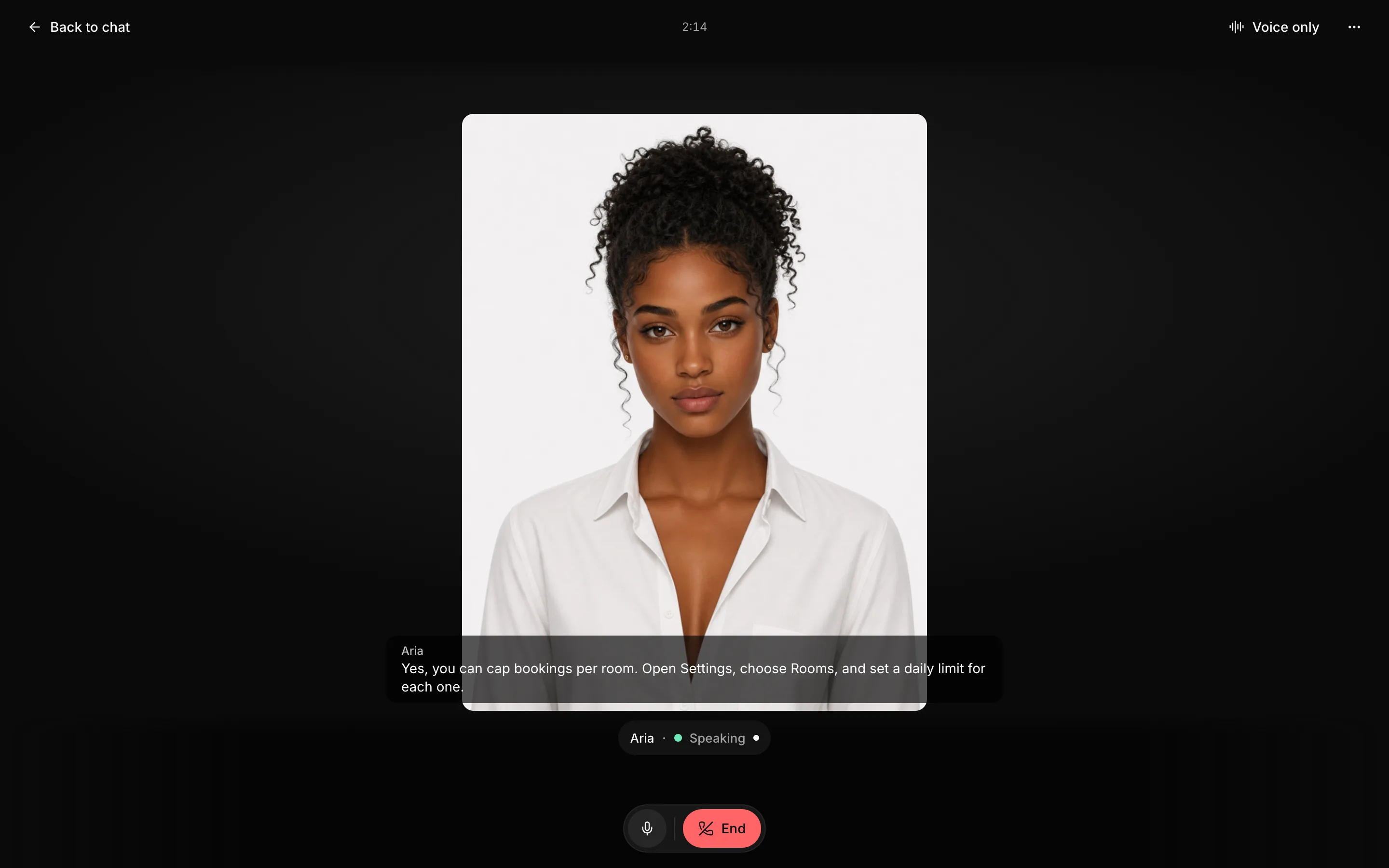
Companion is where you talk to your employee face to face. It puts your employee's character on a lit stage, ready to talk. Speak naturally, switch to voice only when you just want to listen, and keep the call going while you move around Aivah.
Before you start
- Choose or create a character in Library.
- Use headphones in a quiet room for the best calls.
Steps
1. Open Companion
Open Companion and start a new companion conversation. In the message box, choose the employee, model, voice and character.
2. Start voice
Choose Start voice. Your browser asks for the microphone only now. Talk naturally, and your employee answers out loud with its character on stage.
 View full screenshot ↗
3. Choose how it looks
Turn on Voice only to hide the character and just talk. Use Video options to change the size of the character's tile and where it sits on screen. Or choose Hide employee to give the page more room.
4. Follow along
Open Transcript to read the conversation as it happens. Call duration shows how long you've been talking. Choose Mute microphone whenever you need a moment.
5. Keep talking while you work
A live call keeps running when you open another page, so your employee can help while you work. A live indicator takes you back to the call, or lets you end it.
6. End the call
Choose Leave voice to stop talking and carry on by text, or End call to finish. Signing out also ends a live call.
Good to know
Voice calls come with the Starter plan and up. They use credits while they run. See plans and credits.
Troubleshooting
- Your employee can't hear you: allow the microphone for app.aivah.ai in your browser's site settings. Then choose Start voice again.
- You can't hear a reply: check your device volume and output, then try another voice.
- The character doesn't appear: turn off Voice only, and check a character is selected.
- The call stops responding: choose End call and start again.