 Help Center
Insights combines usage information with summaries of recent records. Start by checking the employee, date range, and metric explanation before using a number to make a decision.
Before you begin
Choose the employee or all employees, the period, and the question you want to investigate. Use the same scope when comparing periods. Confirm that you may review any conversation or personal information involved.
Steps
1. Open Insights
Choose Insights from the main navigation. The tabs are Insights, Chat history, Leads, Quiz, and Call history.
2. Choose the employee and date range
Use the employee selector and Today, Yesterday, 7 days, 30 days, or Custom. Custom opens From and To fields with an apply action.
After any selection, read the range actually displayed on the page. If it does not match the dates you entered, do not use the results as that custom period. Record the mismatch and use only a range you can confirm.
3. Read Activity overview with its scope
The page explains two different sources for the overview:
- Unique users and Credits used come from usage analytics for the selected range.
- Other overview signals use up to 50 recent conversations, leads, quiz attempts, and calls in that range.
Sentiment and intent are keyword-based estimates intended to help you choose what to review. They are not direct measures of a person's feelings or verified business outcomes.
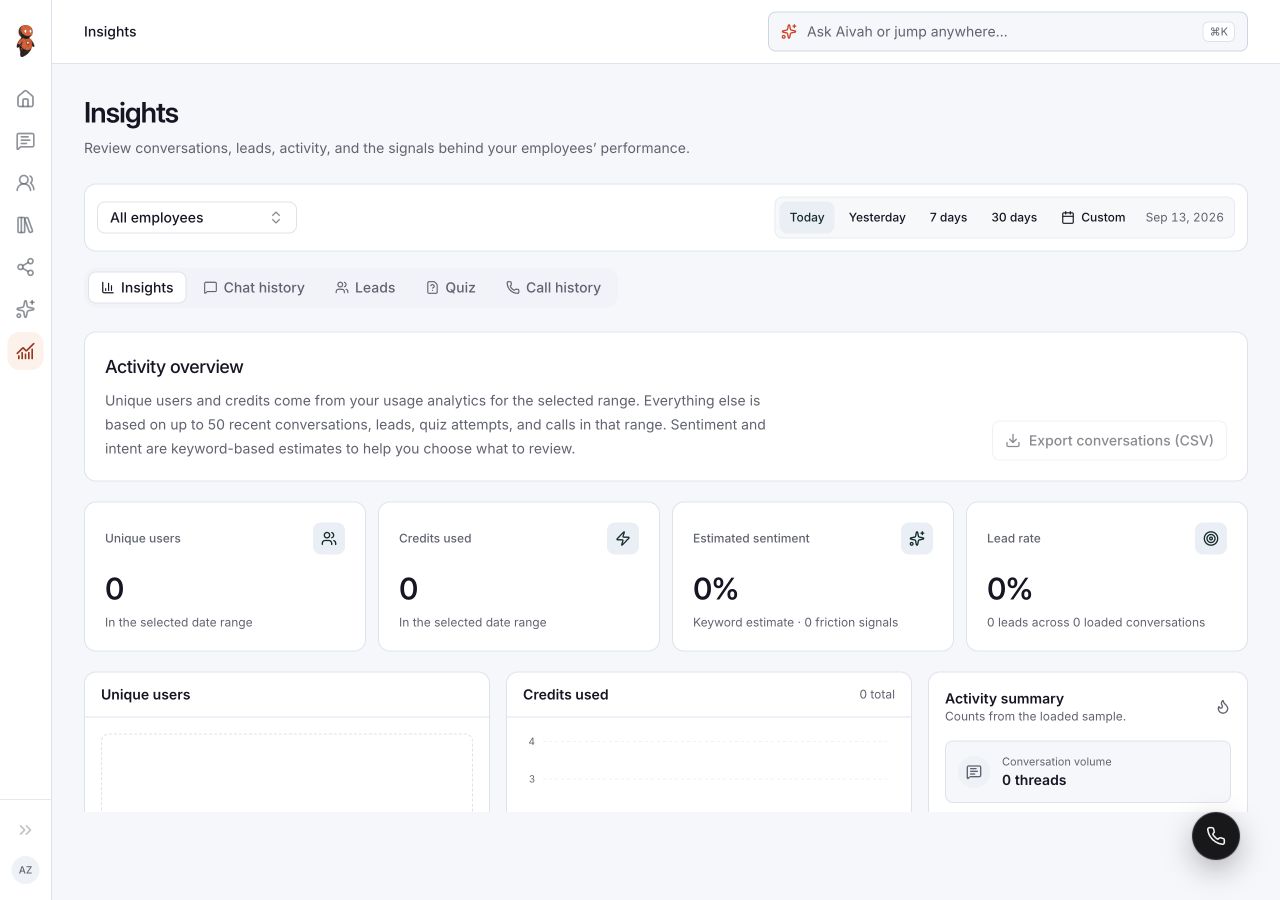 View full screenshot ↗
4. Inspect the review signals
Use Conversation topics, Activity summary, Review queue, and Suggested review to choose examples to investigate. “Nothing needs review in this sample” describes the loaded sample; it does not mean all activity in the account is problem-free.
5. Check the relevant records
Open Chat history, Leads, Quiz, or Call history. Compare any available records with the question you are investigating. Empty detail tabs do not establish that all activity or every private Chat conversation is included in the selected view.
Expected result
You can state the selected employee and visible date range, distinguish usage metrics from sampled signals, and identify which underlying records are needed to support a conclusion.
Status meanings
An empty view applies to its current scope. A review suggestion is a prompt to inspect examples. Keyword-based estimates and sampled counts should not be described as complete account totals.
Usage credit impact
Credits used shows usage analytics for the selected range. This guide does not establish per-action rates, refresh timing, or the exact inclusion of every activity type.
Information stored or shared
Insights can display activity and personal information from conversations, leads, quizzes, and calls. Keep review focused on the question and protect any records or screenshots you share.
Limits and permanent actions
The up-to-50-record limit applies to the sampled overview signals, not a published definition of every detail table or export. Time-zone behavior, ingestion delay, private Chat inclusion, and export completeness must not be inferred from an empty screen. Overview labels are not guarantees of a business outcome.
Common problems and recovery
| Problem | What to check |
|---|---|
| A total looks unexpected | Confirm the employee and displayed date range, then read the metric's usage or sample basis. |
| Custom dates do not apply | Record the entered and displayed dates; do not describe the data as the requested period. |
| A private Chat conversation is missing | Preserve its time and employee details for support; do not infer whether it is included or delayed. |
| A sentiment or intent label seems wrong | Review the underlying text; the label is an estimate. |
Next step
Review result tabs and export availability before using records outside Aivah.