 Help Center
Open Library → Connected tools to find apps, review their available actions, and manage connections. A tool connection and an employee's assigned tools are separate choices: review both before using a service in Chat or a public experience.
Before you begin
Have permission to connect the service, identify the correct service account, and choose one test that uses non-sensitive information. Decide which actions the employee needs before approving access.
Steps
1. Find an app
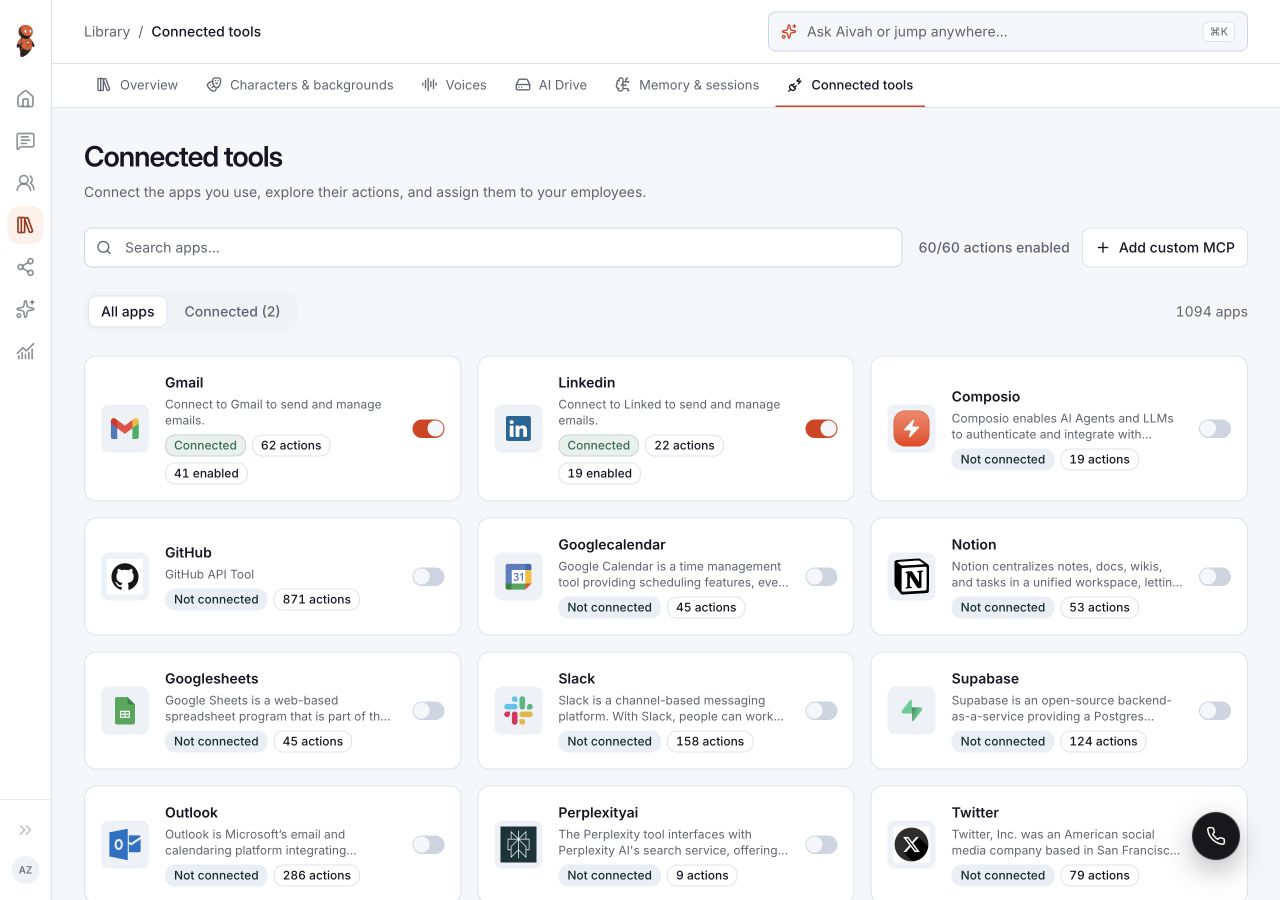
Open Library → Connected tools. Use All apps to browse or search the catalog. Use Connected to review apps already linked to the account.
 View full screenshot ↗
2. Review the connection and actions
Open the app. Review Connection details to confirm the linked account. Under Actions, read each action's description and use action search to find the capability you need.
If you change selected actions, review the selection before choosing Save. Use Cancel to leave an unfinished selection. Allow only actions needed for the job; an app appearing in the catalog does not establish that every action is available or connected.
3. Add an approved custom MCP server
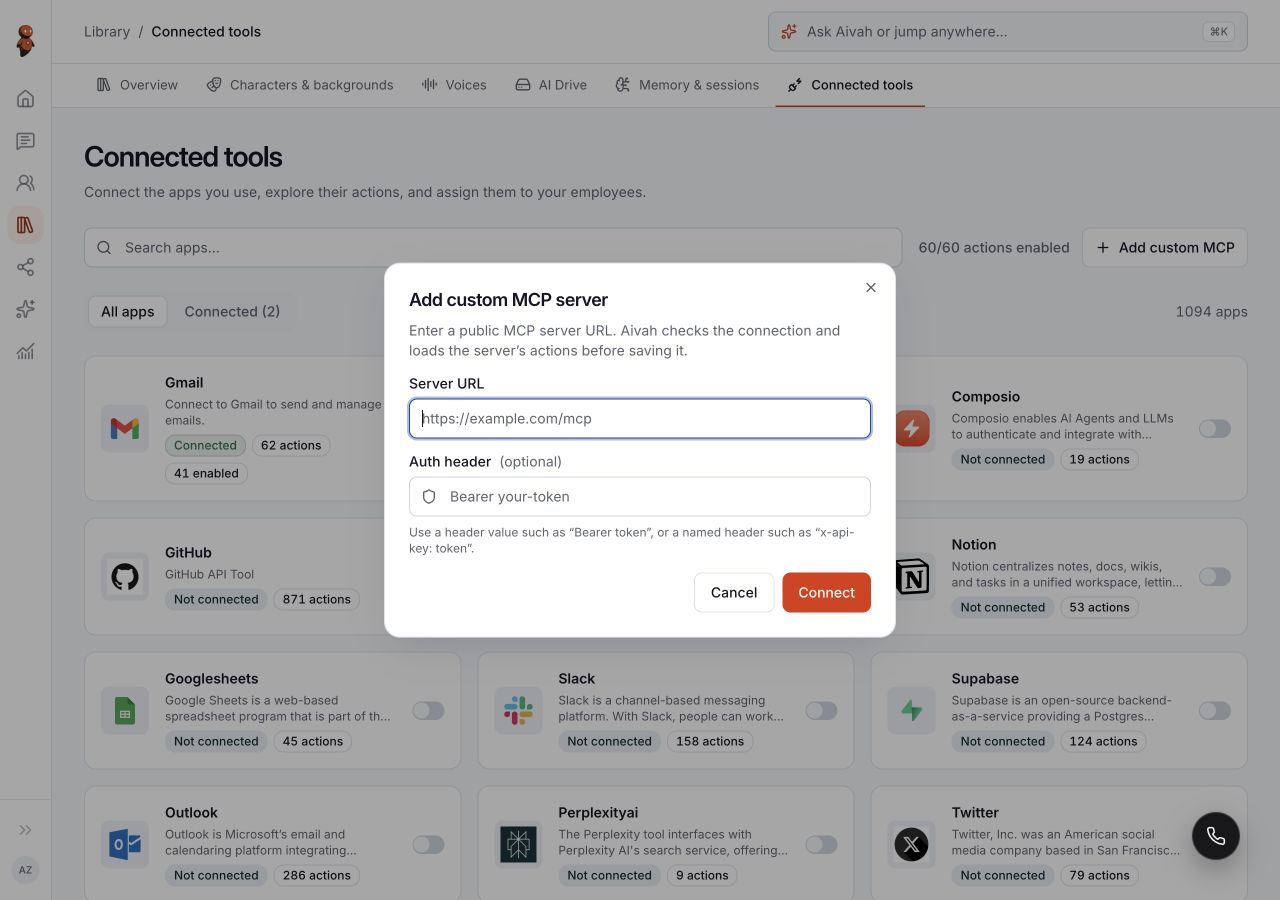
Choose Add custom MCP to open Add custom MCP server. Enter the approved endpoint in Server URL. Use Auth header (optional) only when the server requires it, then choose Connect.
The form says Aivah checks the connection and loads the server's actions before saving. Wait for the displayed result and review those actions before assigning them to an employee. Keep authentication values in this dedicated form, not in a chat message or screenshot.
 View full screenshot ↗
4. Review the employee's tools
Open the intended employee under Employees and review Tools. Match the assigned tools to its instructions. For a web experience, also review Connected tools in Deploy → Web & embeds.
5. Test the intended action
Open Chat with the intended employee and request one approved test. Check the result in the outside service as well as the reply in Aivah. For sending, booking, changing, or deleting information, specify the confirmation the employee should request and verify it before allowing real use.
Expected result
You can identify the linked service account and the actions intended for the employee. Treat the connection as ready for use only after a controlled test produces the expected result in the service.
Status meanings
Connected groups linked apps. A selected or enabled action is a permission choice; it does not show that a particular request has run successfully. Use the connection result and the service's own record to check completion.
Usage credit impact
Check current account usage information before running connected actions. This guide does not set a per-action price or include charges made by an outside provider.
Information stored or shared
A connected action can exchange information with the service account you choose. Read the action description and limit the information in the request. Do not include authentication headers, tokens, or private connection details in support messages.
Limits and permanent actions
Available apps and actions can differ by account and provider. Sending or changing information can have an immediate outside effect. Confirmation instructions supplement limited permissions; they do not replace them or guarantee that an action can be reversed.
Common problems and recovery
- An app is missing: clear the search and check All apps rather than only Connected.
- An action is unavailable: review its selection and description, the linked account, and the employee's assigned tools.
- Custom MCP setup shows an error: check the approved server URL and required authentication format. Follow the displayed error before trying again.
- A request has an unclear result: check the outside service before repeating it, especially if it could send or change information.
Next step
Test the employee in Chat, or follow phone, messaging, and meeting setup.