 Help Center
Open Deploy and choose Phone numbers, Messaging channels, or Meetings. Each has its own configuration. A saved setup needs a controlled conversation test before people rely on it.
Before you begin
Have permission to manage the provider account, channel, or meeting. Prepare the intended employee, approved instructions, and a test with no customer information. Check participant and recording requirements with your organization before inviting an employee into a real conversation.
Steps
1. Set up a Twilio phone number
Open Deploy → Phone numbers. Read the Twilio setup guide, which has Setup, Fields, and Test tabs for Elastic SIP Trunking.
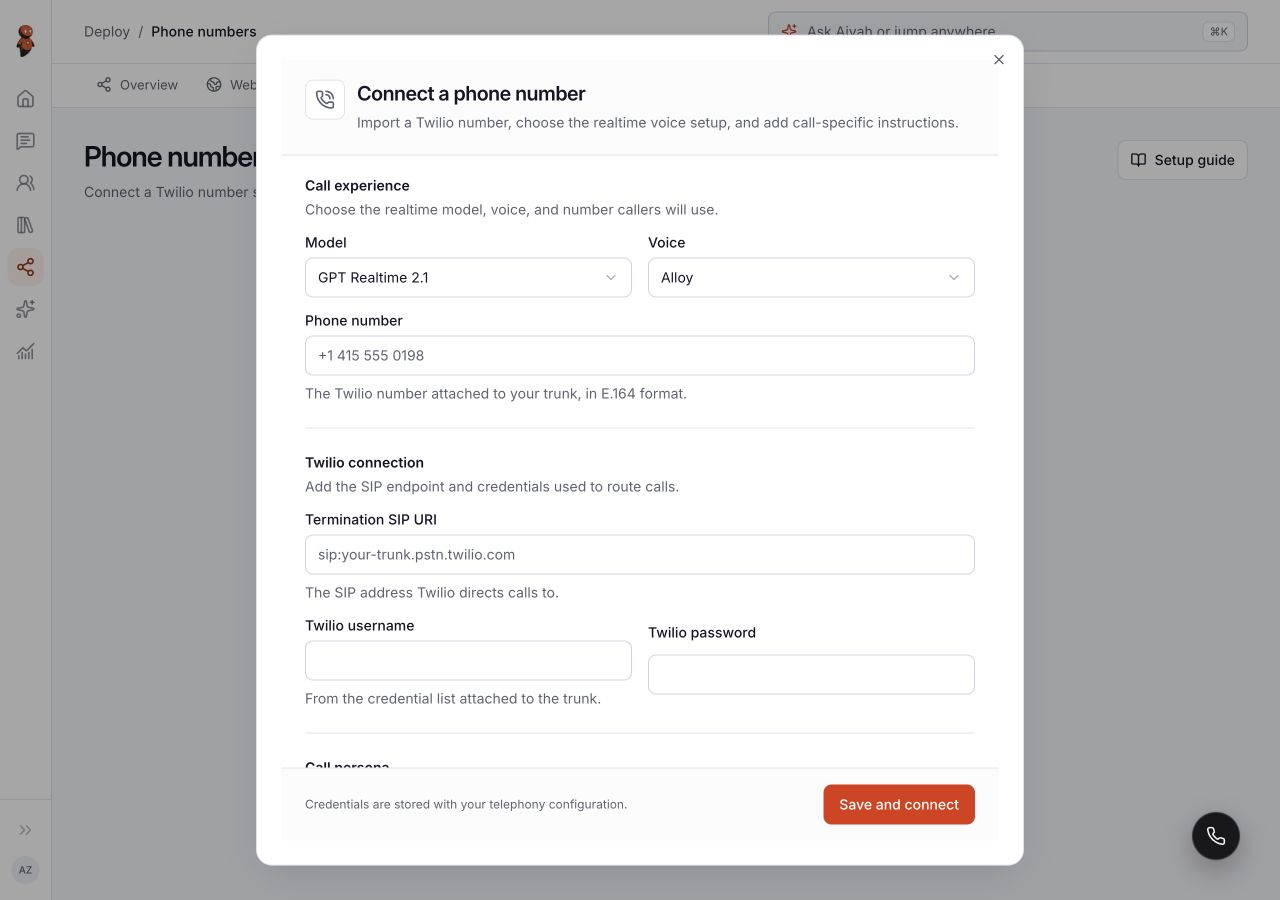
Choose Connect a number. The form asks for:
- Model and Voice for the call.
- Phone number in E.164 format.
- Termination SIP URI, Twilio username, and Twilio password.
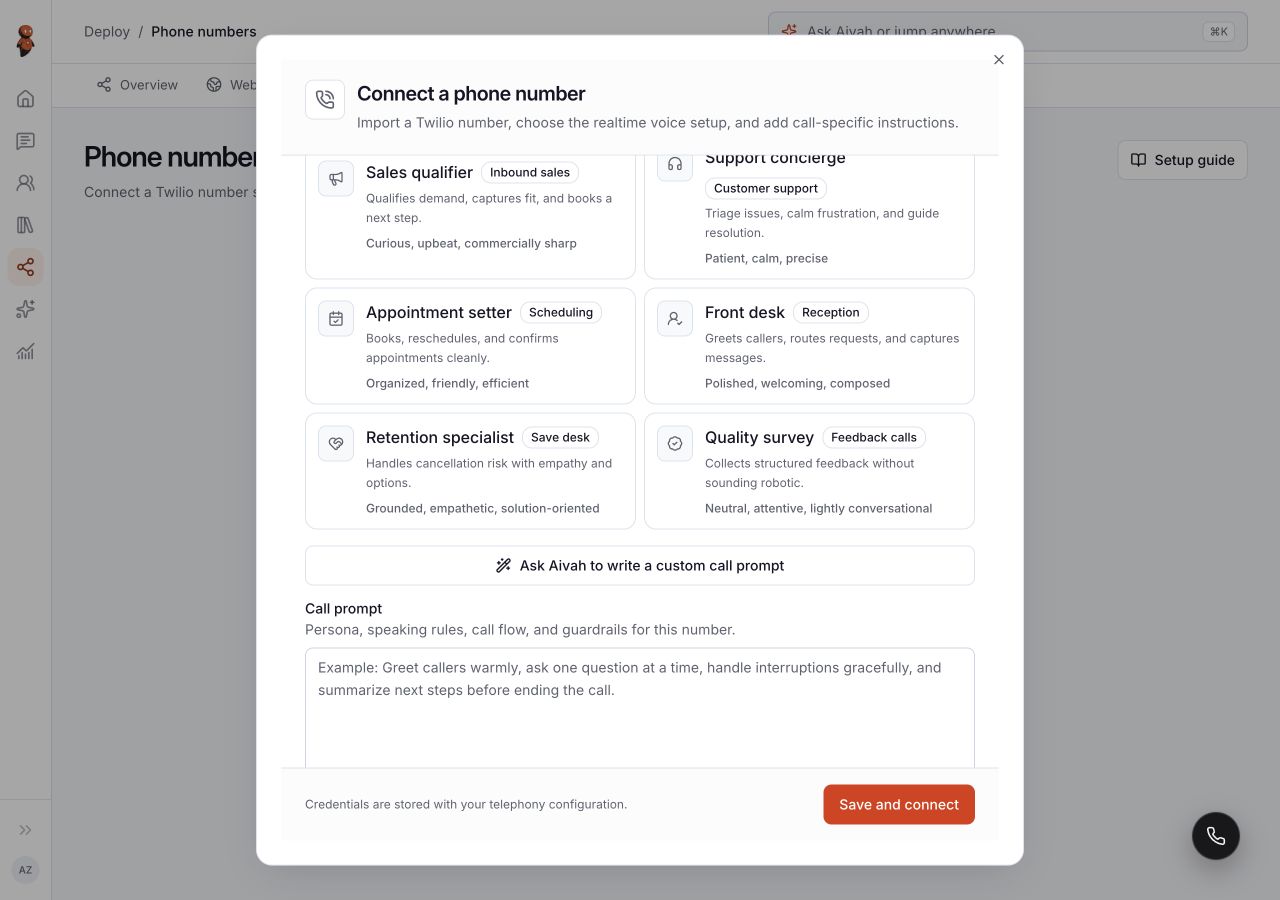
- A Call persona and Call prompt.
Use the guide to distinguish the termination and origination settings and the credential-list username and password. Do not substitute unrelated Twilio account credentials.
 View full screenshot ↗
Select a persona such as Front desk, then review the resulting Call prompt. The form also offers Ask Aivah to write a custom call prompt. Check the greeting, allowed tasks, and handoff instructions before choosing Save and connect.
 View full screenshot ↗
After a successful connection result, follow the guide's Test tab: call the connected number and check the voice, instructions, and response. Keep credentials out of screenshots.
2. Configure Slack
Open Deploy → Messaging channels → Slack. The settings include Employee, Member ID, Slack bot token, Signing secret, and Allowed Slack channel IDs (optional).
Open Slack guide:
- Setup provides the app manifest and the Slack installation/configuration steps. Use the manifest from the current guide.
- Direct messages explains messaging the bot through Slack Apps with the configured member account.
- Channels explains allowed channel IDs, inviting the bot, mentions, and thread participation.
Leaving the allowed channel IDs empty is the direct-message-only configuration described by the form. For shared channels, list only the intended channels and follow the guide before using Save changes or the connection action shown for a new setup. Test direct messages and shared channels separately.
3. Register a WhatsApp sender number
Open WhatsApp in Messaging channels. Select the Employee, choose the country, and enter WhatsApp phone number: this is the number you will message from.
The Aivah WhatsApp area gives the destination number and its available link or QR entry. After saving the intended sender configuration, use that registered WhatsApp account to message the displayed Aivah number. This setup registers a sender; it does not use WhatsApp Linked Devices pairing.
Check that a controlled question reaches the intended employee. Remove number changes the registered-number setup; review the intended account before using it.
4. Set up Meetings
Open Deploy → Meetings → Employee setup. Review Display name in the call, Employee, Model, Voice, and the character choice. The meeting-chat option treats chat messages as questions for the employee. Choose Save meeting defaults only after reviewing those choices.
Switch to Invite & sessions. Enter Meeting URL and, if needed, Display name (optional). The form accepts HTTPS link formats for Google Meet, Zoom, Teams, or Webex; an invalid link shows a message and disables Send invite.
Sending an invite can bring the employee into an outside meeting. Use Send invite only for a meeting you are allowed to invite it to, then check the session state and actual participant list. A valid URL alone does not establish that the employee joined or that the meeting's access rules permit entry.
Expected result
You can identify the correct setup and its required fields. Before live use, verify the employee, voice, message destination, or meeting participation through an authorized test.
Status meanings
Active identifies a channel's displayed state, not a successful message test. No phone number connected means there is no number in the current phone view. A meeting session marked Ended is no longer shown as active; it does not establish what happened during the call.
Usage credit impact
Calls, messages, and meetings may incur Aivah or provider charges. The Slack guide says direct-message and channel usage is charged to the portal owner's account. Review current account and provider terms before enabling a channel for others.
Information stored or shared
These features can pass conversation information to a phone provider, Slack, WhatsApp, or a meeting service. Keep tokens, passwords, private numbers, and meeting links out of public screenshots and support messages.
Limits and permanent actions
Saving, connecting, sending messages, or inviting an employee can affect people outside Aivah. Removing a connection is not a way to retract earlier messages or calls. Verify access and participant requirements for each destination.
Common problems and recovery
- Phone setup fails: compare the values with the guide's Fields and Test tabs, especially the SIP settings and credential list.
- Slack does not respond: check the selected employee, member ID, and whether the conversation is a direct message or an allowed channel; use the matching guide tab.
- WhatsApp routes incorrectly: check the registered sender number and selected employee, and use the Aivah destination shown in the setup.
- Send invite is disabled: correct the Meeting URL using the HTTPS formats listed by the form.
- A valid meeting invite does not join: check the session state and meeting host's participant or waiting-room controls before sending another invite.
Next step
Review conversation and call results. For another destination, return to the Meetings setup steps or review connected tools.