
How do you know if your AI employee is working?
You know it’s working when five numbers move the right way: people use it, its answers are right and visitors become leads. Your team follows up fast, and each conversation costs what you expected. Insights, the app’s reporting area, gives you three of these; the other two take a short weekly check.
Take Bluebell Bikes, a fictional bike repair shop with an AI employee on its website and phone line. The owner checks five numbers every Monday. It takes about 15 minutes and tells her what to fix that week.
- Conversations: how many people it talks to, by chat and by phone.
- Right-answer rate: the share of answers you’d sign off, from a weekly sample.
- Lead rate: leads as a share of conversations.
- Follow-up time: how fast your team replies to leads and phone messages.
- Cost per conversation: credits used, divided by conversations.
Read related guides
How many people does it talk to?
Start with volume: open Insights, then choose the employee and a date range. The overview shows unique users and compares them with the period before. The activity summary beside it counts conversations, calls and leads.
Conversations counts chats through your website and shared links. Your own chats with it on the app’s Chat page aren’t included.
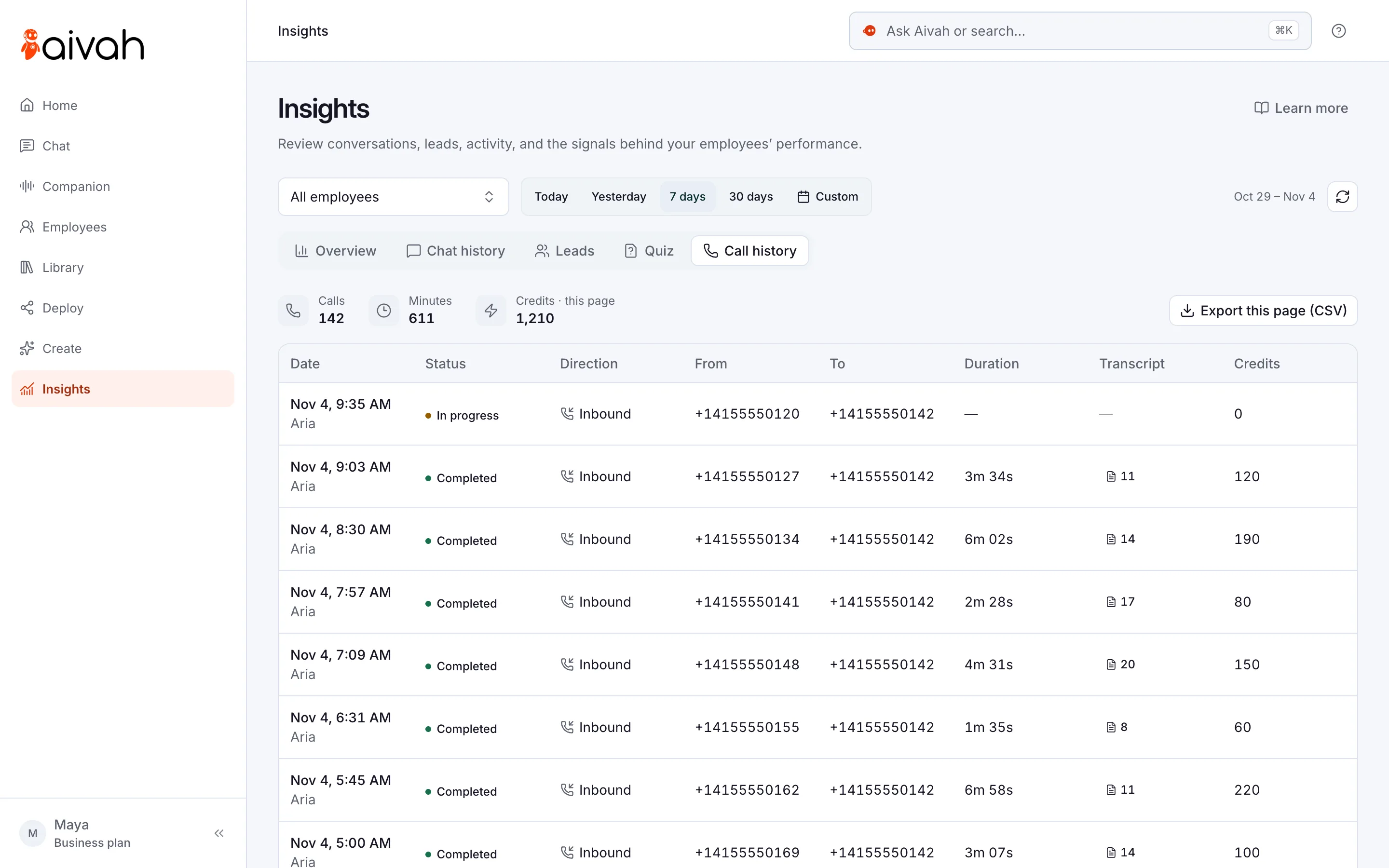
Call history lists every call your employee answered, with its length, transcript and credits. If calls suddenly drop, check the number is still connected before you blame a quiet week.
Low numbers on a website often mean people can’t find it. Put it on the page where questions happen, such as pricing or contact. Then check it shows up on a phone.
Put one AI employee to work.
Start free, with no card. Hire from a role template or describe the job, then add your documents.
Hire your first AI employeeHow often does it give the right answer?
This number matters most, and no dashboard can count it for you. Each week, read a sample of real conversations. Check every answer against your own documents.
Start with the review queue on the Insights overview: up to four conversations where someone seemed stuck or asked several questions. The “Friction detected” label marks the stuck ones. It’s an AI estimate, so treat the queue as a place to start reading.
- Pick 10 conversations: the review queue first, then the rest at random.
- Mark every answer right, partly right or wrong.
- Divide the right answers by all answers. That’s your right-answer rate.
- For each wrong answer, note the missing fact or the unclear instruction.
- Fix one thing, then ask the same question in a new chat.
Read related guides
How many visitors become leads?
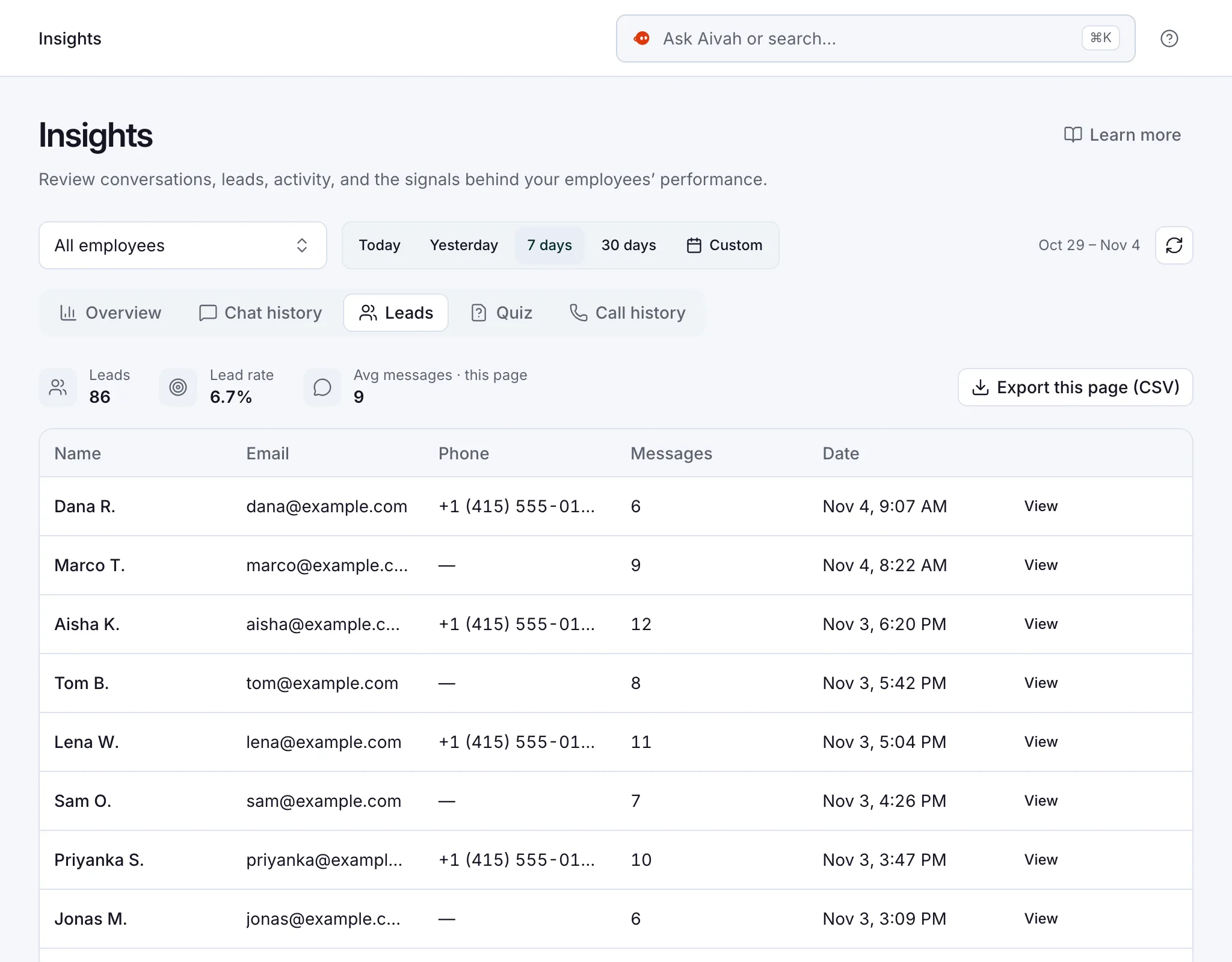
A lead is someone who fills in the lead form on your website. The form shows before the chat starts. Insights → Leads shows how many came in and your lead rate: leads as a share of conversations.
Count the leads your team accepts, too. Ten real enquiries beat fifty email addresses from people who were just browsing. Insights can’t see which leads became customers, so track that in your own records.
If leads fall, look at the form first. Remove a field or make one optional. Then compare the next week’s leads.
How fast does your team follow up?
Your AI employee can answer at midnight, but a person still has to call back. Follow-up time is the gap between a lead or phone message arriving and someone replying.
A 2011 Harvard Business Review article looked at 1.25 million sales leads at 42 US companies. Firms that tried to reach a lead within an hour were nearly seven times as likely to qualify it. That’s compared with firms that tried even an hour later.
Insights doesn’t record your team’s replies, so keep a simple list. Each Monday, compare it with Leads and Call history. Count anything nobody answered within a working day, and aim for zero.
What does each conversation cost?
Credits are what your AI employee spends when it chats, talks or creates. Each reply costs from 20 credits, depending on how much text the AI reads and writes. Spoken replies cost twice as much while a video character is on screen.
To find your cost per conversation, divide credits used by conversations for the same dates. Credits used, on the overview, counts every chat with that employee, including your team’s own chats in the app. So the figure is cleanest for an employee that only talks to customers.
For calls, add up the credits in Call history and divide by the number of calls.
Here’s an illustrative month. Bluebell Bikes used 24,000 credits on 300 website conversations, or 80 credits each. On Starter, where $99 buys 100,000 credits, that’s about 8 cents a conversation.
If that number climbs, look for very long answers or a video character first.
Read related guides
How do you run a 15-minute weekly review?
Book the same slot every week. Compare the same employee over the same length of period, week on week.
- Minutes 1–2: open Insights, choose the employee and Last 7 days, and write down this week’s figures.
- Minutes 3–8: read the review queue, then random conversations until you reach 10. Mark each answer.
- Minutes 9–11: open Leads and Call history. Pass anything unanswered to the person who follows up.
- Minutes 12–15: fix one thing, such as a missing fact in its knowledge. Then ask the same question in a new chat.
Read related guides
What should you watch out for?
Numbers can mislead. Keep these limits in mind before you act on them.
- Tests through your live website or link count as conversations. Note the days you tested.
- Credits used includes your own chats in the app, so it can run higher than customer use alone.
- Small samples swing. Watch the trend over a month, not a single week.
- The “Friction detected” label comes from AI. Read the conversation before you decide.
- Insights shows leads, not sales. Track which leads became customers yourself.
- Changes apply to new conversations. Start a new chat to test a fix.
- If you run an AI presenter, quiz accuracy is a sixth number worth watching.
Questions people ask about measuring an AI employee
What is a good right-answer rate for an AI employee?
There’s no single benchmark. Set your own pass mark from the cost of a wrong answer: a wrong price hurts more than a vague parking tip. Then track it week on week, from the same kind of sample.
Where do I find these numbers in Aivah?
Open Insights. The overview shows unique users, credits used and lead conversion. Its activity summary counts conversations, calls and leads. Chat history, Leads and Call history hold the detail.
Does a high number of conversations mean it’s working?
Not on its own. Volume shows people use it. Your right-answer rate and follow-up time show whether it actually helps them.
Can I export the data?
Yes. On the overview, choose Export conversations (CSV), and a download link arrives by email. In a detail tab, use Export this page (CSV). Exports can include personal details, so store them somewhere safe.
How often should I check?
Read conversations every day in the first week after launch. After that, a 15-minute review once a week keeps your AI employee on track.
Start measuring from day one
Start free and test your AI employee in Chat. When it’s ready for one page, Hobby puts it on your website for $10 a month. Then check your five numbers after the first week.
Read related guides