
How do you add an AI employee to your website?
To add an AI employee to your website, build it in Aivah and publish it as a chat bubble. Then paste one line of code into your site’s footer in WordPress, Shopify, Webflow, Wix or any HTML site. It takes about 15 minutes: building and testing are free, and going live starts at $10 a month.
Take Copper Kettle Bakery, a fictional shop on Shopify. The owner adds the bakery’s website and FAQ, tests a few answers, then pastes the code into the theme. By lunch, visitors can ask about opening hours and custom cakes on every page.
- A chat bubble puts your AI employee on every page with one paste.
- An embed puts it inside one page. A direct link works in emails and QR codes.
- Visitors type, or talk by voice on the Starter plan and up.
- Update its knowledge or character, and your site shows the change. You don’t paste the code again.
- Putting it on your website starts on Hobby, at $10 a month.
Read related guides
Which should you use: a chat bubble, an embed or a link?
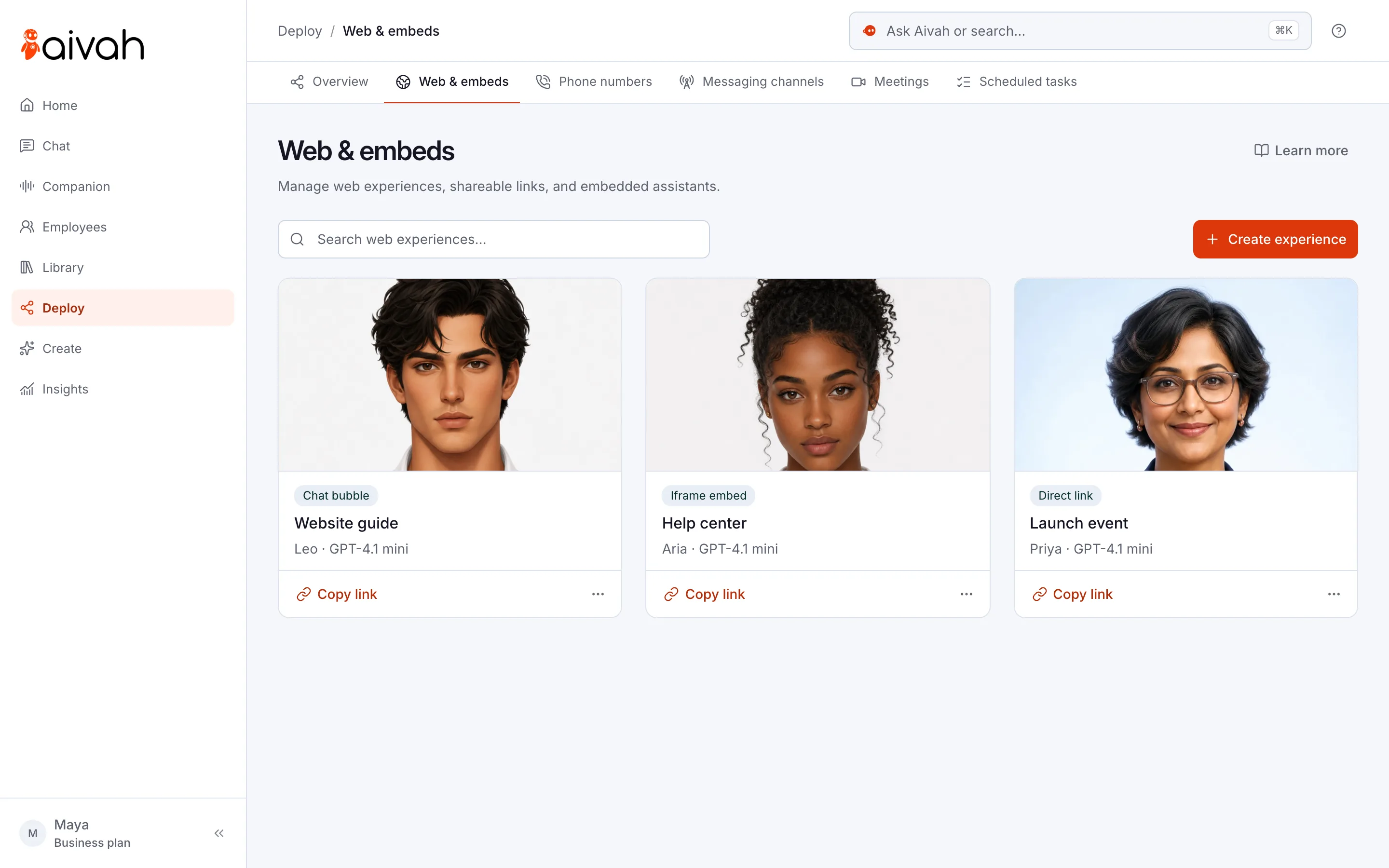
Aivah calls each packaged version of your employee a web experience. Each one uses one of three formats, and you can run several at once.
Most businesses start with the chat bubble. It covers every page and stays out of the way until someone needs it.
- Chat bubble: a button in the corner of every page. Best for support, sales and general questions.
- Embed: your employee inside a section of one page. Best for a pricing page, a product tour or a help page.
- Direct link: a full page at its own address. Best for emails, social posts and QR codes.
Read related guides
Put an AI employee on your website.
Add it as a chat bubble, an embedded page or a link. Visitors can type, talk or see its face.
See it on a websiteWhat do you need before you start?
Gather four things first. Most owners have them already.
- Your website address, so Aivah can read your pages.
- One useful document, such as your FAQ or price list.
- Access to edit your website, or someone who has it.
- A free Aivah account. Signup asks for no card.
How do you set it up, step by step?
Follow these seven steps in order. The Help Center quickstart covers the same route in more detail.
- Step 1. Sign up free. In guided setup, add your website and pick the job “Answer customer questions”.
- Step 2. Open the employee’s Knowledge tab and add your FAQ or price list. Wait until it shows Ready.
- Step 3. Start a new chat. Ask three questions your FAQ answers and one it doesn’t.
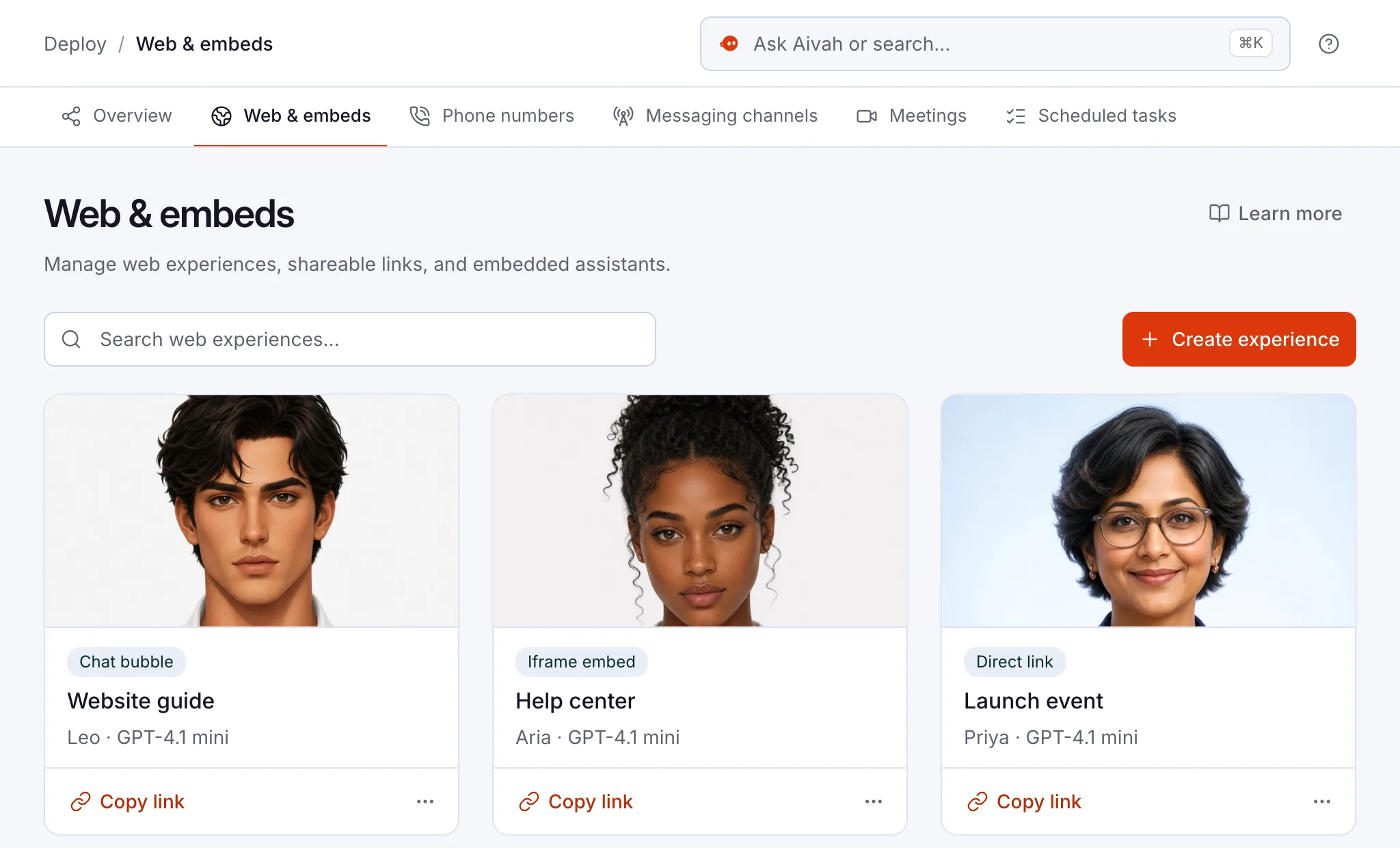
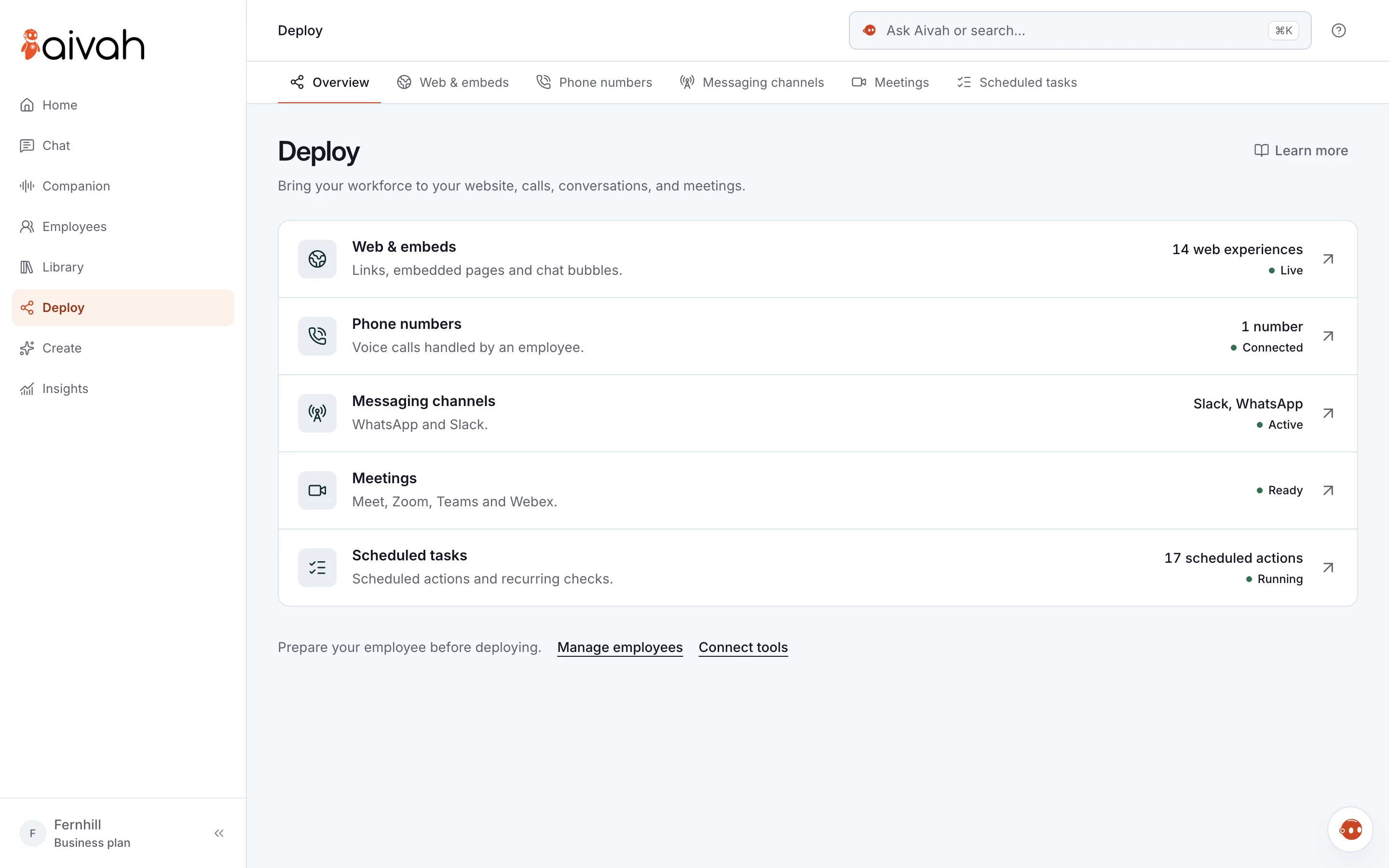
- Step 4. Open Deploy → Web & embeds and choose Create experience. Name it, then pick Chat bubble and your employee.
- Step 5. Add a lead form if you want contact details. Then pick a character and whether visitors start with text or voice.
- Step 6. Choose Publish and copy the Chat bubble script.
- Step 7. Paste it into your site’s footer, publish your site and test it.
Read related guides
Where do you paste the code in WordPress, Shopify, Webflow and Wix?
The chat bubble code goes just before the closing </body> tag. Most site builders have a setting for it. Paste it once in the site-wide footer, and it shows on every page.
WordPress: install a header and footer code plugin, such as WPCode, and add the code to the site-wide footer. For an embed, add a Custom HTML block to the page. Your user role must allow scripts and iframes, or WordPress strips them when you save.
Shopify: go to Online Store → Themes, open your theme’s menu and choose Edit code. Open layout/theme.liquid, paste the code just before </body> and save. Shopify advises you to duplicate your theme first, so you have a backup.
Webflow: open Site settings → Custom code and paste the code into Footer code, then save and publish. For an embed, drag a Code Embed element onto the page. Custom code needs an active Site plan or a paid Workspace plan.
Wix: open Settings → Custom code and choose Add Custom Code. Apply it to All pages, place it in Body - end, then apply. Wix asks that your site is published and has a connected domain.
Squarespace: paste the code into the Footer box in Code injection. It comes with the Core, Plus and Advanced plans and some older ones.
Google Tag Manager: add a Custom HTML tag that fires on All Pages, then publish the container. On any other site, paste the code before </body> in your shared footer.
Sources
- WordPress.org Documentation: Custom HTML block (updated 15 Jun 2026)
- Shopify Help Center: Editing theme code (accessed 19 Oct 2026)
- Webflow Help Center: Custom code in head and body tags (accessed 19 Oct 2026)
- Wix Help Center: Embedding custom code on your site (accessed 19 Oct 2026)
- Squarespace Help Center: Using code injection (updated 16 Sep 2026)
Read related guides
How do you check it works?
Test it the way a customer would, before you tell anyone it’s there. It takes about five minutes.
- Open your site in a private window, on a phone and on a laptop.
- Open the bubble and ask a question you know the answer to.
- Ask one question it can’t answer. It should say so and share your contact route.
- Try voice if you turned it on. The page must use https:// for the microphone to work.
- If you added a lead form, send a test lead and find it in Insights → Leads. Insights is where Aivah keeps your chats and leads.
What should you watch before you go live?
Most problems come from the website, not the AI employee. Check these before launch.
- Your plan: putting it on your website needs Hobby or higher, and voice needs Starter or higher.
- The employee is fixed: you can’t change a web experience’s employee after you publish. To switch, duplicate it, pick the new employee and swap the code.
- Security headers: if your site sends a Content-Security-Policy header, add https://chat.aivah.ai to script-src, frame-src and connect-src.
- Shopify theme updates: if your code edits clash with an update, Shopify drops them from the updated theme. Check the bubble after each update.
- Caching: if the bubble doesn’t appear, check the change is published, then clear your site and browser cache.
- Answers: the code only puts your employee on the page. Good answers still depend on the knowledge you give it.
- Not sure yet? Paste it on one page first, such as pricing or contact, and read the first week of chats.
Read related guides
Questions people ask about adding AI chat to a website
Do I need a developer to add AI chat to my website?
No. If you can edit your site’s footer or add a block to a page, you can do it. You copy one line of code from Aivah and paste it in. A developer helps mainly if your site has strict security settings.
Does it work with WordPress, Shopify, Webflow and Wix?
Yes. The chat bubble is one line of code, so it works on WordPress, Shopify, Webflow, Wix, Squarespace and Google Tag Manager. It also works on any HTML site. Some builders allow custom code only on certain plans.
Can I add it for free?
You can build and test your AI employee free, with no card. Putting it on your own website needs the Hobby plan, at $10 a month. Voice conversations start on Starter, at $99 a month.
Do I need new code when I update the employee?
No. When you add knowledge or change the character, your website shows the change straight away. You only need new code to switch to a different employee, because a web experience keeps the one you chose.
Can visitors talk to it instead of typing?
Yes, on Starter and up. Your page must use https://, and the visitor’s browser asks before it turns on the microphone.
Where do the chats and leads go?
Every website chat appears in Insights → Chat history. Anyone who fills in your lead form appears in Insights → Leads, and you can export them as a CSV file.
Ready to try it on one page?
Start free, build your first AI employee and test it in Chat. When the answers look right, move to Hobby and paste the code on one page.
Read related guides