
Can AI join a Zoom, Teams or Google Meet call?
Yes. In Aivah, an AI employee joins Google Meet, Microsoft Teams, Zoom or Webex calls as a guest, with a face and a voice. It answers questions out loud from your documents when someone speaks to it. That’s different from a note-taker, which only listens and writes.
Picture Northgate Software, a fictional company with three salespeople and one product expert. The expert can’t join every demo. So the team invites its AI employee, “Aria · Product specialist”, and hands it the detailed questions.
- You paste the meeting link in Aivah and send the invite.
- The host lets it in from the waiting room, like any guest.
- It answers out loud from its documents and instructions.
- Afterwards, the conversation is in Insights → Chat history.
- Aivah doesn’t promise minutes or action items. Use a note-taker alongside it if you need them.
Read related guides
How is that different from an AI note-taker?
A note-taker and an AI employee do different jobs. A note-taker listens and writes. An AI employee speaks: it answers questions during the call, with a face and a voice.
Zoom, Microsoft Teams and Google Meet each have their own notes feature. What you get depends on your plan or licence, and an admin may need to turn it on. Here’s what each platform’s own help page says:
- Zoom: the host can turn on Meeting summary during the call. It sums up what’s discussed from then on, with next steps, and can be shared by email or Zoom Chat.
- Microsoft Teams: Copilot sums up the key points, including who said what, and suggests action items. Intelligent recap comes with Teams Premium, an add-on licence, or a Microsoft Copilot licence.
- Google Meet: “Take notes for me” writes the notes into a Google Doc, and the organiser gets a recap link. It needs an eligible Workspace edition or Google AI plan.
Sources
Bring an AI employee to your next call.
Paste a Google Meet, Microsoft Teams, Zoom or Webex link. Your employee joins with its face and voice once you let it in.
See AI in meetingsWhat can an AI employee do in a meeting?
It brings everything your AI employee knows into the call: your website pages, documents, notes and instructions. Here is what it does there.
- Joins as a guest under the display name you choose, such as “Aria · Product specialist”.
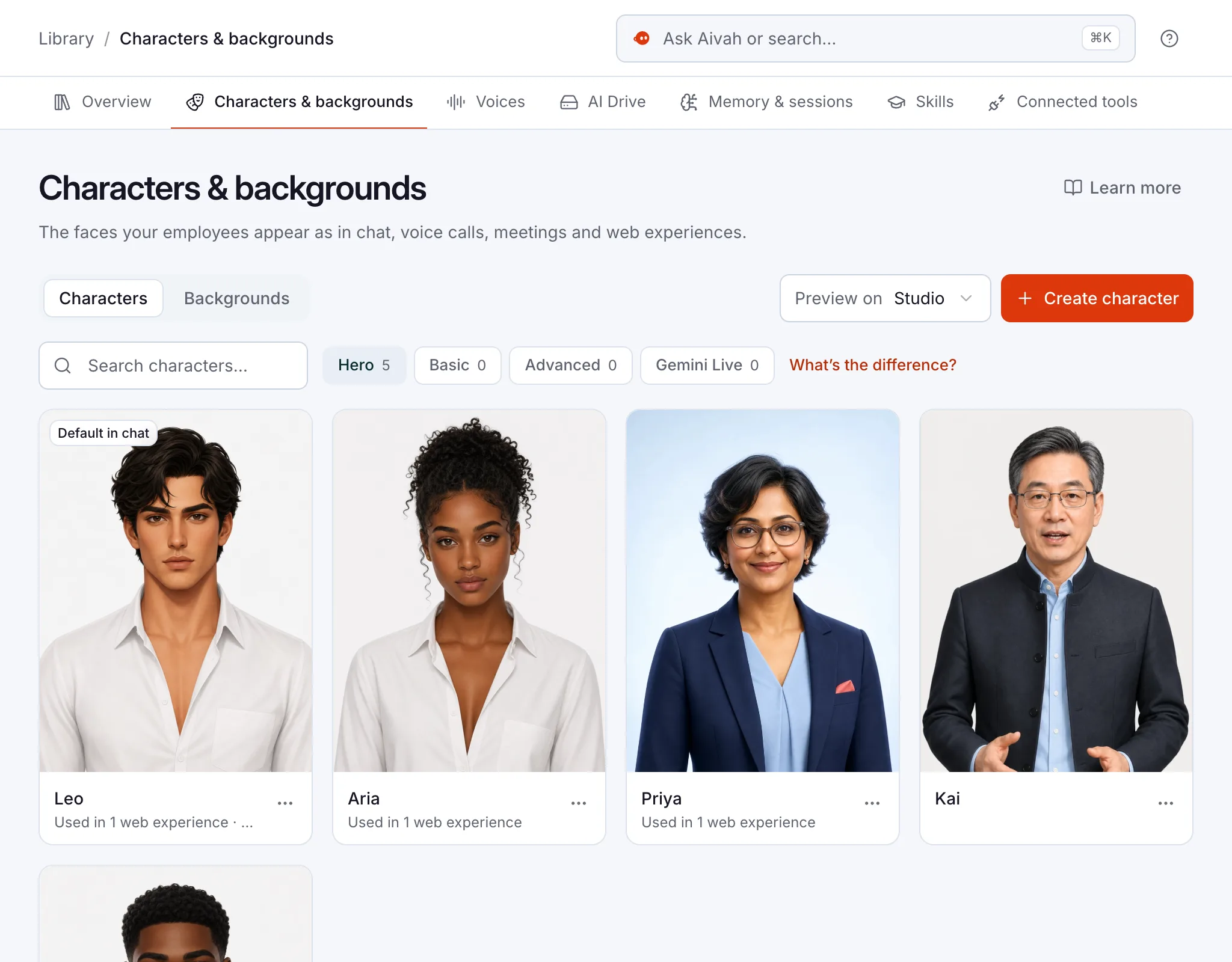
- Shows a face from your character library and speaks in the voice you picked.
- Answers out loud when someone addresses it by name.
- Treats typed messages as questions too, if you turn on Listen to meeting chat.
- In group meeting mode, replies when addressed and steps in only when the discussion needs help. This mode works with Hero characters, made from a portrait.
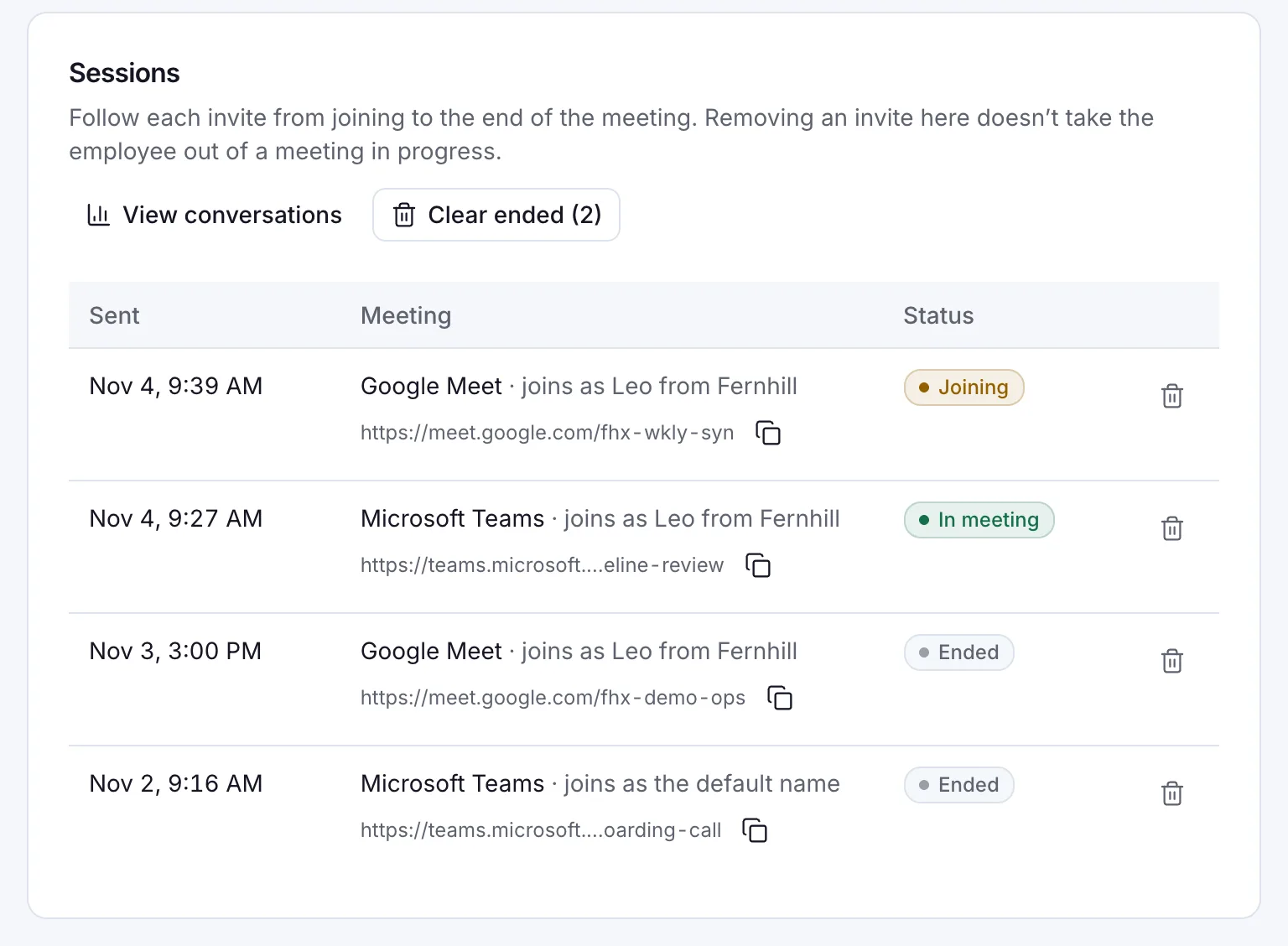
- Shows where each invite is in Aivah: Joining, In meeting or Ended.
Read related guides
Which meetings is it good for?
Use it where the same questions come up in every call, and your expert can’t be in all of them.
For teaching from slides, with questions and a quiz, the AI presenter fits better. You share it by link, and people learn at their own pace.
- Sales calls: a product expert on every demo, answering setup and feature questions from your documents.
- Customer onboarding sessions: it answers “how do I…” questions while your team runs the call.
- Training and Q&A sessions: people ask it about your handbook or product.
- Internal meetings: someone asks it for a policy or a price instead of searching for it.
Read related guides
How do you invite it to a call?
You need an AI employee that knows the subject, a character for its face and a meeting you can admit guests to. Then follow these steps.
- Test your AI employee in Chat. Add “Stay quiet unless someone addresses you by name” to its instructions.
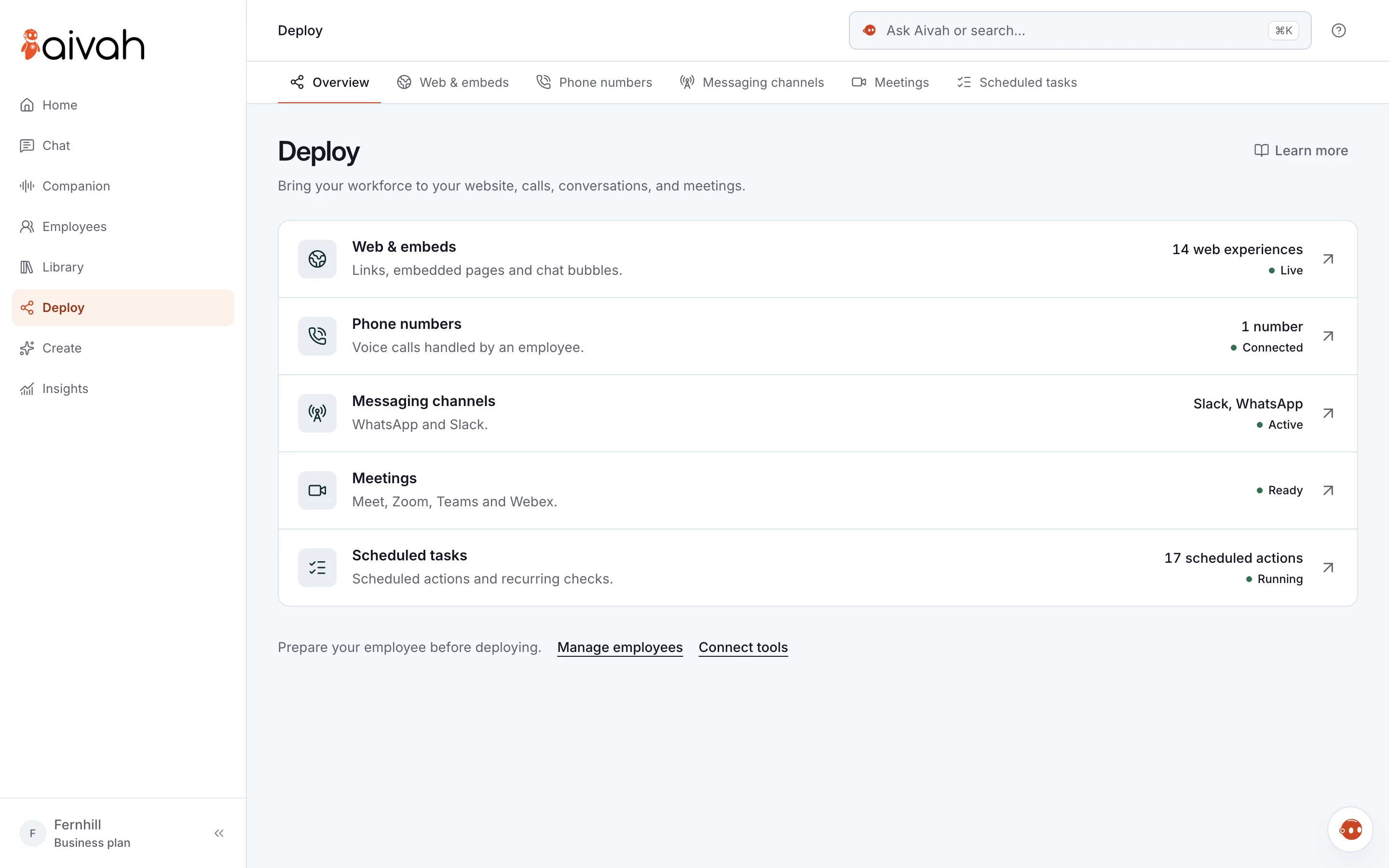
- Open Deploy → Meetings. Choose Hero for a Hero character, or All for any other kind.
- In Employee setup, set the display name, employee, model, voice and character. Turn on Listen to meeting chat if you want it, then save the defaults.
- In Invite & sessions, paste the full meeting link. With Hero, turn on Group meeting. Then choose Send invite.
- Admit it from the waiting room or lobby. Introduce it to the room: “This is Aria, our AI employee. Ask her by name about setup.”
- After the call, read the conversation in Insights → Chat history. Add anything it couldn’t answer to its knowledge.
Read related guides
What are its limits in meetings?
Know these before your first invite. Most are about how meetings handle guests.
Tell everyone in the meeting that an AI employee is taking part. Follow your organisation’s rules for recording and note-taking.
- It joins as a guest. Some meetings admit only people from your organisation, so change that setting or ask the host to.
- Someone has to let it in. Until then, the invite shows Joining. After 10 minutes, it shows Not admitted yet.
- It doesn’t promise minutes, a summary or action items. Use a note-taker for those.
- It answers from what it knows. For a question your documents don’t cover, tell it to say the team will follow up.
- Removing the invite in Aivah doesn’t take it out of a meeting in progress. The host removes it like any other guest.
- Group meeting mode needs a Hero character. Other characters suit one-to-one calls best.
- Meetings use credits while it’s in the call. The app shows your usage.
Questions people ask about AI in meetings
Which meeting platforms can it join?
Google Meet, Microsoft Teams, Zoom and Webex. Paste the meeting link in Aivah, under Deploy → Meetings, and send the invite.
Does the host need to do anything?
Yes. Let it in like any other guest. If the meeting has a waiting room or lobby, the host admits it, and Aivah shows when it’s still waiting.
Will it talk over people?
Not in group meeting mode, which works with Hero characters. It replies when someone speaks to it and steps in only when the discussion needs help.
Does it take meeting notes or write a summary?
Aivah saves the conversation in Insights → Chat history. It doesn’t promise minutes or action items. For those, use your meeting platform’s notes feature or a note-taker.
Can people type their questions instead?
Yes. Turn on Listen to meeting chat, and it treats messages in the meeting chat as questions.
What does it cost?
There’s no meeting add-on to buy. Meetings use credits from your plan while your AI employee is in the call, and the app shows your usage.
Ready for your next call?
Start free, with no card. Build your AI employee and test it in Chat. Then compare plans before you send your first invite.
Read related guides