
Can you turn a PDF manual into a lesson people can question?
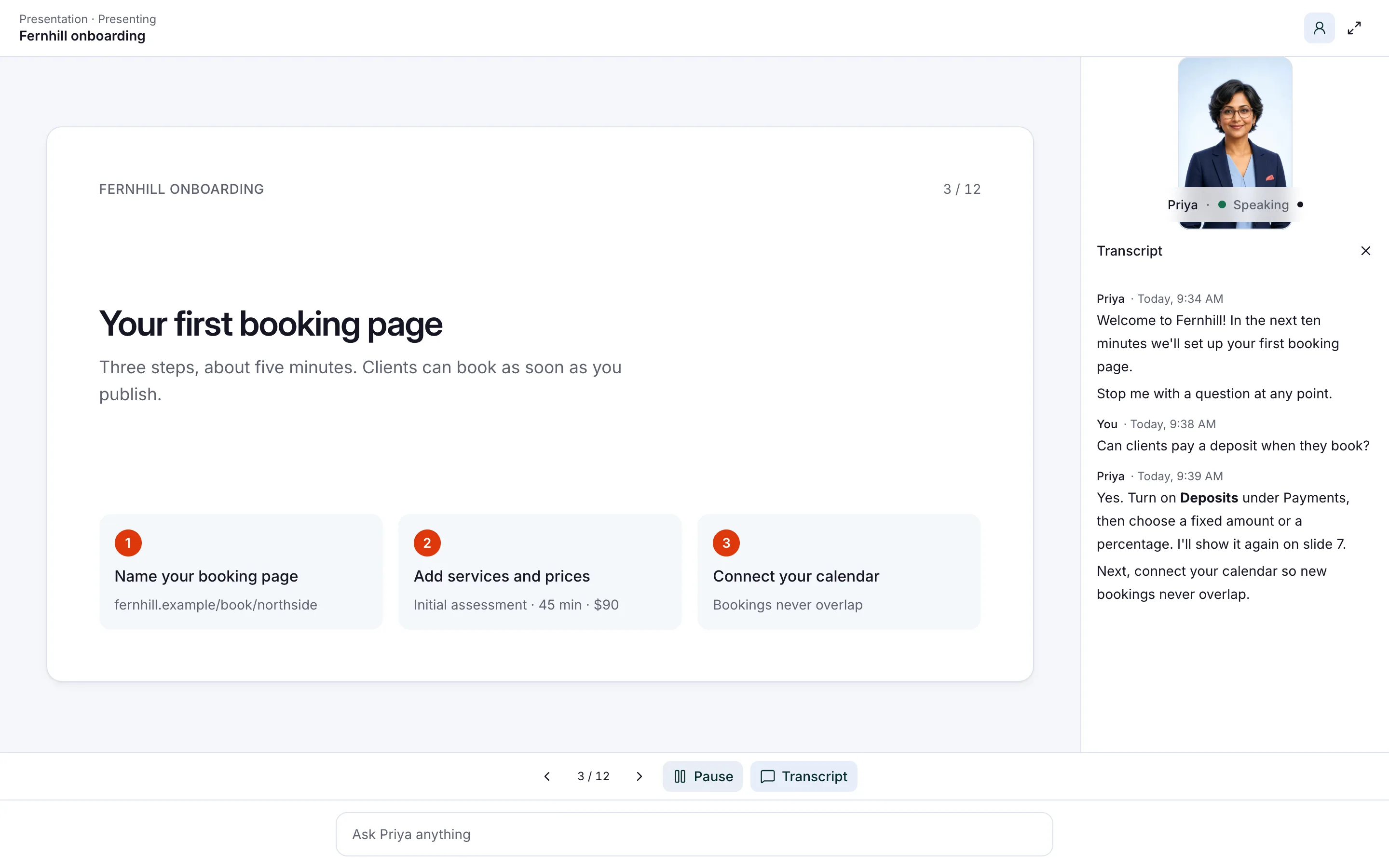
Yes. In Aivah, you hire an AI employee with Presenter turned on and add your manual as a lesson. It walks people through the manual page by page, with a face and a voice. They can stop it to ask a question, then take a quiz, and you see every attempt in Insights.
Take Harbourline Coffee, a fictional chain of coffee shops with a 40-page barista manual. New starters used to read it alone and sign a form. Now the manual is a lesson they can stop, question and be quizzed on.
- Each presenter takes up to 10 PDFs (50 MB each) or videos (100 MB each) as lessons.
- People ask questions by voice or by typing. It answers from your lessons, then carries on.
- After a lesson, learners can take its quiz. Insights → Quiz shows each attempt, with the score and the answers chosen.
- You share it by direct link or embed it in a page.
- A presenter teaches only from its PDFs and videos, not from website links or typed text.
Read related guides
Why turn a manual into a lesson at all?
A manual on a shared drive is easy to skip, and nobody can ask it a question. Testing people also does more than check what they know.
In a well-known 2006 study, students who took recall tests on a passage remembered more a week later than students who reread it. Rereading only did better on a test five minutes later, though it made students feel more confident.
Here’s how the usual ways of teaching a manual compare.
- A live trainer: best for questions, but hard to repeat for every new starter and every shift.
- A recorded video: easy to share, but nobody can stop it to ask what a step means.
- An e-learning course: polished, but building one from a manual takes time and a course tool.
- An AI presenter: teaches your own PDF, takes questions at any point and offers a quiz when a lesson ends. It doesn’t replace your trainer’s judgement.
Read related guides
Turn your files into lessons people can question.
Up to 10 PDFs or videos become lessons people can interrupt, question and be quizzed on, with results in Insights.
See the AI presenterHow do you prepare the PDF?
The presenter teaches what’s on the page, so a tidy file teaches better. Spend half an hour on it before you upload.
- Split a long manual into lessons, one topic each. You can add up to 10, in teaching order.
- Keep each PDF under 50 MB. Shrink large photos if you need to.
- Put one idea on each page, with a clear heading. Each page appears as a slide.
- Remove out-of-date pages, so it never teaches an old rule.
- If your manual is a scan, check in rehearsal that the presenter reads it correctly.
- Have a recorded training video? Add it as a lesson too, up to 100 MB.
How do you build the lesson, step by step?
Setup is quick. Most of your time goes on rehearsal.
- Open Employees → Hire employee and turn on Presenter. You choose this when you hire, so start a new employee for each course.
- Add your PDFs under Lessons, in teaching order.
- Keep the teaching skills it suggests for checking understanding and guided tutoring.
- In its instructions, describe the audience and the tone. Ask it to check in with learners every few slides.
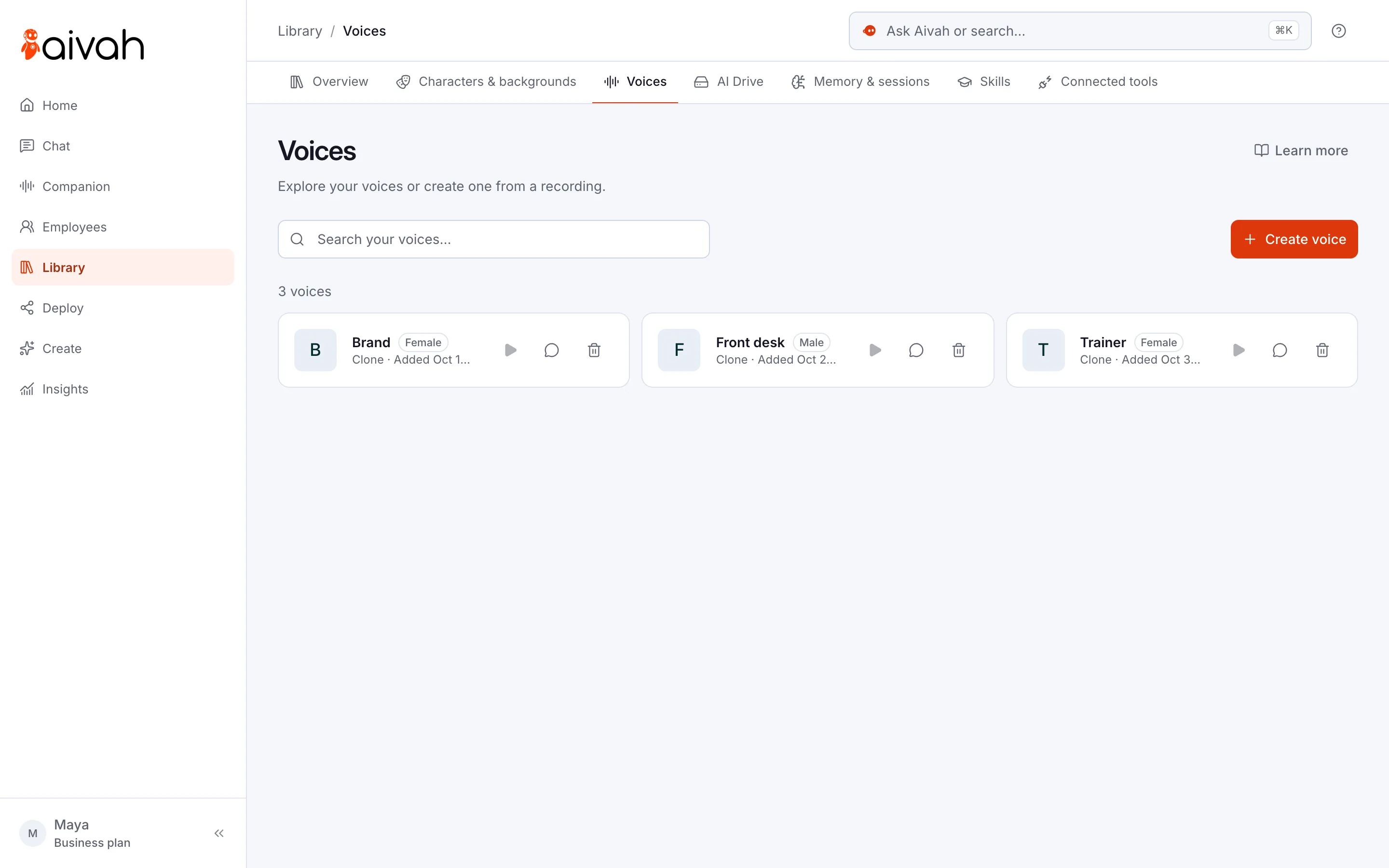
- Give it a face and a voice. Make a Hero character from your lead trainer’s photo, or clone their voice from 10 seconds of speech, with their permission.
- When it shows Ready, start a chat and choose Start presentation. Interrupt it, move between lessons and try the quiz. Quizzes in Chat are practice, so those scores stay on your device.
- Create a web experience in Deploy → Web & embeds, as a Direct link or an Iframe embed. Publish it, take the quiz once through the link and check it reaches Insights. Then send the link to learners.
Read related guides
What happens when someone takes the lesson?
Learners open the link on a laptop or phone. They start the first lesson, and the presenter teaches it page by page, with a transcript alongside.
At any point, they can pause it or ask a question, by voice or by typing. It answers from your lessons, then carries on. If the answer isn’t in your material, it says so instead of guessing.
At Harbourline, a new barista stops the lesson on page 12 to ask whether oat-milk orders use the same jug. The presenter answers from the manual and picks up where it left off.
When the lesson ends, she opens its quiz from the Lessons & quizzes list. She adds her name and email first, so her attempt is saved. After each answer, the quiz shows the right one.
What do you learn from the results?
Quiz results show who understood each lesson. The questions people asked show where your manual is unclear.
- Open Insights → Quiz each week. Each attempt shows the learner’s name, email, score and answers. Look for a question most people get wrong.
- Open Chat history and read what learners asked. When three people ask the same thing, that page needs rewriting.
- Fix the PDF and replace the lesson on the employee’s Knowledge tab. Then watch the next week’s results.
- Export a page of results as a CSV file if you keep training records elsewhere.
Read related guides
What are the limits of a PDF presenter?
Know these before you roll it out to every new starter.
- It teaches only from its PDFs and videos. Website links and typed notes aren’t used.
- Presenter is set when you hire. One AI employee can’t both teach a course and answer website questions, so you’d use two.
- It’s shared by direct link or embed, not as a chat bubble.
- Quizzes check understanding. Your assessors still mark formal assessments and sign people off.
- Results live in Insights. If you keep training records in another system, export them and add them there.
- Keep personal and sensitive details out of the manual. Give it only what learners should see.
- Each presenter counts as one of your plan’s AI employees, and lessons use credits.
Read related guides
Questions people ask about interactive PDF training
What files can I use?
Up to 10 PDFs, each up to 50 MB, or videos up to 100 MB each. Each file becomes a lesson. A presenter doesn’t use website links or typed text.
Can people ask questions in the middle of a lesson?
Yes. They can stop it by voice or by typing. It answers from your lessons, then carries on where it left off.
Where do I see quiz results?
In Insights → Quiz. Learners add their name and email before the quiz, and each attempt shows their score and the answers chosen. Chat history shows the questions people asked.
Can it use our trainer’s face and voice?
Yes, with their permission. Make a Hero character from their photo, and clone their voice from 10 seconds of clear speech.
What does it cost?
You can start free, with no card, and rehearse in Chat. Sharing a presenter by link or on your website starts on Hobby, at $10 a month. Each presenter is one of your plan’s AI employees.
Does it replace our trainers?
No. It handles the repeat teaching and the common questions. Your trainers still coach, teach practical skills and sign people off.
Ready to try it with your manual?
Start free, with no card. Hire a presenter, add one chapter of your manual and stop it with your hardest question.
Read related guides