
Why live characters change customer experience: implementation notes
Choose a character and voice for the task, then configure and test them in Chat or a web experience. Keep appearance, employee knowledge, and destination settings clear.
These implementation notes complement our editorial guide. Use the Help Center for detailed product setup.
EXPERIENCE
Presence changes how people participate.
Some conversations benefit from a face, a voice, and a consistent visual presence. A character should help people understand the task and continue the conversation. Choose its style around that purpose.
Start in Characters & backgrounds.
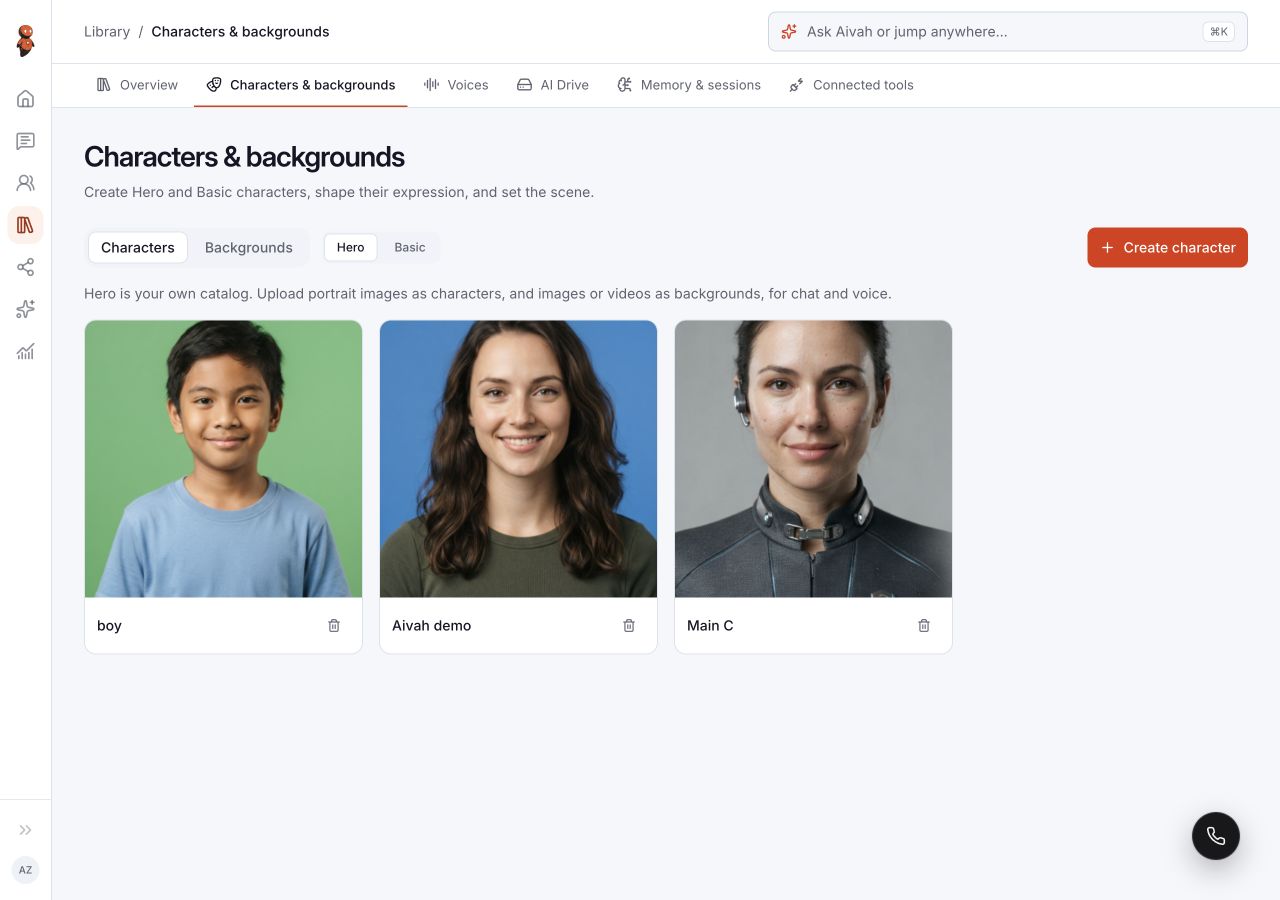
Open Library → Characters & backgrounds. The Characters tab offers Hero and Basic catalogs; Backgrounds is a separate tab. Open an existing character to review it, or choose Create character to prepare a new one.
The character form separates Character prompt from Idle prompt. Review its name, speaking and listening behavior, portrait, and crop before saving.
Give the conversation a role and a voice.
The employee supplies the role, instructions, knowledge, and selected capabilities. The character supplies the visual presence. In Chat, choose the employee, character, model, and voice for the conversation you want to test.
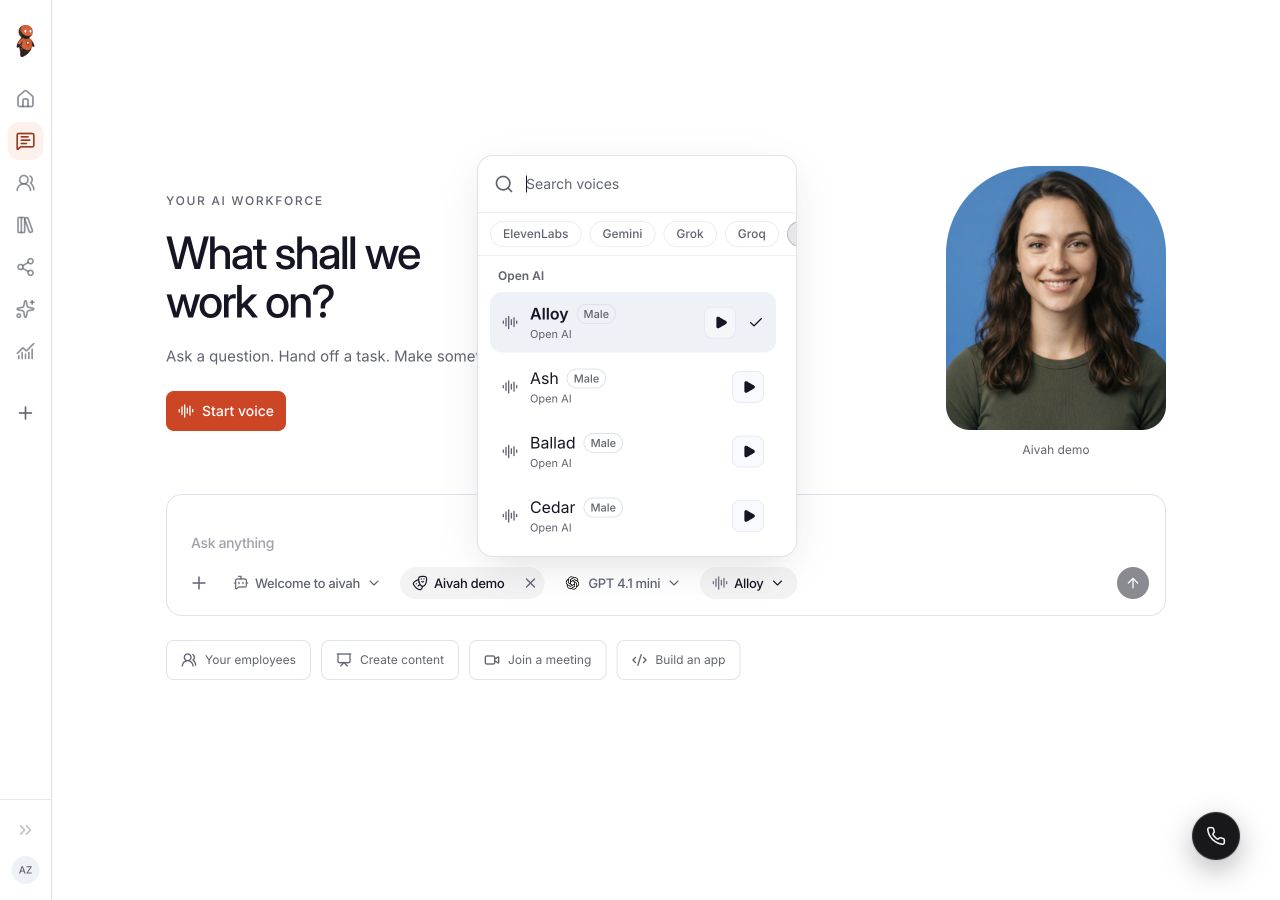
Use Start voice to open the voice view. Check microphone permission and the visible audio controls. Test whether speech is understandable and whether the character helps the task; do not judge the complete experience from a portrait or a voice selection alone.
Test each destination.
For a website destination, open Deploy → Web & embeds → Create experience. Review both Employee & connection and Appearance & interaction. Choose the intended employee and conversation settings for that experience.
Test each destination separately. A character or voice selected in one conversation does not establish the settings, knowledge quality, permissions, or handoff behavior of another experience.
Use real task questions, a question the employee should not answer, and the path to human help. Measure clarity, task completion, and the quality of the next step.
Continue with Choose characters, backgrounds, and voices and Use a character in Chat and voice view.