
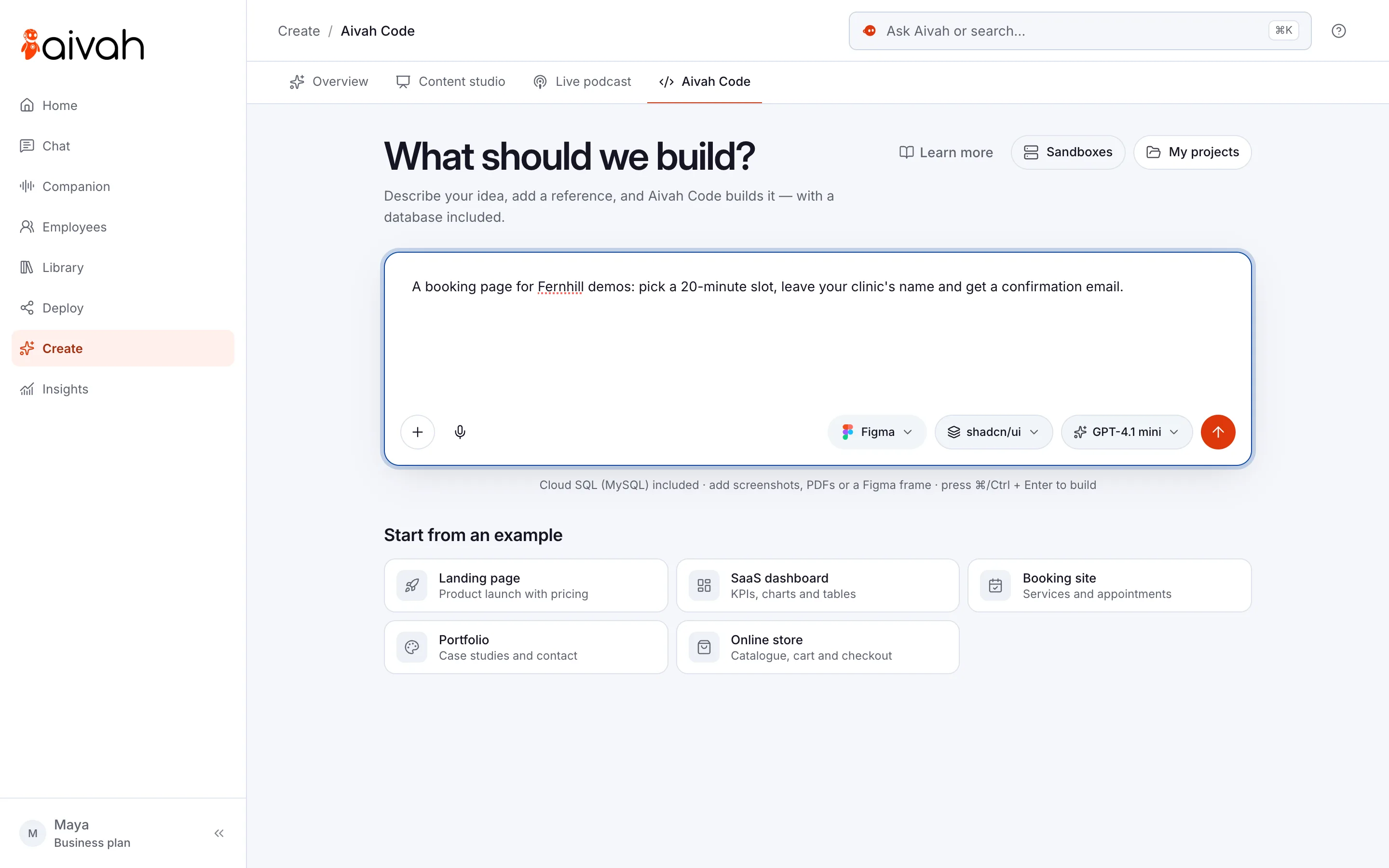
Begin with the product, not the page
A strong build prompt describes the user, the job, the key states and the result. The look matters, but it works best once you know how the product should behave.
Open Create → Aivah Code to write that brief. The start screen has attachments, Figma, a model picker and the build button, next to My projects and Sandboxes.
Prepare the project before you build
A useful brief sets out the main flow, the key empty and error states and the information the app needs. Check those needs before you start. A finished-looking screen doesn’t prove the product works.
- Add useful screenshots, documents or a Figma frame.
- Check the chosen model, and state the result you want clearly.
- Look at the project’s Preview, Code and Environment views as they appear.
- Use the result only once its key flows, and its phone and desktop layouts, are tested.
Take the next step with Aivah Code.
See how projects work, and the product screens, before you start your own build.
Explore Aivah CodeBuild, check, improve
The first working version gives the team something real to decide around. You can test the actual flow, spot missing states and improve from evidence, instead of debating a written spec.
That loop is where AI-assisted building becomes product work. Speed helps because it gives the team more chances to check and improve.