
Building useful AI products with Aivah Code: implementation notes
Prepare a focused product brief, add references, and choose a model in Aivah Code. Inspect the generated work and its preview before relying on the result.
These implementation notes complement our editorial guide. Use the Help Center for detailed product setup.
PRODUCT
Begin with the product, not the page.
A strong build prompt describes the user, the job, the important screens, and the outcome. Visual direction becomes more useful when the product behavior is clear.
Open Create → Aivah Code. The start screen asks What should we build? Use that space to describe one complete workflow, including its mobile behavior and the states a person should see when information is missing or an action fails.
For example: “Build a cafe menu site with category filters, readable prices, and a contact page. Use fictional menu items and make the navigation work on a phone.”
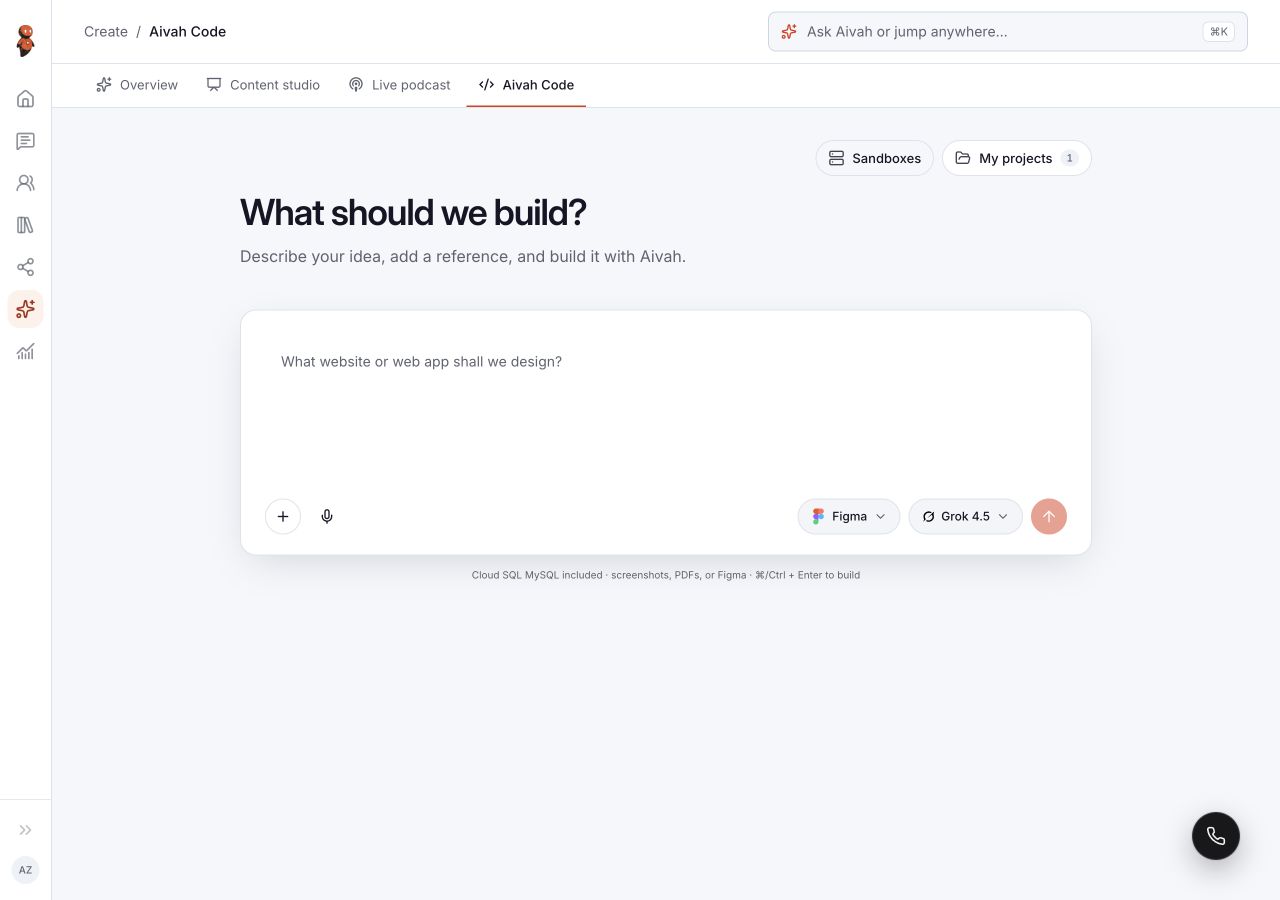
Prepare the build.
- Separate required pages and behavior from optional visual polish.
- Use Attach screenshots or PDFs for references offered by the form. Explain which parts should guide the result.
- Review Figma integration if your design references use Figma. Connecting a service is a separate setup step.
- Choose the model and review the visible selection and current usage information.
- Read the final brief before choosing Build now, then follow the displayed progress.
Build, inspect, improve.
Return through My projects to inspect existing work. The project workspace separates Preview, Code, and Environment. Check the project name before entering a new instruction.
Open the actual preview and exercise the primary workflow at desktop and phone widths. A project or sandbox status alone does not confirm that its preview is reachable. If the preview fails to load, resolve that state before assessing the generated interface.
When a brief calls for a database, authentication, an integration, or publication, treat each as a separate requirement to implement and verify. A visible project or a polished screen does not establish that its backend or deployment is ready.
Refine one issue at a time, then repeat the affected check. Keep fictional data in early examples, and keep credentials out of the brief and project conversation.
Continue with Start an Aivah Code project and Inspect and refine the project.