
Overview
Knowledge-base and Presenter agents overview
What is an Agent?
An agent is a chatbot bound to a knowledge base. Think of it as the brain – the avatar, character, voice, and integrations are how it speaks to the world.
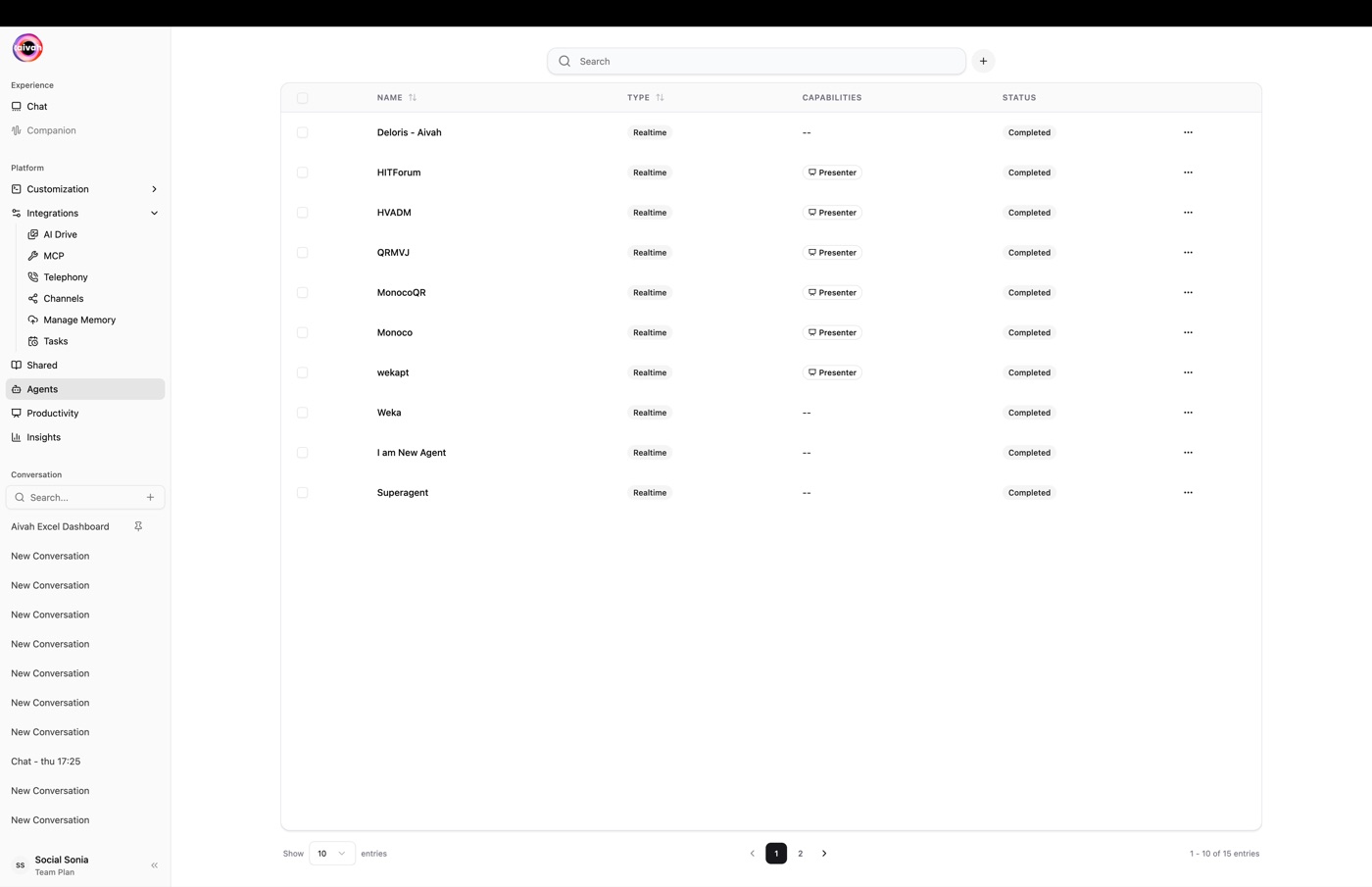
Open Agents from the side navigation (/agents) to:
- See every agent your account owns, with live training status badges.
- Search by name and refresh the list while training is in progress.
- Create a new agent with the Plus button.
- Open any row to view documents, retry failed sources, edit content, or quiz an agent that has Q&A baked into it.
Agent capabilities
When you create an agent you pick between two capability profiles:
| Profile | Content accepted | Notable features |
|---|---|---|
| Knowledge base (default) | URLs, documents, text, audio, video, images | RAG-grounded answers, MCP tools, real-time voice, multi-modal |
| Presenter | A single PDF or a single video | Slide-aligned answers, in-chat Quiz overlay, presentation scenes |
The legacy term Knowledge Agent maps to a knowledge-base agent; Presentation Agent maps to a presenter. The two are the same product surface with a single Presenter toggle that flips behavior.
When you add or change content, Aivah automatically trains the agent, making the information immediately available for user interactions.
Automatically trained agents with your documents, URLs, and text content
Enable live, conversational experiences with instant responses
Handle text, images, and multimedia content based on your plan
Share via links, embeds, or integrate into your applications
Key Benefits
Instant Expertise
Your agent becomes an expert on your specific content, providing accurate answers based on your knowledge base rather than general information.
Always Available
24/7 availability means your knowledge is accessible whenever users need it, without human intervention.
Scalable Support
Handle unlimited simultaneous conversations without adding staff or resources.
Consistent Responses
Ensure consistent, accurate information delivery across all interactions.
Common Use Cases
- Customer Support: Answer FAQs and provide product information
- Internal Knowledge: Help teams access company procedures and documentation
- Educational Content: Create interactive learning experiences
- Sales Support: Provide product details and answer prospect questions
- Content Presentation: Transform documents into interactive experiences
Agent status colours
The agents list shows a status badge on every row that reflects the training pipeline:
| Status | Meaning |
|---|---|
pending / processing | The agent is being trained. The list polls every 10 seconds and a Refresh icon appears automatically. |
completed | Ready to chat. |
failed | Training failed – click Retry to restart, or open the agent to retry an individual source. |
Getting Started
Ready to create your first agent? Follow these steps:
- Understand Agent Types - Choose between a knowledge-base agent and a presenter
- Create Your Agent - Set up and configure your agent
- Add Knowledge - Upload your content (automatically trained by Aivah)
- Configure Settings - Set up real-time features and behavior
- Build a Presenter - Turn a single PDF or video into a guided slide-aligned experience
Once you create your agent and add content, you can always expand its knowledge using the Add document button in your agent settings – Aivah automatically retrains it with any new information you provide.