
AI Drive
Manage generated images, videos, slides, documents, and web results from your agents
AI Drive Integration
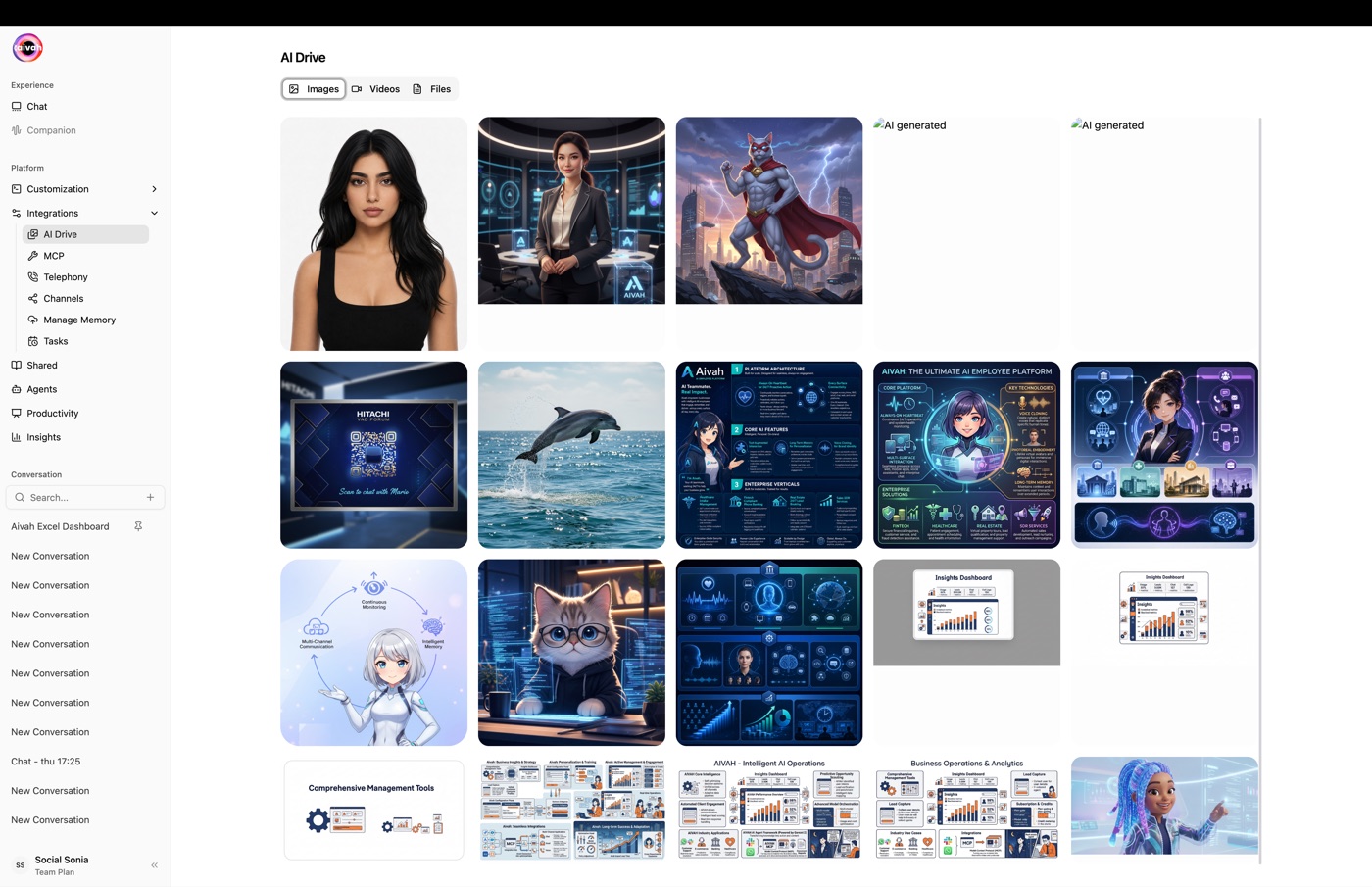
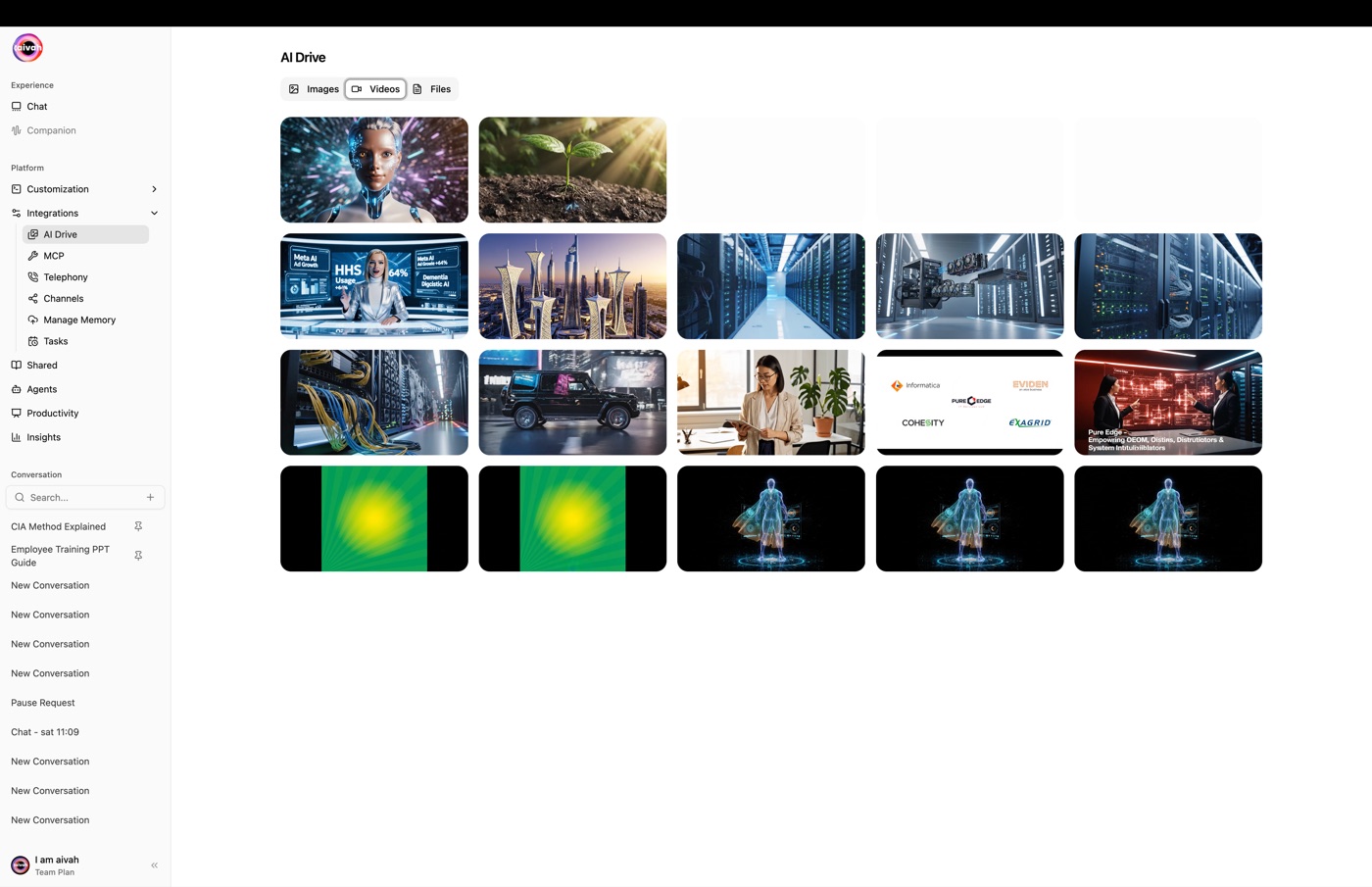
AI Drive automatically stores every image, video, slide deck, document, and web result your agents create through the Hub and Productivity workspaces. Use it as a central media library to preview, filter, and download assets whenever you need them.
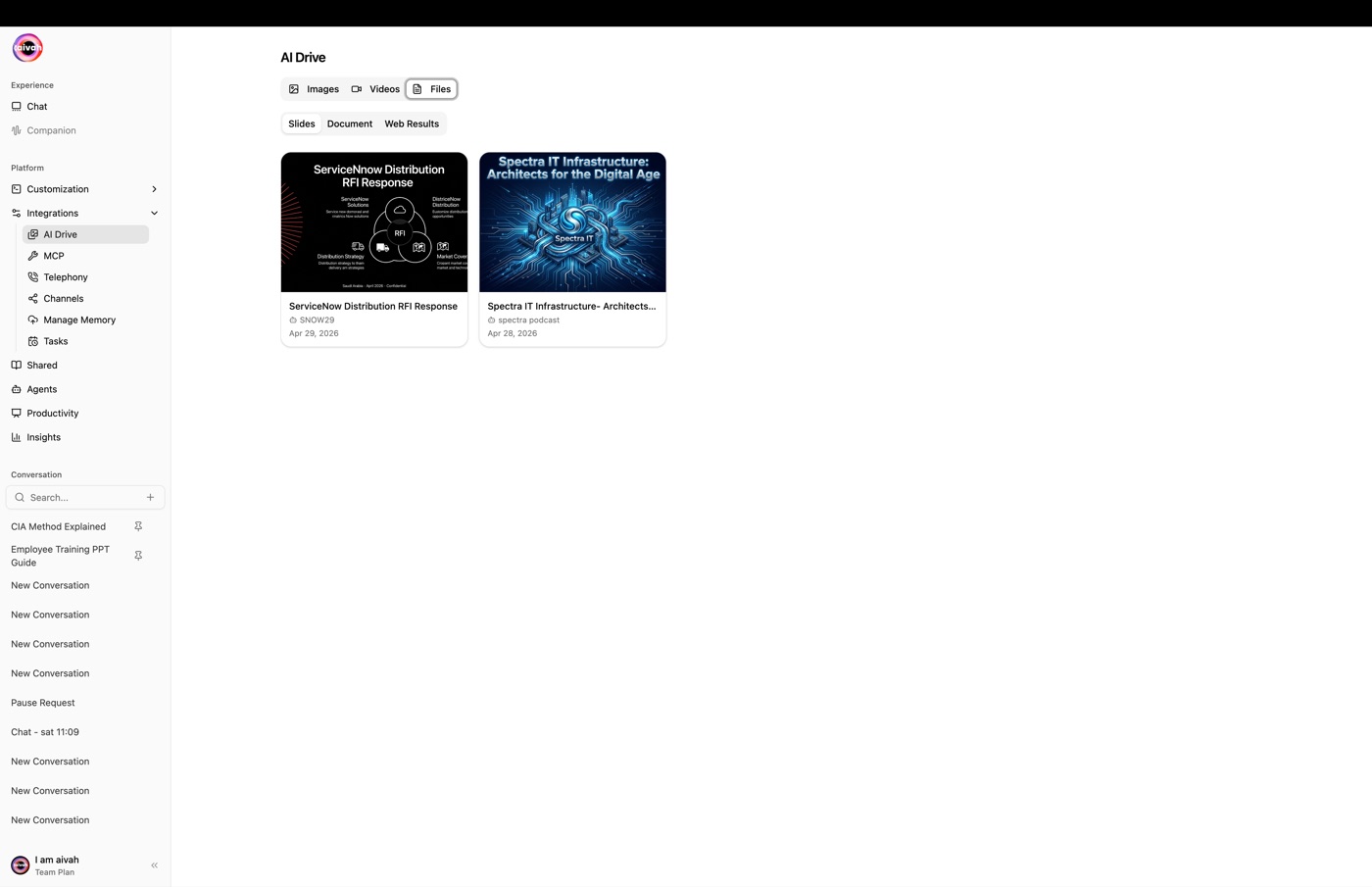
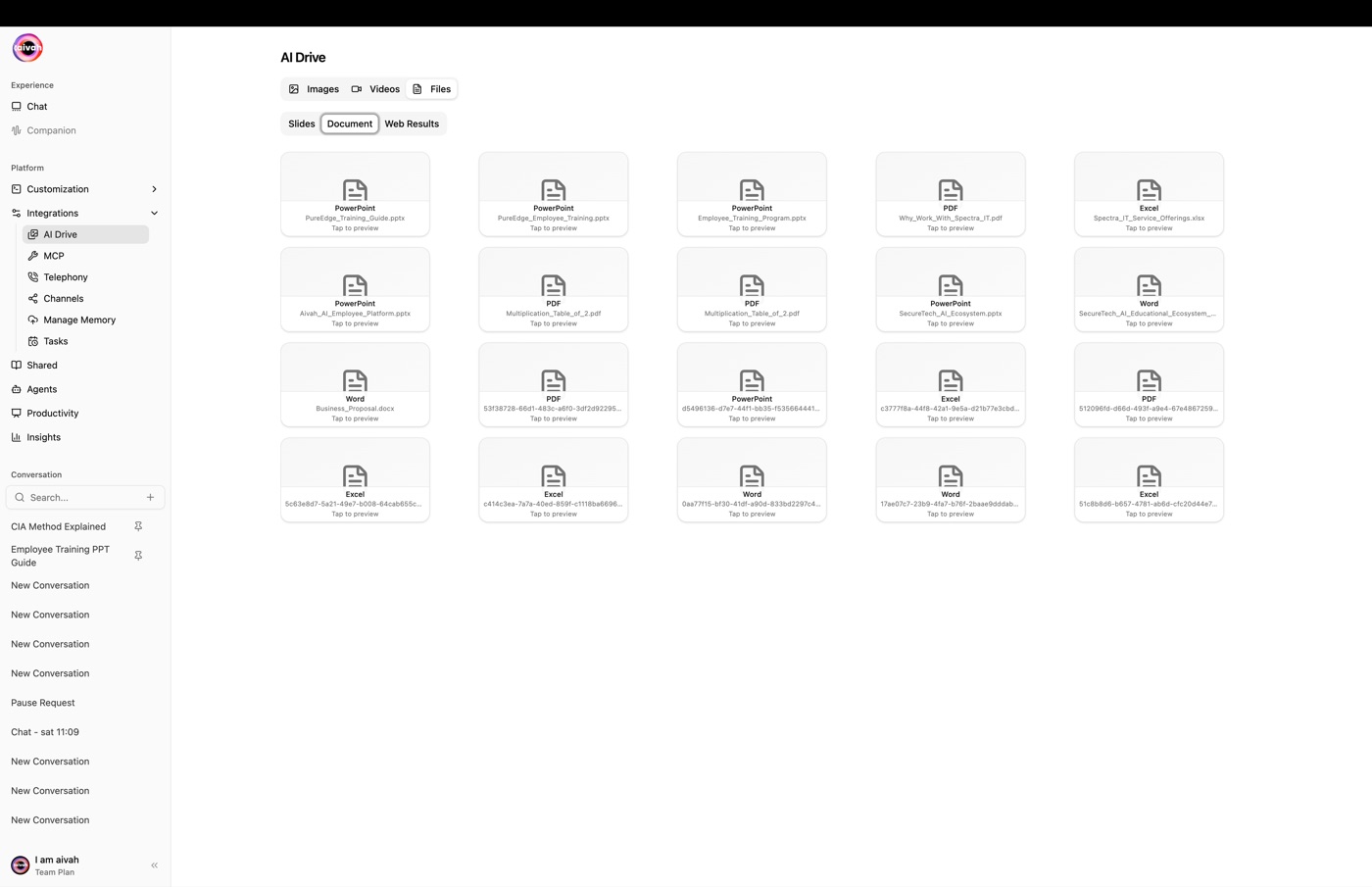
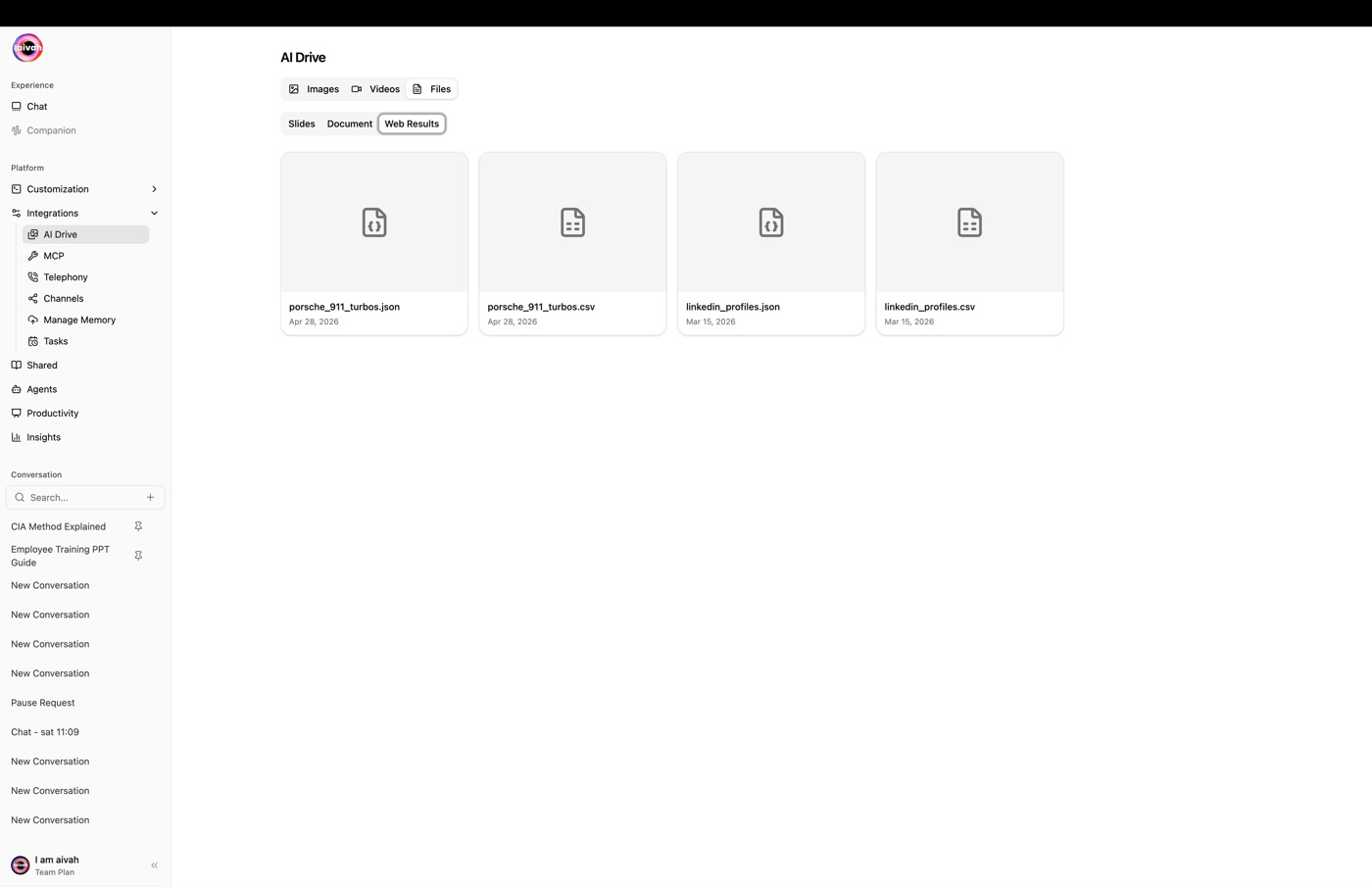
The library is organised by Images, Videos, and Files at the top, with sub-tabs for Slides, Document, and Web Results inside the Files view.
Generate Media from the Hub
Follow these quick steps to produce new assets before reviewing them in AI Drive:
- Choose Agent & Model
Open the Hub, click the gear icon, and confirm the persona, LLM, and voice you want to use.
- Prompt an Image
Type your image request in the scene input bar (e.g., “Create an image of a futuristic city skyline at night”) and press Enter.
- Create a Video
Once the image appears in chat, ask the agent to “Generate a short video based on this image.” The clip is delivered back in the conversation.
- Verify in Chat
Each response includes a thumbnail (for images) or an inline player (for videos) so you can confirm the output immediately.
Access AI Drive
- Open Integrations
From the top navigation of the dashboard, click Integrations.
- Select AI Drive
Choose AI Drive in the left sidebar to load the media library.
The AI Drive page lists every generated asset with its creation date and media type icon.
Filter, Preview, and Download
- Top tabs: Switch between Images, Videos, and Files to focus on a specific asset type.
- Sub-tabs under Files: Drill into Slides, Document, or Web Results.
- Infinite scroll: More items load automatically as you scroll.
- Preview: Click any tile to open a larger preview before sharing.
- Download: Use the download button to save files locally or distribute them to your team.
- Auto file-type icons: Image, video, PDF, JSON, spreadsheet, and generic file icons make it easy to scan the grid.
Best Practices
- Name in prompt: Include descriptive details in your prompt so it’s easier to identify assets later.
- Version tracking: Note timestamps or add context in the chat when you generate variations.
- Library cleanup: Periodically remove outdated assets to keep AI Drive organized.
Troubleshooting
- Asset missing? Refresh AI Drive; generation may still be processing. Large videos can take a moment to appear.
- Download issues? Ensure pop-ups/downloads are allowed in your browser and retry.
- Need edits? Return to the Hub chat, refine your prompt, and regenerate the media—AI Drive will reflect the new asset automatically.